Workstreams hub
Business Summary: The workstreams hub is your command center for every scoped goal — active runs, completed outcomes, and archived history.
Open Workstreams in the sidebar to see every initiative in one place. The hub answers which goals exist and what state they are in — active, completed, or archived. For run-level lifecycle columns and badge triage across all workstreams, open Process Board under Collaboration.
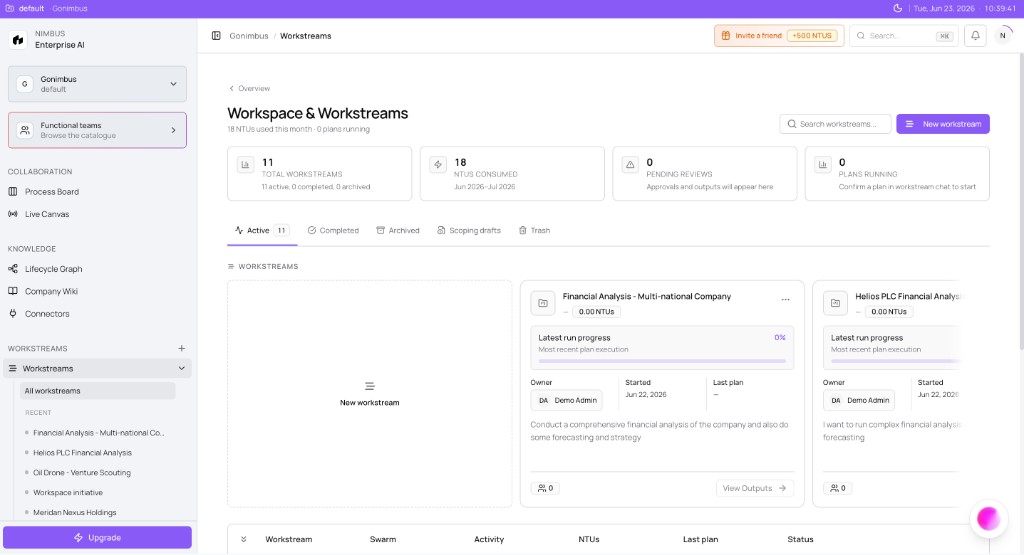
What you'll see:
- Header Workspace & Workstreams
- Summary cards: Total Workstreams, NTUs Consumed, Pending Reviews, Plans Running
- Purple New workstream button (top right)
- Tabs: Active, Completed, Archived
Orient on the hub
- Open Workstreams from the sidebar.
- Read the header Workspace & Workstreams and scan the four summary cards at the top.
- Check Total Workstreams — how many goals are in flight across the workspace.
- Check NTUs Consumed — cumulative Nimbus Token Unit spend across governed runs this period.
- Check Pending Reviews — if non-zero, at least one workstream has a checkpoint in HITL review.
- Check Plans Running — governed runs currently executing after Confirm & run.
- Confirm you are on the Active tab (default) to see in-progress workstreams.
- Click a workstream card to open the workstream workspace — workstream chat, collaboration rail, and Outputs.
- Use Completed or Archived tabs when you need historical outcomes or retired goals.
- If Active is empty, click New workstream and complete the Perception wizard in one session — see Creating a workstream.
Start a new workstream
- Click the purple New workstream button (top right on the hub).
- The Perception console opens with a NEW WORKSTREAM badge — see Creating a workstream.
- Complete the wizard: Workstream name, Primary goal, Add collaborators…, connector toggles.
- Click Create workstream — you land in workstream chat in Analyze mode by default.
- Return to the hub — the new workstream appears on the Active tab and summary cards update.
Hub tabs explained
Active tab
Active workstreams are goals in progress. Each card shows the workstream name, status indicators, and links to the workspace. Cards may surface Pending Reviews badges when HITL checkpoints wait for sign-off. For cross-workstream run history and lifecycle columns (Plan → Run → Reports → Review → Committed), open Process Board.
Completed and Archived tabs
Completed workstreams retain outputs, activity, and decision history — useful when you need last quarter's board pack or audit trail without cluttering daily triage. Archived workstreams are retired from day-to-day lists but kept for compliance. Neither tab deletes operating memory; events remain in Audit & History and the Lifecycle Graph.
Summary cards — what each metric means
The four cards at the top translate platform activity into operator signals you can act on during morning triage.
| Card | What it tells you | Typical next step |
|---|---|---|
| Total Workstreams | How many goals exist across Active, Completed, and Archived | Click New workstream if the count is zero for your team |
| NTUs Consumed | Organization usage against your plan this period | Click the header NTU meter or open Settings → Usage & Billing if spend is trending high |
| Pending Reviews | HITL checkpoints waiting for an approver | Open flagged workstreams and clear HITL review on the collaboration rail |
| Plans Running | Governed Plan-mode executions in progress | Monitor long runs; check Process Board for stalled badges |
Cards refresh when you return to the hub. For run-level detail beyond goal counts, use Process Board or Overview Workstream status.
How this fits in Nimbus
flowchart TB
  Hub[Workstreams hub]
  Active[Active workstreams]
  Completed[Completed]
  Archived[Archived]
  Workspace[Workstream workspace]

  Hub --> Active
  Hub --> Completed
  Hub --> Archived
  Active --> Workspace
The hub sits at the center of the Workstreams section. Connectors feed data from the Connectors overview; functional teams are assigned from the . Morning triage often starts on Overview, then narrows to specific cards here.
Example scenarios
CFO — Monday approval sweep
A CFO opens Workstreams on Monday before her leadership meeting. Summary cards show three active workstreams, 420 NTUs consumed, and Pending Reviews: 1. She clicks the flagged workstream card, opens HITL review on the collaboration rail, and signs off on a variance report. She returns to the hub — the pending badge clears and Pending Reviews drops to zero. She opens a second active workstream to check Plans Running before delegating follow-up to FP&A.
Operations analyst — first workstream from the hub
An operations analyst opens Workstreams and sees an empty Active tab. She clicks New workstream, completes the Perception wizard — names the goal Pipeline hygiene Q2, adds her manager via Add collaborators…, toggles HubSpot and Xero connectors, and clicks Create workstream. The workstream appears on Active; she starts in Analyze mode with @ to query both connectors — see Workstream chat modes.
FAQs {#faqs}
Q: How do I start a new workstream from the hub? A: Click New workstream and complete the Perception wizard — see Creating a workstream and the Workstreams overview.
Q: What does a pending review on a card mean? A: A checkpoint is waiting in HITL review — open the workstream collaboration rail. See Checkpoints and approvals and Workstream chat modes — Collaboration rail.
Q: Why is my hub empty? A: Click New workstream and complete the Perception wizard — see Creating a workstream.
Q: How is the hub different from Process Board? A: The hub lists goals by status with summary cards. Process Board shows lifecycle columns and per-run badges across all workstreams.
Q: Can I archive a completed workstream from the hub? A: Complete the goal first, then use workstream settings to archive. Archived entries appear on the Archived tab.
Q: What does Plans Running count? A: Governed runs executing after Confirm & run in Plan mode — not casual Analyze chat.
Q: Where do I assign or change an agent? A: During Perception scoping or in Workstream settings. Browse teams first in .