Collaboration
Business Summary: Collaboration surfaces show where every workstream stands in its lifecycle and give you a shared canvas to iterate on formal reports — so operators and executives can triage status and refine deliverables without losing context.
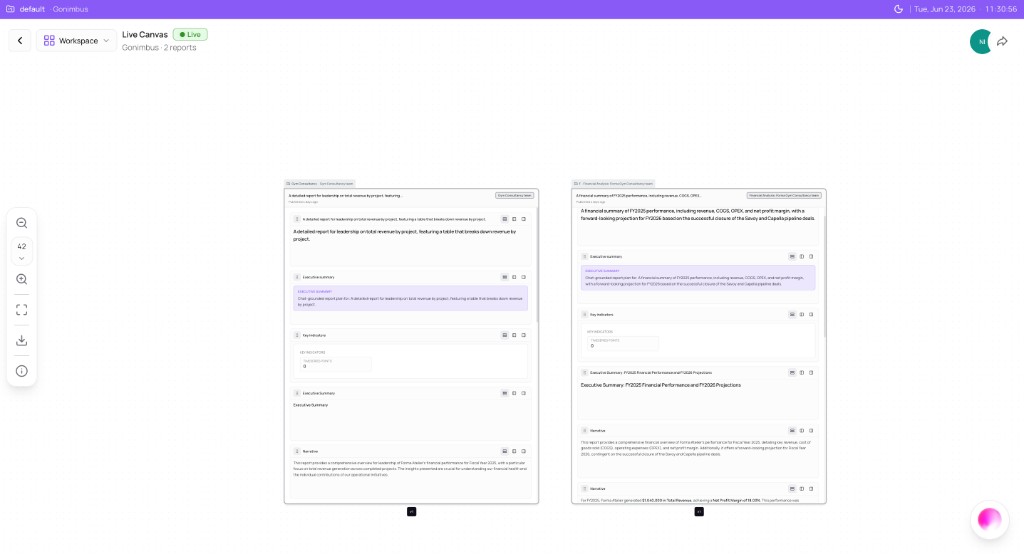
Open Collaboration in the sidebar for Process Board (cross-workstream lifecycle) and Live Canvas (multi-report editing).
On this page
- Start here — task guides
- How this fits in Nimbus
- Process Board and Live Canvas together
- Example scenario
- FAQs
How this fits in Nimbus
Workstreams are where agents run. Collaboration sits above individual workspaces:
flowchart LR
  WS[Workstream Reports mode]
  PB[Process Board]
  LC[Live Canvas]
  Audit[Audit and History]

  WS --> PB
  WS --> LC
  PB --> LC
  LC --> Audit
Start here {#start-here}
| Goal | Guide |
|---|---|
| Scan all workstreams and run history | Using the Process Board |
| Combine and edit board reports | Using Live Canvas |
Process Board and Live Canvas together {#process-board-and-live-canvas-together}
Operators and executives get the most value when they treat Process Board and Live Canvas as one workflow: triage on the board, act in the workstream, refine on the canvas, sign off through governance, then confirm completion back on the board.
flowchart TB
  subgraph triage [Morning triage]
    Overview[Overview dashboard]
    PB[Process Board]
  end

  subgraph execute [Execution]
    WS[Workstream workspace]
    Plan[Confirm plan]
    Run[Governed run]
  end

  subgraph deliver [Deliverable]
    Reports[Reports mode]
    LC[Live Canvas]
    HITL[HITL review]
    Review[Review and Committed]
  end

  Overview --> PB
  PB -->|stuck in Plan| WS
  WS --> Plan
  Plan --> Run
  Run --> Reports
  Reports --> LC
  LC --> HITL
  HITL --> Review
  Review --> PB
Phase 1 — Triage (Process Board)
- Open Overview for pending approval counts and active workstream summary.
- Open Process Board under Collaboration.
- Scan for workstreams with Run in progress, Reports pending, or Review awaiting action.
- Expand rows with multiple runs to see which execution trail needs attention.
Phase 2 — Execute (workstream workspace)
- Click the Plan or Run cell for the workstream you flagged.
- In the workstream workspace, use workstream chat — Plan or Analyze mode as appropriate.
- Confirm & run when the agent presents a run plan; monitor NTU quote and HITL checkpoints.
- When the run completes, check Outputs and Activity for landed artifacts.
Phase 3 — Publish report (Reports mode → Live Canvas)
- Switch to Reports mode in workstream chat.
- Ask for a structured deliverable (board pack, executive summary, leadership report).
- Confirm the report preview card when it appears.
- On generate, open the artifact — Process Board Reports cell updates to Report available; click through to Live Canvas.
Why Live Canvas here: The report describes the plan so everyone can review and sign off on HITL. Once approvers accept the plan on canvas, downstream Actions in the plan (ERP updates, connector writes, etc.) may proceed per governance settings.
Phase 4 — Collaborate and approve (Live Canvas)
- Review blocks on the canvas; compare v1 and v2 if multiple revisions exist.
- Use board chat for presentation-layer edits.
- Share Live Canvas with approvers.
- Approvers act on Awaiting Live Canvas approval when HITL applies.
Phase 5 — Confirm completion (Process Board)
- Return to Process Board and refresh.
- Verify Review and Committed columns reflect approval.
- Use Audit & History or workstream Activity for the durable record.
Also linked from Workstream chat modes (Reports mode) and Overview (Workstream status tab).
Role-based shortcuts
| Role | Start here | Primary action | Finish here |
|---|---|---|---|
| Operator / analyst | Process Board | Open Run cell → execute in workstream | Reports cell → Live Canvas revision |
| Team lead | Process Board | Expand runs, delete stale trails | Share canvas with stakeholders |
| CFO / approver | Overview pending approvals | Open review link or Live Canvas | Approve banner; check Committed column |
| Compliance | Audit & History | Trace from committed cell | Export approved Outputs |
When to stay in the workstream instead
Not every stage needs Live Canvas:
- Exploratory analysis — stay in Analyze mode; outputs land in Outputs tab
- Connector actions — Action mode and Process Board Actions column
- Quick checkpoints — HITL cards in chat without a formal report
Use Live Canvas when the deliverable is a structured report meant for leadership or audit — not for every chart or SQL result.
Example scenario
Monday: Ops opens Process Board — Gym Consultancy workstream shows Run completed, Reports pending. She opens the workstream, switches to Reports mode, generates a leadership summary. Live Canvas opens with v1.
Tuesday: CFO receives share link, requests OPEX detail via board chat → v2. HITL banner appears.
Wednesday: CFO approves. Process Board shows Review complete and Committed populated. Audit & History records the output event.
FAQs {#faqs}
Q: Do I need Collaboration for every workstream? A: No. Use it when you manage multiple concurrent workstreams or need formal multi-report board packs.
Q: Where do reports originate? A: Workstream Plan and Reports modes — see Workstream chat modes.
Q: Can I query Process Board status from Perception? A: Yes — the Perception orb queries the same lifecycle graph that powers the board.
Q: Can I jump from Live Canvas back to Process Board? A: Yes. Use browser back, sidebar Process Board, or View lineage from the board menu to see graph context.
Q: Why does Process Board still show Reports pending after I generated a report? A: Refresh the board. If status persists, the artifact may not have published to the lifecycle trail — check workstream Outputs and retry Reports mode generate.
Q: Where do committed reports live after approval? A: In operating memory — workstream Outputs, Lifecycle Graph nodes, and Audit & History events.
Q: Can I run this workflow without Process Board? A: Yes. Follow the same phases inside each workstream workspace (workstream chat → Reports → Outputs → approval). Process Board adds cross-workstream visibility.