Workstream chat modes
Business Summary: Workstream chat is where you run Analyze, Action, Plan, and Reports inside a committed goal — with the collaboration rail on the right so the whole team can monitor plans, reports, evidence, and approvals. Your chat threads stay private to you; teammates see governed outcomes on the rail and in Outputs / Activity.
When you open a workstream you land in Analyze by default — explore data with charts and commentary, then move to Plan or Reports for governed deliverables, or Action to push approved results downstream.
Each mode shapes what tools run, whether a Confirm & run card appears, and whether human approval is required. Modes live in the workstream chat composer — not in the Perception orb (workspace-wide exploration).
On this page
- Pick a mode
- What each mode produces
- Attach context with @
- Analyze, Action, Plan, and Reports
- Private chat vs shared work
- Collaboration rail
- Runtime view
- Settings vs rail vs tabs
- Choosing the right mode
- Example scenarios
- FAQs
Pick a mode
- Open your workstream from the Workstreams hub Active tab.
- Confirm you are in workstream chat (main canvas on the left) — not Settings (gear icon).
- Locate NEW CHAT with the Workstream goal input; the mode button should show Analyze (default after Create workstream).
- Click Analyze to open the picker — read subtitles for Analyze, Action, Plan, Reports.
- Select the mode that matches your intent — do not use Plan for a quick chart question.
- Type a prompt in Workstream goal or the message composer.
- Optional: type
@to attach Wiki or Connectors — see Attach context with @. - For Plan, wait for the Review plan card — review NTU quote and click Confirm & run.
- For Reports, ensure a prior Plan run completed so outputs exist to synthesize.
- Expand the collaboration rail on the right to monitor plans, reports, and HITL review.
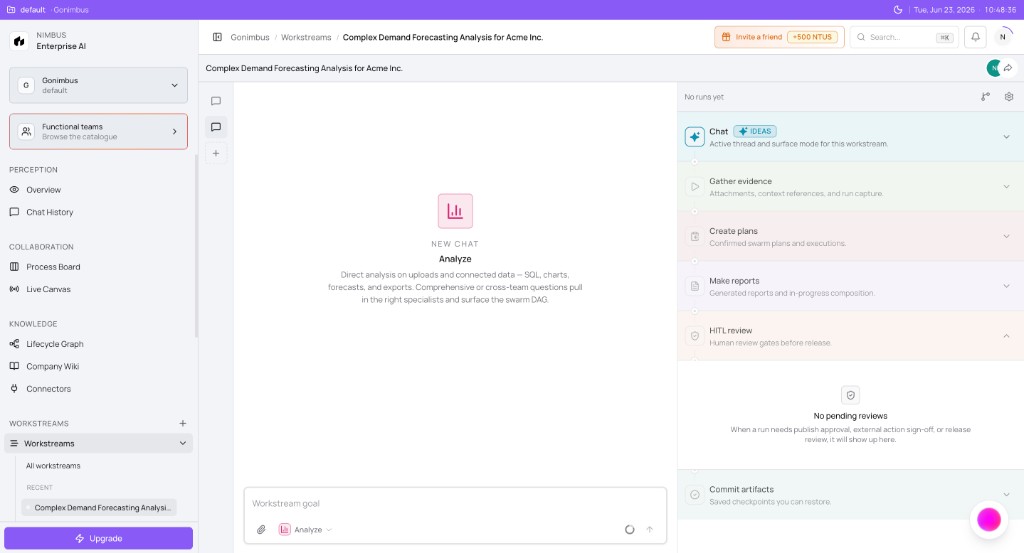
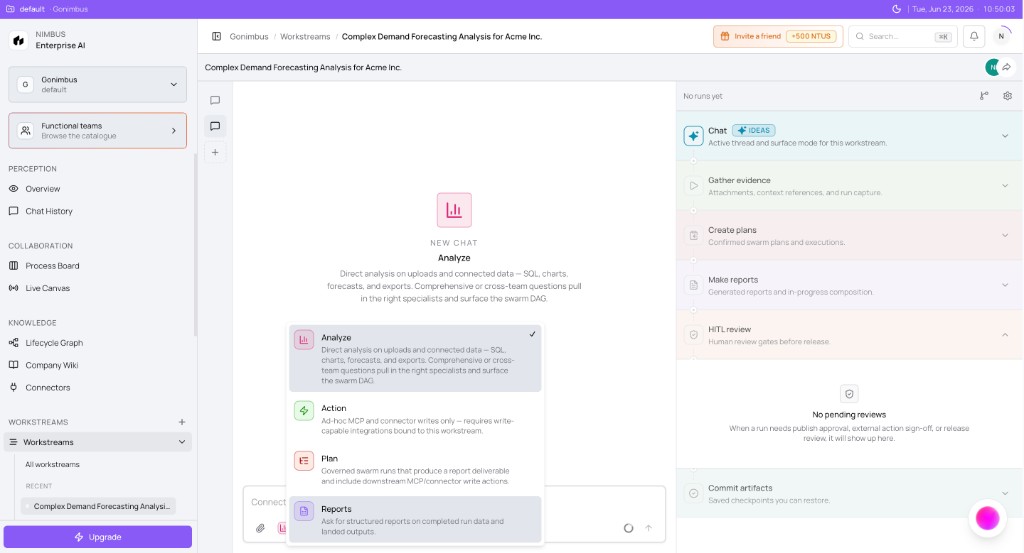
What you'll see in the mode picker:
| Mode | Subtitle (from UI) |
|---|---|
| Analyze | Personal chat on uploads and connected data |
| Action | Ad-hoc MCP writes to connectors |
| Plan | Governed agent run with report deliverable |
| Reports | Structured reports from completed run outputs |
What each mode produces
| Mode | Produces | Where it lands |
|---|---|---|
| Analyze | Charts, SQL answers, forecasts, exports | Your private chat thread; saved artifacts appear on the rail and Outputs |
| Action | Connector writes (Slack, Drive, etc.) | External system after admin approval |
| Plan | Governed run + report outline | Rail Create plans, Deliverables, Outputs |
| Reports | Board packs, exec summaries | Outputs tab, rail Make reports, Live Canvas |
Attach context with @
Type @ in the chat composer to attach Wiki documents or Connectors bound to this workstream — without leaving the conversation.
- Type
@in the message box. - Read the ATTACH CONTEXT menu; use Search connectors and wiki…
- Choose Wiki — Search workspace and vault documents.
- Choose Connectors — Attach connectors from the catalog.
- Click the paperclip icon to attach local files.
- Send your prompt in Analyze (or another mode).
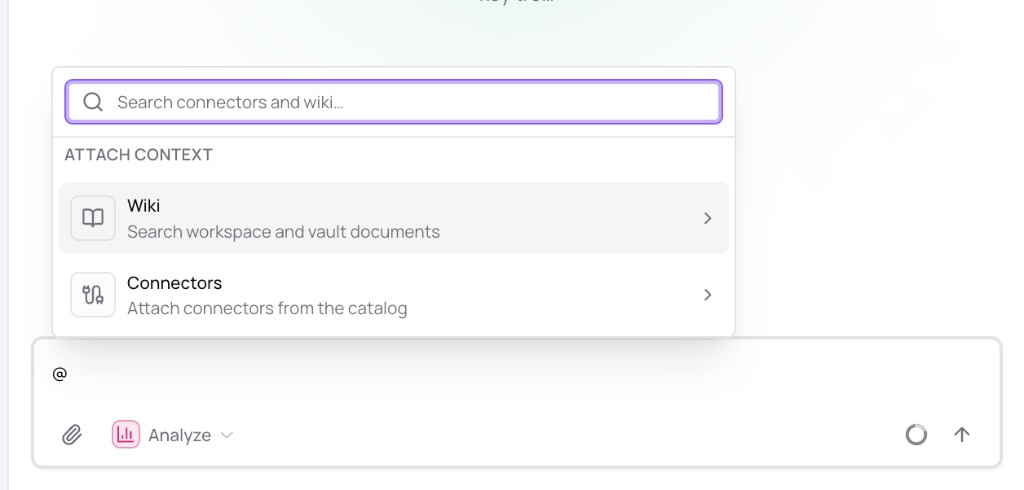
See Connecting a connector and Connectors and the Wiki.
Multi-source example: Attach HubSpot for pipeline data and Xero (or QuickBooks) for accounting actuals in the same prompt — then ask for a forecast that combines closed-won history with open pipeline by quarter.
Analyze mode
Analyze is the default after you Create workstream. Upload CSV or Excel, query connected sources, build charts, and export — inline without a full Confirm & run card.
Typical prompts:
- "Chart revenue by region from the attached spreadsheet"
- "Sample our HubSpot pipeline for deals closing this quarter"
Note: If you see a Run plan card in Analyze, your prompt triggered a governed multi-step run. Switch to Plan mode explicitly or rephrase for inline analysis only.
Action mode
Action executes authorized connector writes — posting to Slack, syncing to Dropbox, or writing back to an ERP.
Requirements:
- At least one write-capable connector bound to this workstream
- Clear write intent in your message
- Configure completed for Action destinations — see Configuring a connector
HITL: Org members (including managers who are not admins) can run Action mode, but Critical downstream writes require admin approval in HITL review on the collaboration rail. A manager may propose a write; an admin must sign off before data leaves Nimbus.
Plan mode
Plan runs governed agent executions. Nimbus drafts steps with report outline and optional downstream writes, then shows a Run plan confirm card with NTU quote and Confirm & run. See .
Reports mode
Reports generates structured report artifacts from completed run outputs — not inline charts alone.
- Complete a Plan mode run (or have landed outputs)
- Switch to Reports
- Confirm to generate the artifact in Outputs
Open the artifact in Live Canvas to combine reports from multiple workstreams.
Private chat vs shared work {#private-chat-vs-shared-work}
Workstreams are collaborative, but workstream chat is private to each user. When you open a workstream, you get your own chat threads in Analyze, Action, Plan, and Reports — teammates do not see your message history.
What is visible to everyone on the workstream team:
| Shared surface | What teammates see |
|---|---|
| Collaboration rail | Plans, reports, gathered evidence, HITL items, committed artifacts |
| Outputs tab | Saved charts, memos, and formal reports |
| Activity tab | Runs, approvals, connector touches, NTU spend |
| HITL review | Pending and resolved approval cards |
When you Confirm & run a Plan, produce a Reports artifact, execute an Action, or pass HITL review, those outcomes land on the rail and in Outputs / Activity — that is the shared record your team collaborates on.
flowchart LR
  subgraph private [Private to you]
    Chat[Workstream chat threads]
  end
  subgraph shared [Visible to workstream team]
    Evidence[Gather evidence]
    Plans[Create plans]
    Reports[Make reports]
    HITL[HITL review]
    Commits[Commit artifacts]
    Outputs[Outputs tab]
    Activity[Activity tab]
  end
  Chat -->|Confirm and run| Evidence
  Evidence --> Plans
  Plans --> Reports
  Reports --> HITL
  HITL --> Commits
For audit and compliance, cite Activity, decision traces, and approved artifacts — not another user's chat thread. See Decision traces vs chat history.
Collaboration rail {#collaboration-rail}
The collaboration rail is the right-hand accordion inside an open workstream. It is not the gear Settings panel. Your private chat drives execution on the left; the rail aggregates team-visible state for operators and approvers.
Use the rail
- Open a workstream from Workstreams → All workstreams or the recent list.
- Confirm workstream chat is visible on the left (default Analyze mode).
- Expand rail sections top to bottom:
- Gather evidence — connector reads, uploads, and wiki citations
- Create plans — governed Plan runs and step outlines
- Make reports — Reports mode artifacts ready for review
- HITL review — human-in-the-loop approvals before external writes
- Commit artifacts — approved outputs ready to publish downstream
- When you expect approvals, expand HITL review first. Pending items show action buttons; an empty queue shows No pending reviews.
| Section | When to use it | Typical contents |
|---|---|---|
| Gather evidence | Confirm data before a governed run | Connector reads, uploads, @ attachments — visible to the team |
| Create plans | Track Plan runs — NTU quotes, confirm cards | Active and completed plan executions |
| Make reports | Review Reports drafts before HITL or Live Canvas | Board memos, charts; link to Live Canvas |
| HITL review | Approve, reject, or request changes | Pending approvals with actor and agent context |
| Commit artifacts | Publish approved outputs downstream | Committed exports after sign-off |
Note: Legacy UI labels may still show Chat + IDEAS on the rail — that section is deprecated. Chat lives in your private composer; the rail sections above are what the team shares.
Note: The rail appears only inside an open workstream. It is not Process Board or Live Canvas under Collaboration in the sidebar — those are cross-workstream surfaces.
HITL review on the rail
When HITL review shows pending items:
- Expand the section and open each pending card.
- Read proposed language and linked evidence in Gather evidence.
- Approve, Reject, or Request changes according to your org role.
- Approved paths may populate Commit artifacts; events appear in Audit & History.
See Checkpoints and approvals and Human-in-the-loop.
Runtime view {#runtime-view}
Open Runtime via the icon left of the gear in the workstream header to see the live orchestration graph in fullscreen.
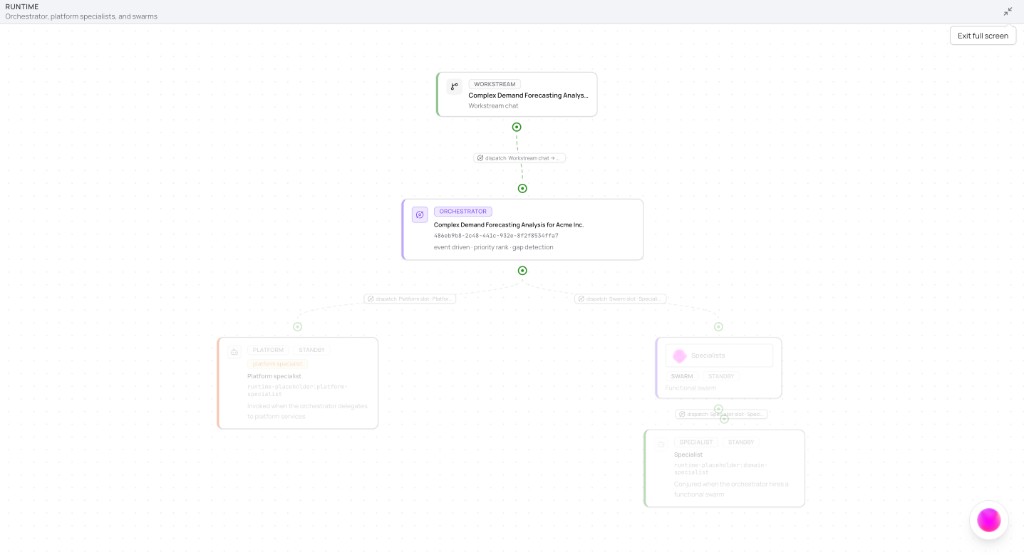
What you'll see:
- Header RUNTIME — Orchestrator, platform specialists, and agents
- Graph flow: WORKSTREAM → ORCHESTRATOR → PLATFORM | STANDBY and SWARM | STANDBY → SPECIALIST | STANDBY
- Green status dots on connections; nodes move from STANDBY to active during Plan runs
During an active Plan run, Runtime shows how the orchestrator routes work. The rail shows what waits for you; Runtime shows how routing happens.
Settings vs rail vs tabs {#settings-vs-rail-vs-tabs}
| Surface | Location | Purpose |
|---|---|---|
| Workstream chat | Main canvas (left) | Analyze, Action, Plan, Reports — private to you |
| Collaboration rail | Right accordion | Team-visible plans, evidence, HITL, commits |
| Settings (gear) | Full-screen modal | Team, Connectors, Governance, Workflow |
| Runtime | Full-screen graph (header) | Orchestrator topology during runs |
| Outputs / Activity | Main tabs | Artifact archive and audit trail |
To add connectors, use Settings → Connectors — not the rail. See Workstream workspace.
Choosing the right mode
| Your need | Use this mode |
|---|---|
| Quick chart or SQL on uploaded data | Analyze |
| Single connector write | Action |
| Multi-step agent run + optional writes | Plan |
| Formal report from completed outputs | Reports |
How this fits in Nimbus
flowchart TB
  Chat[Workstream chat modes]
  Rail[Collaboration rail]
  Runtime[Runtime graph]
  HITL[HITL review]
  Outputs[Outputs tab]
  PB[Process Board]

  Chat --> Rail
  Rail --> HITL
  Rail --> Outputs
  Chat --> Runtime
  Rail --> PB
Example scenarios
Analyst — Analyze then Plan
Maya opens Q3 board pack workstream in Analyze to chart variance from an upload, then switches to Plan for a governed memo. Create plans on the rail shows the active run with NTU quote. Runtime dispatches to SWARM → SPECIALIST. Gather evidence lists connector reads; Make reports populates with the draft.
CFO — HITL approval
Jon opens the same workstream. HITL review shows one pending item — forecast adjustments writing to Xero. He confirms evidence in Gather evidence, approves, and sees the item move to Commit artifacts after admin sign-off. The decision appears in Audit & History.
Strategy lead — Analyze, Plan, Reports, Live Canvas
A strategy lead runs Analyze for market share, Plan for a board narrative, approves at HITL review, then Reports for the executive summary. She opens Live Canvas to merge with Finance output before the board meeting.
FAQs {#faqs}
Q: Can my teammates read my workstream chat? A: No. Chat threads are private to each user. Teammates see plans, agent runs, actions, reports, and rail artifacts — not your message history. See Private chat vs shared work.
Q: What happened to Interact mode? A: Analyze replaced the legacy Interact label as the default workstream chat mode. Use Analyze for exploratory chat on uploads and connected data.
Q: Why did Analyze show a Run plan card? A: Your question triggered a governed multi-step run. Confirm in Plan mode or rephrase for inline analysis only.
Q: Can I use Action mode without approvals? A: External writes require Critical HITL when governance is enabled. Only admins approve Critical writes.
Q: Reports mode says I need a new run — why? A: Reports synthesize from completed run outputs. Run Plan mode first.
Q: Where do I see pending approvals? A: HITL review on the collaboration rail — see Checkpoints and approvals.
Q: Is Settings the same as the collaboration rail? A: No. Settings configures team and connectors. The rail monitors execution during chat.
Q: Why is Runtime showing STANDBY everywhere? A: Slots stay STANDBY until a Plan run dispatches. Idle workstreams show the placeholder graph.
Q: Does the rail replace Process Board? A: No. The rail is per workstream. Process Board shows all workstreams in lifecycle columns.
Q: Does Perception mode exist in workstream chat? A: Perception uses the orb or desktop app — committed workstreams use Analyze, Plan, Action, and Reports.
Q: What are NTU quotes tied to? A: Primarily Plan mode governed runs on the Confirm & run card.
Q: Can I open Live Canvas from the rail? A: Open report artifacts from Make reports or use Reports mode; portfolio editing happens in Live Canvas.