Creating a workspace
Business Summary: Creating a workspace gives you a fresh Nimbus environment inside your organization — a blank canvas for a new initiative, pilot, or business unit without mixing workstreams, runs, or lifecycle graph data with your existing workspace.
You will learn when to create a separate workspace, how to open the workspace switcher, and what a new workspace includes on day one.
Organization vs workspace
Your organization is the company tenant — billing, members, and org-wide connectors. A workspace is a scoped environment inside that organization. Each workspace has its own Overview, workstreams, Process Board, and Lifecycle Graph views.
| Layer | What it owns | Example |
|---|---|---|
| Organization | Billing, members, Company Wiki vaults, shared connectors | Your organization |
| Workspace | Workstreams, agent runs, lifecycle graph growth, Process Board | default, Hamiltons Chocolates |
Use multiple workspaces when you need a clean slate — for example a pilot sandbox, a subsidiary brand, or a department that should not share workstream history with the rest of the org.
Open the workspace switcher
- Look at the top of the sidebar — below the Nimbus logo.
- Click the organization / workspace card (it shows your current workspace name, for example Your org · default).
- The dropdown lists your organization, all workspaces you can access, + New workspace, and Workspace settings.
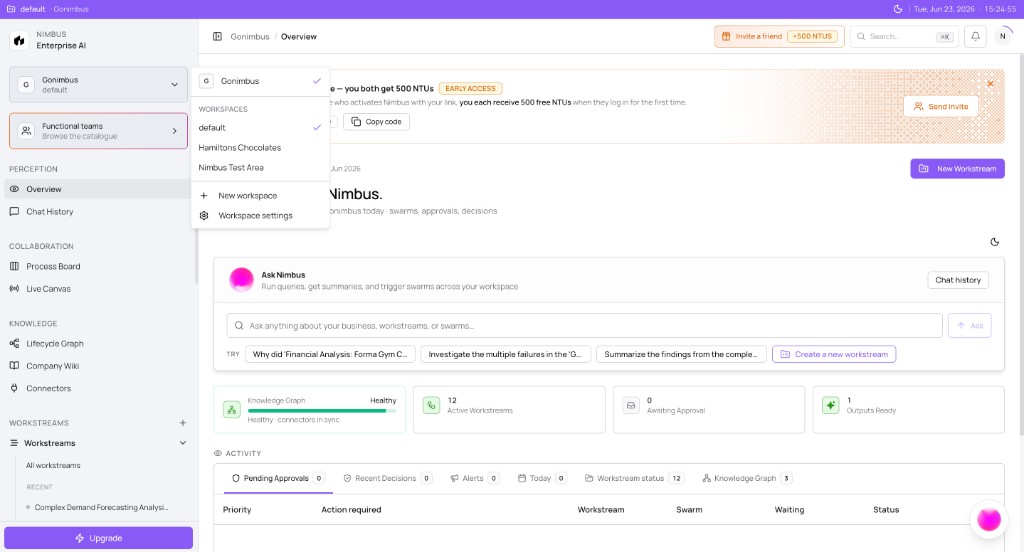
What you'll see: Your organization name at the top, a WORKSPACES list with a checkmark on the active workspace, + New workspace at the bottom, and Workspace settings with a gear icon.
Create a new workspace
- Open the workspace switcher (steps above).
- Click + New workspace.
- Complete the New workspace wizard — three steps:
flowchart LR
  W1[1 Name and description]
  W2[2 Teams optional]
  W3[3 Review and create]

  W1 --> W2 --> W3
Step 1 — Name and description
- Enter a Workspace name (at least two characters) — for example Finance operations or Q3 pilot.
- Optionally add a Description explaining what this workspace is for.
- Choose a Locale for date and number formatting.
- Click Continue.
Step 2 — Teams (optional)
- Add workspace-specific teams if you want approver groups scoped to this environment.
- Or rely on shared org teams that are available across all workspaces — you do not need new teams to finish creation.
- Click Continue when ready.
Step 3 — Review and create
- Review the workspace name, description, locale, and any teams you added.
- Check the confirmation box: Create this workspace and switch me into it.
- Click Create workspace.
Nimbus creates the workspace and switches you into it automatically.
The new workspace is only visible to members you explicitly invite — it is not shared across your whole organization automatically. Org-wide surfaces such as Company Wiki and Connectors remain available; workstream and graph data start empty in the new workspace.
What you get — a blank canvas
A new workspace starts empty. Think of it as a fresh Nimbus instance scoped to your organization:
| Area | In the new workspace |
|---|---|
| Overview | Empty readiness cards and no workstream history |
| Workstreams | No workstreams until you create them — see Creating a workstream |
| Process Board / Live Canvas | Empty until workstreams exist |
| Lifecycle Graph | Fresh graph that grows as you onboard in this workspace |
| Perception / Chat History | Scoped to this workspace |
| Company Wiki | Org-global — same vaults as other workspaces in your organization |
| Connectors | Org-level connections remain available; bind them per workstream as you scope goals |
| Billing / NTU usage | Still rolls up at the organization level — see NTUs and billing |
This separation keeps pilot or subsidiary work from cluttering production workstreams while sharing org-wide knowledge and connector credentials where appropriate.
Switch between workspaces
- Open the workspace switcher from the sidebar header.
- Click the workspace name you want — for example default or Hamiltons Chocolates.
- Overview, workstream lists, Process Board, and Lifecycle Graph reload for the selected workspace.
Your last-selected workspace persists the next time you sign in.
Example scenario
A RevOps lead runs a six-week pilot for a new brand. She opens the workspace switcher, clicks + New workspace, names it Hamiltons Chocolates, and confirms creation. Nimbus switches her into the new workspace with an empty Overview. She connects the pilot connectors, creates two workstreams, and completes governed Plan runs — all without touching the production default workspace her finance team uses daily.
Workspaces partition execution and operating memory within your organization. Wiki, billing, and member directory stay shared at the org level.
Related tasks
| Task | Where |
|---|---|
| Confirm org context or copy workspace ID | Workspace details |
| Open Settings tabs | Workspace settings overview |
| Create your first workstream in the new workspace | Creating a workstream |
| Invite teammates to the org | Inviting teammates |
What to do next
- Scope your first goal in the new workspace → Creating a workstream
- Connect data sources → Connecting a connector
- Invite collaborators → Inviting teammates
FAQs {#faqs}
Q: Who can create a workspace? A: Typically organization Admins and members with workspace-management permission. If + New workspace is missing, ask your org admin.
Q: Does a new workspace get its own billing? A: No. NTU consumption and invoices stay at the organization level. Workspaces help you organize work and attribute usage internally — see NTU budgets and chargeback.
Q: Is a workspace the same as a workstream? A: No. A workspace is an org-level environment. A workstream is a goal-scoped workspace inside it. See What is a workstream?.
Q: Can I delete a workspace? A: Self-serve deletion is not available in the product today. Contact Contact support if you need a workspace archived or removed.
Q: Does Company Wiki reset in a new workspace? A: No. Wiki vaults are org-global and visible across workspaces. Lifecycle Graph and workstream data are workspace-scoped.
Q: What happens to my current workspace when I create a new one? A: Nothing changes in the workspace you leave. Nimbus switches your active context to the new workspace; switch back anytime from the sidebar header.