Billing and usage
Business Summary: Billing and usage helps finance leads and workspace admins understand what AI work costs, stay within plan limits, and forecast spend before runs start.
Note: Your dashboard currently shows sample data — it will update automatically once your workspace billing is activated. Your invoice is the source of truth for charges.
How to open billing
There is no separate Billing page in the sidebar. Usage, plan entitlements, payment methods, and invoices all live under Settings → Usage & Billing.
| Path | Steps |
|---|---|
| Settings tab | Sidebar → Settings → Usage & Billing tab |
| Header shortcut | Click the NTU meter in the workspace header |
| User menu | Workspace settings → Usage & Billing tab |
Deep link: bookmark Settings → Usage & Billing after opening the tab once. See Finding settings.
NTUs (Nimbus Token Units) are the credits that measure how much AI work a run uses. This section explains quotes, usage, plans, and invoices — in plain language for workspace members and admins.
On this page
- Start here — task guides
- Everything is managed through Settings
- Usage & Billing homepage
- How this fits in Nimbus
- Plan reference
- Where NTUs appear
- Run budget limits
- Invoices and add-ons
- Example scenario
- FAQs
Start here {#start-here}
| Goal | Guide |
|---|---|
| Understand NTU quotes and ceilings | What are NTUs? |
| Read the Usage & Billing dashboard | Reading your usage dashboard |
| Plans, pools, overage, and seats | Plans and overage |
More reference (on this page)
| Topic | Where to read |
|---|---|
| Every surface NTUs appear | Where NTUs appear |
| Per-run quote blocks | Run budget limits |
| Plan tiers and seats detail | Plans, seats, and included usage |
| Extra NTU blocks | Invoices and add-ons |
| Pick a tier | Plans and overage |
| Paying bills | Invoices and add-ons |
| Internal chargeback | NTU budgets and chargeback |
Everything is managed through Settings {#settings-home}
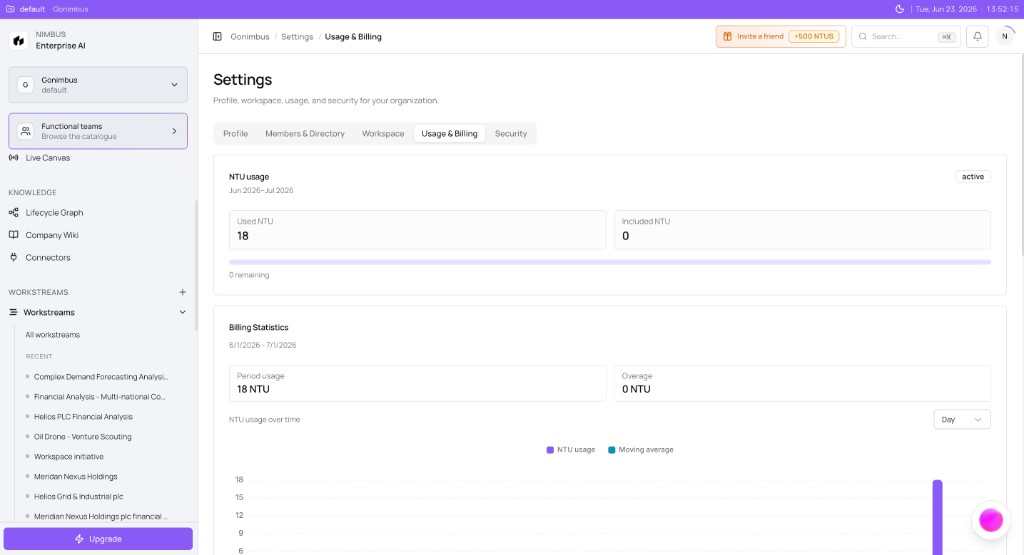
What you'll see: Breadcrumb Settings / Usage & Billing; page title Settings with tabs for Profile, Workspace, Usage & Billing, and Security (some workspaces also show Members & Directory); the Usage & Billing tab selected.
See How to open billing above for navigation paths.
What each Settings tab covers
| Tab | Purpose |
|---|---|
| Profile | Signed-in name and email |
| Members & Directory | Organization roster (when shown in your workspace) |
| Workspace | Organization name and workspace ID |
| Usage & Billing | NTU usage, billing statistics, payment methods, invoices |
| Security | SSO, API keys, and session policies |
Plan changes and checkout flows link back here once a subscription is active.
Usage & Billing homepage {#usage-billing-home}
The Usage & Billing tab is the billing homepage — everything finance and admins need on one scrollable page.
NTU usage
The top NTU usage card summarizes the current billing period:
| Field | Meaning |
|---|---|
| Period label | Billing cycle dates (e.g. Jun 2026–Jul 2026) |
| Status | Badge such as active |
| Used NTU | Total metered usage posted this period |
| Included NTU | Plan pool plus any commitment add-ons |
| Progress bar | Used vs included; remaining count below the bar |
When Included NTU is 0, you are on metered or trial usage — the bar reflects consumption without a plan pool cap.
Billing Statistics
The Billing Statistics card adds period totals and a chart:
| Field | Meaning |
|---|---|
| Period usage | NTU consumed in the date range |
| Overage | Usage beyond the included pool (0 NTU when under cap) |
| NTU usage over time | Bar chart with Day, Week, or Year granularity |
| Chart legend | NTU usage (primary) and Moving average trend line |
Scroll down for payment methods, invoices, and the usage ledger. Field-by-field guide: Reading your usage dashboard.
How this fits in Nimbus {#how-this-fits-in-nimbus}
flowchart TB
  Plan[Plan mode run] --> Quote[NTU quote and ceiling]
  Quote --> Confirm[Confirm and run]
  Confirm --> Execute[Run executes]
  Execute --> Pool[Monthly NTU pool]
  Pool --> Dash[Usage and Billing]
  Pool --> Gov[Governance chargeback]
  Pool --> Inv[Invoices]
Open Settings → Usage & Billing or the header NTU meter — see Everything is managed through Settings.
Plan reference {#plan-reference}
| Plan | Included NTU / billing period | Included seats |
|---|---|---|
| Pro | 200 | 1 |
| Team | 2,000 | 10 |
| Business | 5,000 | 25 |
When usage exceeds the included pool, accounts either meter overage on the invoice or block new runs at Confirm & run — see Plans and overage.
Where NTUs appear {#where-ntus-appear}
| Surface | What you see |
|---|---|
| Confirm & run card | Estimated NTU quote and ceiling before execution |
| Header NTU meter | Period usage vs included pool (shortcut to dashboard) |
| Usage & Billing tab | Summary card, chart, ledger rows, invoices |
| Workstream Activity | NTU posted per run (paired with deliverables) |
| Governance | Spend thresholds at HITL checkpoints |
See the Where NTUs appear section below for a field-by-field guide to each surface.
Run budget limits {#run-budget-limits}
Per-run quotes and ceilings protect against single-run spikes. Org pools, governance budgets, and ceilings can block Confirm & run when spend would exceed policy. See for the Confirm & run flow.
Invoices and add-ons {#invoices-and-add-ons}
Commitment add-ons extend your included NTU pool without changing plan tier. Invoices and payment methods live on the Usage & Billing tab when live billing is enabled. See Reading your usage dashboard for payment methods and invoice sections on the same tab.
Example scenario
A Team plan finance department runs weekly Plan mode agents. Contributors see NTU quotes before each Confirm & run; the header meter stays under 80% until month-end. Finance reads the Usage dashboard, attributes runs to workstreams, and purchases a commitment add-on before Q4.
What to do next
- Understand NTU quotes → What are NTUs?
- Read the dashboard → Reading your usage dashboard
- Size your plan → Plans, seats, and included usage
FAQs {#faqs}
Q: Do I need to understand NTUs to use Nimbus? A: Not deeply. You will see quotes before Plan runs and a usage summary in settings. Read What are NTUs? when you manage budgets.
Q: Why does my dashboard show demo numbers? A: Sample usage may display until live billing is activated. See What works today.
Q: What's the difference between included NTUs and overage? A: Included NTUs are in your plan pool each period. Overage is usage beyond that pool. See Plans and overage.
Q: Can governance block a run for NTU reasons? A: Yes — org pools, governance budgets, and per-run ceilings can block Confirm & run. See Run budget limits.
Q: Where do decision commits fit in billing? A: Decision commits are approved outcomes. NTUs measure run cost — both appear in Activity and billing but answer different questions.
Q: Who should own billing in our organization? A: Workspace super admins and finance partners typically manage plans, payment methods, and add-ons.
Q: Is there a Billing item in the sidebar? A: No. Open Settings and select the Usage & Billing tab — or click the header NTU meter.