Using the Process Board
Business Summary: The Process Board is your cross-workstream control tower — a Gantt-style view of every open initiative (from one to hundreds across the organization) from plan through run, reports, review, and commit.
Open Process Board from the sidebar under Collaboration. Unlike the Workstreams hub, which lists goals by status, the Process Board shows lifecycle columns and every run across all active workstreams — drill down per workstream without opening each workspace individually.
Scan all workstreams
- Open Collaboration → Process Board from the sidebar.
- Read the page header — typically Initiative lifecycle for your workspace, with a subtitle such as 15 initiative trails showing how many workstreams have active or recent runs.
- Locate the Search processes… field in the top right and leave it empty for a full scan, or type a workstream name to filter the grid.
- Scan the lifecycle columns left to right: Plan → Run → Reports → Review → Committed. Each cell shows deep links when a run or artifact exists at that stage.
- Check the RUNS column for total run count per workstream — for example, 3 runs under Financial Analysis: Forma Gym Consultancy.
- Read the Workstreams column for the workstream name and last active date so you can prioritize stale initiatives.
- Click the expand chevron on a workstream row to reveal individual runs — RUN 1, RUN 2, and so on — each with a date stamp and status badges.
- Inspect run badges: REPORTS means a report artifact is ready (open in Live Canvas); HITL means human approval is required or was completed.
- Click deep links in lifecycle cells — Deep link to plan preview, Deep link to live run, or Reports cells — to jump into the workstream workspace without searching the hub.
- Return to the board after acting in a workstream; columns update as runs progress through Plan, governed execution, Reports, Review, and Committed stages.
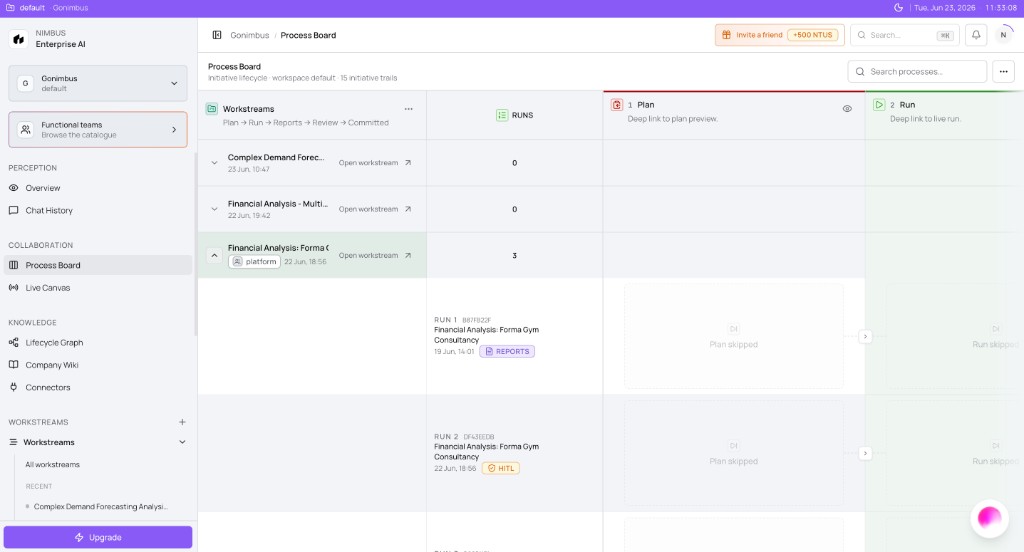
What you'll see:
- Workstreams column with last-active dates
- RUNS count (for example, 3 runs)
- Lifecycle columns with deep links (Deep link to plan preview, Deep link to live run)
- Expanded rows: RUN 1 (19 Jun, REPORTS badge), RUN 2 (22 Jun, HITL badge)
- Search processes… filter (top right)
Read run badges and lifecycle columns
Each badge tells you what action to take next without opening every workstream individually. REPORTS indicates the agent produced a formal artifact — open it in Live Canvas or from the Reports column deep link. HITL signals that a human-in-the-loop checkpoint is pending or was recently cleared; open the workstream and check HITL review on the collaboration rail.
| Badge | Meaning | Typical next step |
|---|---|---|
| REPORTS | Report artifact produced | Open in Live Canvas or workstream Outputs |
| HITL | Human approval required or completed | Open workstream → HITL review rail |
The Committed column shows workstreams whose latest run outcomes have passed review and entered operating memory. Cross-check committed runs in Audit & History and the Lifecycle Graph.
How this fits in Nimbus
flowchart LR
  WS[Workstream runs]
  PB[Process Board]
  LC[Live Canvas]
  Audit[Audit and History]
  Lifecycle[Lifecycle Graph]

  WS --> PB
  PB --> LC
  WS --> Audit
  Audit --> Lifecycle
Every run visible on the Process Board is also recorded in Audit & History and linked in the lifecycle graph — queryable via the Perception orb or Ask Nimbus on Overview. The board complements Overview Workstream status tab (morning triage) and the Workstreams hub (goal-level cards). For the full collaboration workflow, see the Collaboration overview.
When to use Process Board vs other surfaces
| Surface | Best for |
|---|---|
| Process Board | Run-level lifecycle columns and badge triage across all workstreams |
| Workstreams hub | Creating workstreams, summary cards, Active/Completed/Archived tabs |
| Overview → Workstream status | Cross-cutting health questions via Ask Nimbus |
| Perception orb | Ad-hoc questions about run outcomes without opening the grid |
Example scenarios
Ops lead — Monday morning triage
An operations lead opens Process Board Monday morning before standup. Financial Analysis: Forma Gym Consultancy shows 3 runs in the RUNS column. She expands the row: RUN 1 carries a REPORTS badge from Friday; RUN 2 shows HITL waiting for sign-off. She deep-links from the Review column into the workstream, approves at HITL review, and returns to the board — the HITL badge clears on RUN 2. She opens RUN 1's Reports deep link in Live Canvas to prep slides for the executive team.
Strategy director — cross-workstream bottleneck review
A strategy director filters Search processes… for board-prep workstreams. Three initiatives sit in Plan with no Run deep link — scoping is incomplete. She opens each from the Plan column, confirms connectors are bound in Workstream settings → Connectors, and asks operators to switch to Plan mode and confirm governed runs. By Wednesday, all three show entries in Run and Reports, and she combines outputs on Live Canvas per the Collaboration hub workflow.
FAQs {#faqs}
Q: How is Process Board different from the Workstreams hub? A: The Workstreams hub lists active goals with summary cards and tabs. Process Board shows lifecycle columns and per-run history across all workstreams — better for operational Gantt-style scanning.
Q: How is it different from Overview? A: Overview answers cross-cutting questions via Ask Nimbus and stat pills. Process Board is the operational grid for run-level detail, badges, and deep links.
Q: Can I open Live Canvas from Process Board? A: Yes — click Reports cells or follow deep links from runs with REPORTS badges. See Using Live Canvas and the Collaboration overview.
Q: What does the HITL badge mean on a run row? A: A human-in-the-loop checkpoint is pending or was recently completed for that run. Open the workstream and check HITL review on the collaboration rail — see Human-in-the-loop.
Q: Where is run data stored long-term? A: Audit & History and the Lifecycle Graph. Use View Lineage from audit events to trace causality.
Q: Can I search for a specific workstream on the board? A: Yes. Use Search processes… in the top right to filter by workstream name or keyword.
Q: Why does a workstream show runs in Plan but not Run? A: The team may have saved a plan preview without confirming Confirm & run in Plan mode. Open the workstream and complete the governed run — see Workstream chat modes.
Q: Does the Process Board update in real time? A: Refresh after approving HITL or completing runs. Deep links always open the latest workstream state.