Creating a workstream
Business Summary: Creating a workstream turns a business goal into a governed workspace — with the right AI team, data, approvers, and audit trail.
Three ways to start
| Entry point | How |
|---|---|
| Overview | Click New workstream (top right) — opens the Perception wizard |
| Workstreams hub | Click the purple New workstream button (top right) |
| Perception orb | Open the orb (bottom right) and describe the goal in natural language — commit when Nimbus shows a preview card |
All paths use the same Perception scoping flow: Workstream name, Primary goal, collaborators, and connectors. Your Primary goal gives Nimbus the context to match the right functional team (agent) — and, for complex goals, more than one agent may be assigned. See What is a workstream?.
You can also connect new data sources inline during the wizard or from Perception chat before finishing setup — see Connecting a connector.
Perception wizard
Step 1 — Open Perception
From the Workstreams hub:
- Open Workstreams from the sidebar.
- Click the purple New workstream button (top right on the hub).
- The Perception console opens full-screen with a NEW WORKSTREAM badge in the header.
- Confirm you are scoping for the correct organization in the sidebar before continuing.
From Overview: Click New workstream in the header — same wizard.
From Perception orb: Describe your goal and follow the preview → commit flow — see Creating from chat.
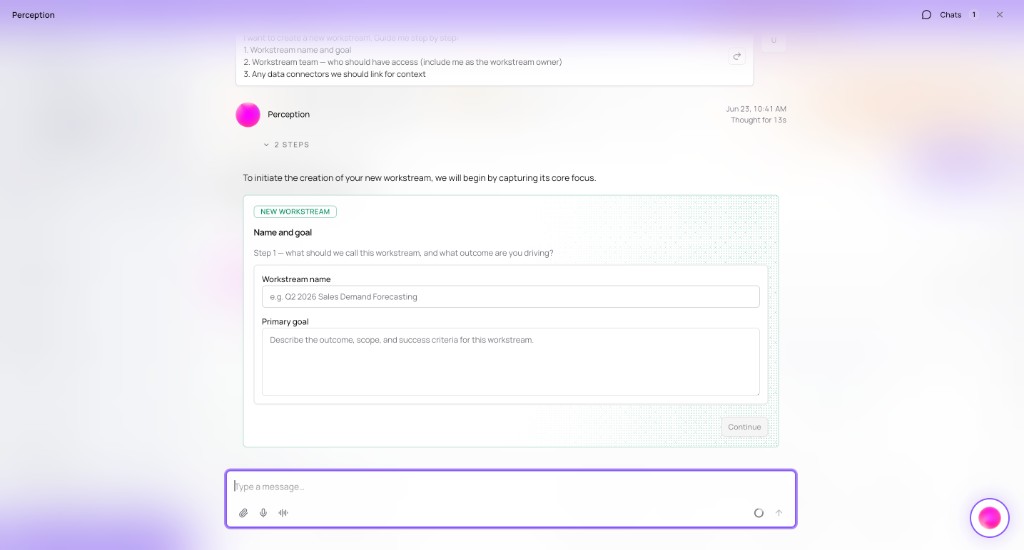
Step 2 — Name and goal
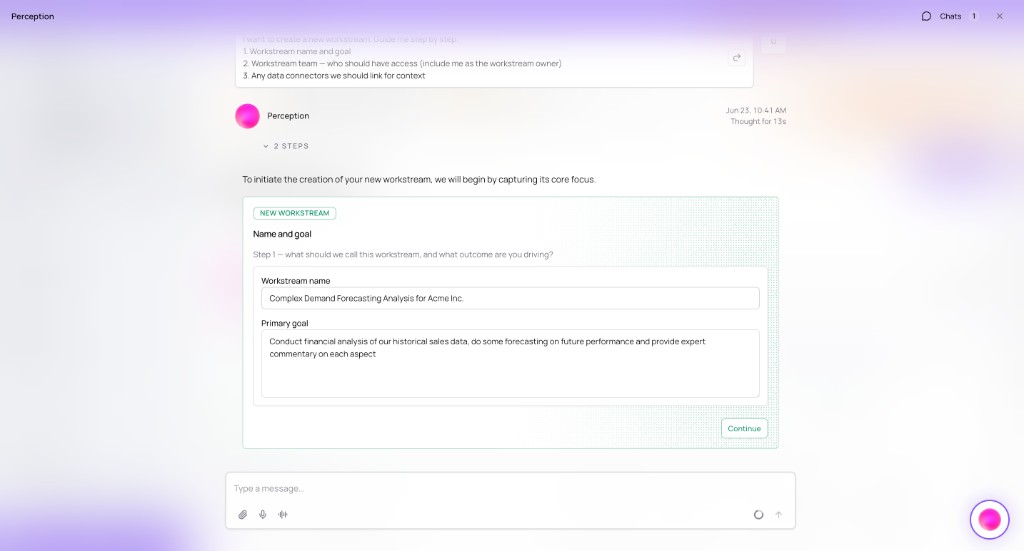
- Enter Workstream name — a short label stakeholders recognize (for example, Complex Demand Forecasting Analysis for Acme Inc.).
- Enter Primary goal describing the business outcome or decision — not a task list. Nimbus uses this text to infer which functional team (agent) to assign.
- Read both fields aloud — if a executive cannot tell what success looks like, refine the goal.
- Click Continue to advance to team selection.
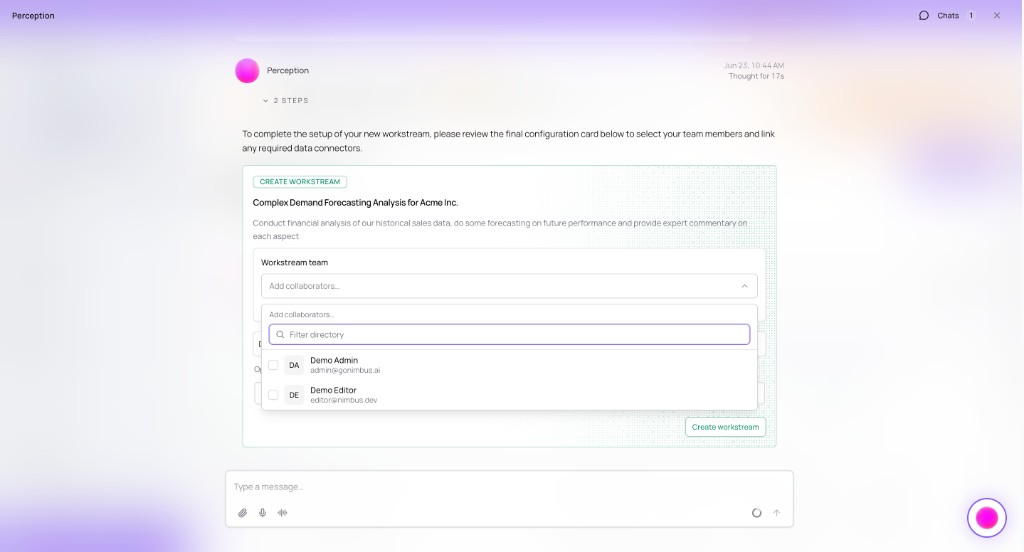
Step 3 — Team
- On the CREATE WORKSTREAM card, click Add collaborators….
- Use Filter directory to find teammates by name or email.
- Add at least one approver who can sign HITL review checkpoints — see Browsing Teams.
- Add operators who need daily access to chat and Outputs.
- Confirm roles match your governance preset (Standard, Strict, or Custom) — see Human-in-the-loop.
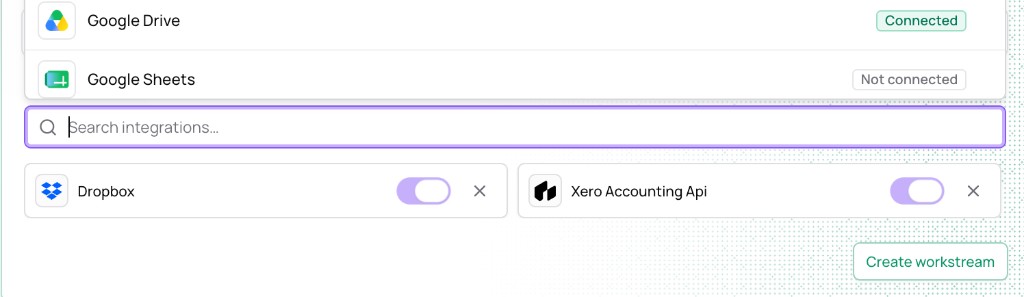
Step 4 — Connectors
- In Search integrations…, find Intelligence and Action sources (for example, Dropbox, Xero, HubSpot).
- Toggle connectors on for this workstream — org-level Connected sources appear here for binding.
- Connect missing sources first from Connectors in the sidebar if toggles are unavailable — or connect inline from Perception chat during scoping. See Connecting a connector.
- Review which connectors this workstream needs before you confirm a run.
- Click Create workstream — wait for confirmation; do not close the wizard early.
After create
You land in workstream chat in Analyze mode by default (NEW CHAT with bar-chart icon). Use @ in chat to attach Wiki documents or Connectors — see Attach context with @ in Workstream chat modes.
Add or change connectors later via the gear icon → Workstream settings → Connectors — see Workstream workspace.
Before you start
Have ready:
- A Workstream name — short label for the work
- A Primary goal — what decision or outcome this supports
- Collaborators — at least one approver for governed runs
- Connectors — optional at creation; required before Action or Plan writes that read live data
- A agent in mind — browse if unsure which team fits
Tips for a strong scope
Write goals as decisions, not tasks. Support board approval of Q3 baseline beats analyze Q3 data. Keep one primary goal per workstream — split unrelated outcomes into separate workstreams so NTU spend and audit trails stay clean.
How this fits in Nimbus
Browse agents in before scoping if you are unsure which team fits. Complete the Perception wizard and click Create workstream — the new goal appears on the Active tab of the Workstreams hub.
Example scenarios
Marketing director — campaign ROI post-mortem
A marketing director clicks New workstream, names the goal US campaign ROI post-mortem, and writes a primary goal focused on board-ready ROI narrative by region. She adds her CMO as collaborator via Add collaborators…, toggles ad platform and CRM connectors, and clicks Create workstream. She starts in Analyze to chart performance, then switches to Plan for a governed board memo with explicit NTU quote on Confirm & run.
IT lead — infrastructure cost workstream
An IT lead clicks New workstream, names the goal Q4 cloud spend review, and writes a primary goal focused on Recommend Q4 cloud spend cuts with finance sign-off. He adds the CFO as approver via Add collaborators…, binds AWS cost and Xero connectors, and clicks Create workstream. The workstream appears on Active — he verifies the assignment in Teams org chart before switching to Plan mode.
What to do next
- Connect required data sources → Connecting a connector
- Run your first governed Plan → Running an agent
- Set approval checkpoints → Checkpoints and approvals
FAQs {#faqs}
Q: Can I change connectors after create? A: Yes. Click the gear icon → Connectors tab. See Workstream workspace.
Q: Where do I assign an agent? A: Nimbus infers the agent from your Primary goal during scoping. You can review or adjust the assignment in workstream settings. Browse teams first in . Complex goals may bring multiple functional teams into one workstream.
Q: Can one workstream use multiple agents? A: Yes, when the goal requires it — for example Finance plus Revenue specialists on a board pack. Nimbus matches teams from your goal text at create time; Plan mode orchestrates cross-domain work. Prefer separate workstreams only when goals are unrelated.
Q: What mode opens after create? A: Analyze by default — see Workstream chat modes.
Q: What happens if I close the wizard before Create workstream? A: The workstream is not created until you click Create workstream. Start again with New workstream on the hub.
Q: Can I create a workstream from Perception orb chat? A: Yes — describe the goal in natural language and commit when prompted. See Creating from chat.
Q: How many collaborators do I need? A: At least one approver for governed runs; add operators who run daily analysis.
Q: What if Create workstream is disabled? A: Complete required fields — name, goal, and at least minimal team — and ensure org connectors are not in error state.
Q: Where does the new workstream appear? A: Active tab on the hub, sidebar, Overview stat pills, and Lifecycle Graph as the graph grows.