Reading the Outcomes timeline
Business Summary: The timeline beside the Outcomes list shows each team, goal, Loop and workstream as a bar across the weeks and months. You can see at a glance what is over budget, what is behind, and which goals are waiting on others.
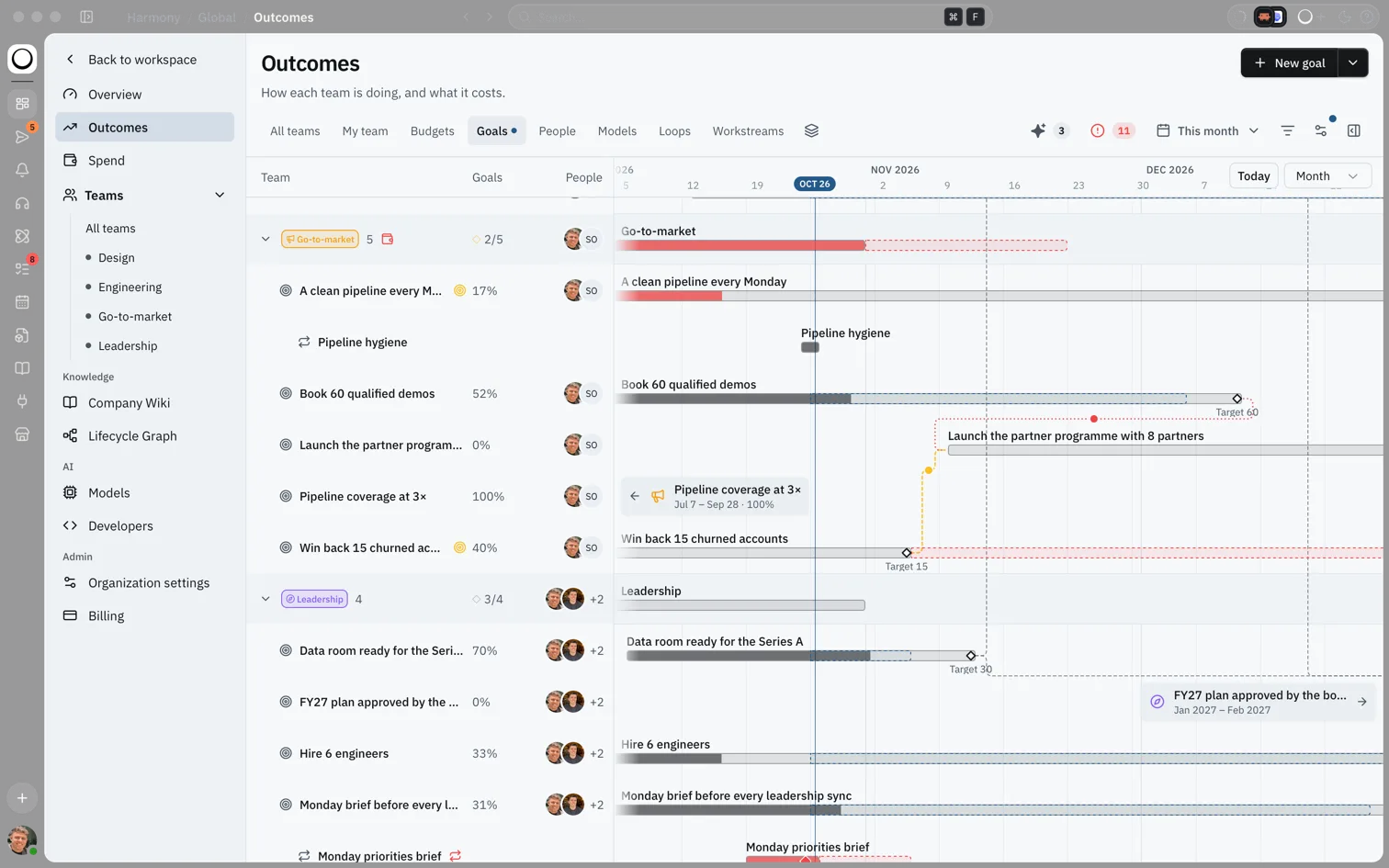
The list on the left tells you the numbers. The timeline on the right tells you when. A red bar is over budget or behind. A dashed tail shows where the current pace will take a goal or a team by the end of its period.
Step-by-step
- Open Outcomes and pick a view. Goals shows a quarter at a time; the others start on a month.
- Change the zoom with the menu at the top right of the timeline: Week, Month, Quarter or Year. To zoom freely, hold Cmd (or Ctrl) and scroll, or pinch on a trackpad. The menu then shows Custom.
- Choose Today to bring today back to the middle. The timeline stays on today until you scroll it yourself.
- Hover over a bar, a diamond or a column value to see its tooltip, with dates and figures.
- Click a bar or its name to open its panel. Click something inside that panel, such as a goal on a team, to open a second panel beside it.
- Close a panel with its X, with Esc, or by clicking anywhere outside the panels.
flowchart LR
  View[Pick a view] --> Zoom[Set the zoom]
  Zoom --> Today[Today]
  Today --> Hover[Hover for details]
  Hover --> Panel[Open a panel]
  Panel --> Close[Close the panel]
What you'll see: Rows grouped by team, each goal with its bar, a blue line and date pill for today, and dashed connector lines between goals that wait on each other.
How this fits in Harmony
Every bar comes from work already in Harmony: spend from AI usage, goal progress from what Harmony counts or from check-ins, Loop runs from your Loops, and tasks from your workstreams.
flowchart TB
  Team[Team bar: spend each month] --> Timeline
  Goal[Goal bar: progress over its period] --> Timeline
  Loop[Loop bar: first run to last run] --> Timeline
  Workstream[Workstream bar: spend and due tasks] --> Timeline
What the bars mean
| Bar | How to read it |
|---|---|
| Team | One bar per month, filled by that month's spend, with "spent of budget" under it. It turns red at or over budget. This month's forecast shows in blue, or as a red tail past the end if it will overrun. |
| Goal | Spans the goal's period and fills as it progresses. It turns red when the goal is behind. A dashed blue tail shows where an on-track goal is heading; a dashed red tail shows how late a behind goal will finish at its current pace. |
| Loop | Runs from the Loop's first run to its last (or to today while it is active). Failed runs show as red diamonds marked Failed. Three or more failures in a row turn the bar red. |
| Workstream | Spend for the period, stretched to the last task that has a due date. |
Marks on a bar:
- A Target diamond sits at the end of each goal. It fills in once the target is reached.
- Smaller diamonds are check-ins that came with a note.
- Squares are tasks with due dates in work linked to the goal: filled when done, red when overdue.
When a bar is off screen, a small card with an arrow shows Scroll to and the bar's name. Click it to jump there.
On track or behind
A goal is On track when its progress is at least the share of its time that has gone, less 10 points. For example, a goal that is 40% through its period is on track from 30% progress. Below that it is Behind. Until the goal has its first reading it shows No reading yet.
Panels
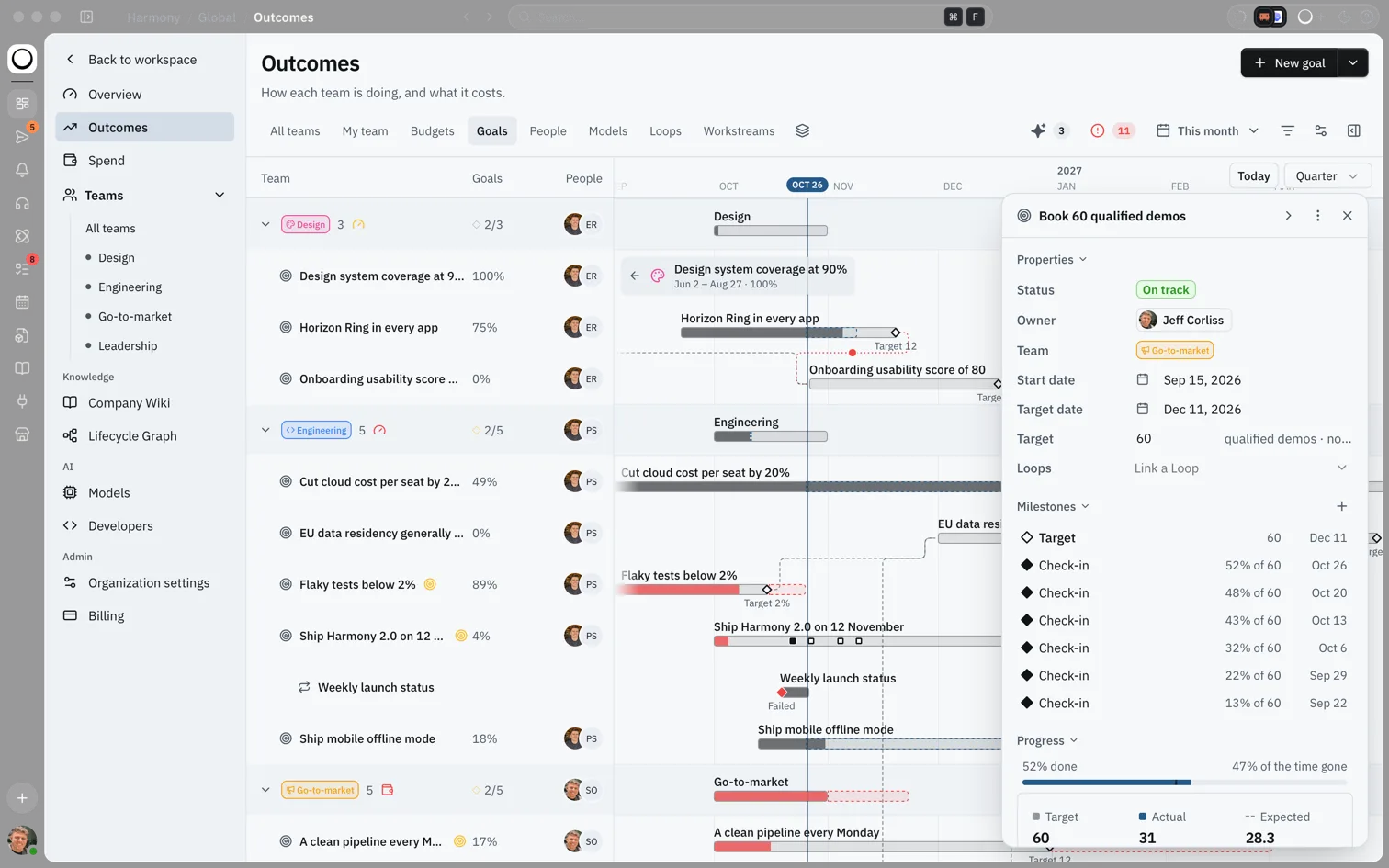
A panel opens on the right when you click a row or a bar. Each panel has three parts:
- Properties: the facts. On a team: lead, members, budget and goals. On a goal: status, owner, team, start and target dates, target and linked Loops. On a Loop: team, owner and status.
- Milestones: dated points. On a team, one per month with spend against budget. On a goal, the target, the latest check-ins and due tasks. On a Loop, its last failed runs.
- Progress: a chart. On a goal it shows the target, the expected line, the actual readings and where the current pace leads, with % done and % of the time gone above it.
With nothing selected, the side panel shows a summary of the whole view. Two panels can be open at once, so you can compare a team with one of its goals.
Goals that wait on other goals
A goal can be blocked by another goal. When both goals are rows in the view, the timeline draws a right-angled line from the end of the blocking goal to the start of the one that waits. The line tells you how the plan looks:
| Line | Meaning | Tooltip |
|---|---|---|
| Thin grey dashes | Fine. The blocking goal will finish before the waiting goal starts. | Waiting on the blocking goal |
| Amber, with a dot | At risk. At its current pace the blocking goal will finish after the waiting goal starts. | At risk at current pace |
| Red, with moving dots | Broken. The waiting goal starts before the blocking goal is due to end. | Starts before it ends |
Note: Harmony shows these links, but you can't add them in the app yet.
Keyboard and mouse
| Action | How |
|---|---|
| Zoom around the pointer | Cmd or Ctrl and scroll, or pinch |
| Zoom in or out | Cmd or Ctrl with + or − while the timeline has focus |
| Back to today | Today |
| Close the top panel | Esc |
| Copy a link to a panel | Cmd+Shift+, (or Ctrl+Shift+,) |
| Copy a summary as Markdown | Cmd+Option+C (or Ctrl+Alt+C) |
Example scenario
Daniel leads engineering. He opens the Goals view on Quarter zoom and sees "EU data residency" in red with a red dotted line from "Cut cloud cost per seat". He hovers the line and reads Starts before it ends: the residency work is planned to start before the cost work finishes. He opens both panels side by side, checks the dates, and moves the residency start back two weeks.
FAQs {#faqs}
Q: Why don't I see dependency lines? A: Lines show only when both goals are rows in the current view and the timeline is shown. Try the Goals view and clear filters.
Q: What does a dashed tail mean? A: It is a forecast. Blue shows where an on-track goal or a team's spend is heading. Red shows an overrun at the current pace.
Q: How do I get back to normal zoom after pinching? A: Pick Week, Month, Quarter or Year from the zoom menu.
Q: Why is a Loop's bar red? A: It failed three runs or more in a row. Open its panel to see the failed runs, then open the Loop to see why.
Q: Can I link a panel for a colleague? A: Yes. Use Copy link in the panel's three-dot menu. It opens Outcomes on that panel, within what your colleague may see.
Q: Is "behind" the same as "late"? A: Not quite. Behind means progress is more than 10 points below the share of time gone. A goal can be behind well before its target date.