Outcomes
Business Summary: Outcomes is one page that shows how each team is doing and what its AI work costs. Leaders see spend against budget, how much of the work people found useful, and progress on goals, for teams, people, models, Loops and workstreams.
Most teams can tell you what they spent on AI last month. Fewer can say what that money bought. Outcomes puts both on one screen: what each team spent, whether it is on course for its budget, which Loops are failing, who is close to a usage limit, and whether the goals you set are on track.
You don't have to set anything up first. Outcomes reads the work already happening in Harmony. Goals are optional: add them when you want to read your work against a target.
Step-by-step
- Choose Outcomes in the sidebar. In the organization area it sits between Overview and Spend.
- Pick a view from the chips under the title: All teams, My team, Budgets, Goals, People, Models, Loops or Workstreams. Each view groups and orders the rows for one question.
- Pick a period with the date button in the toolbar: This month, This quarter, or an earlier month or quarter under Earlier.
- Click any row or bar to open its panel on the right. The panel shows the details, milestones and a progress chart for that team, person, goal, Loop or workstream.
- If the red Needs attention button shows a number, open it. Each item says what is wrong and takes you to the row that needs you.
- Use Filter and Display to narrow the rows or change which columns you see. A dot on a view chip means you changed it from its preset.
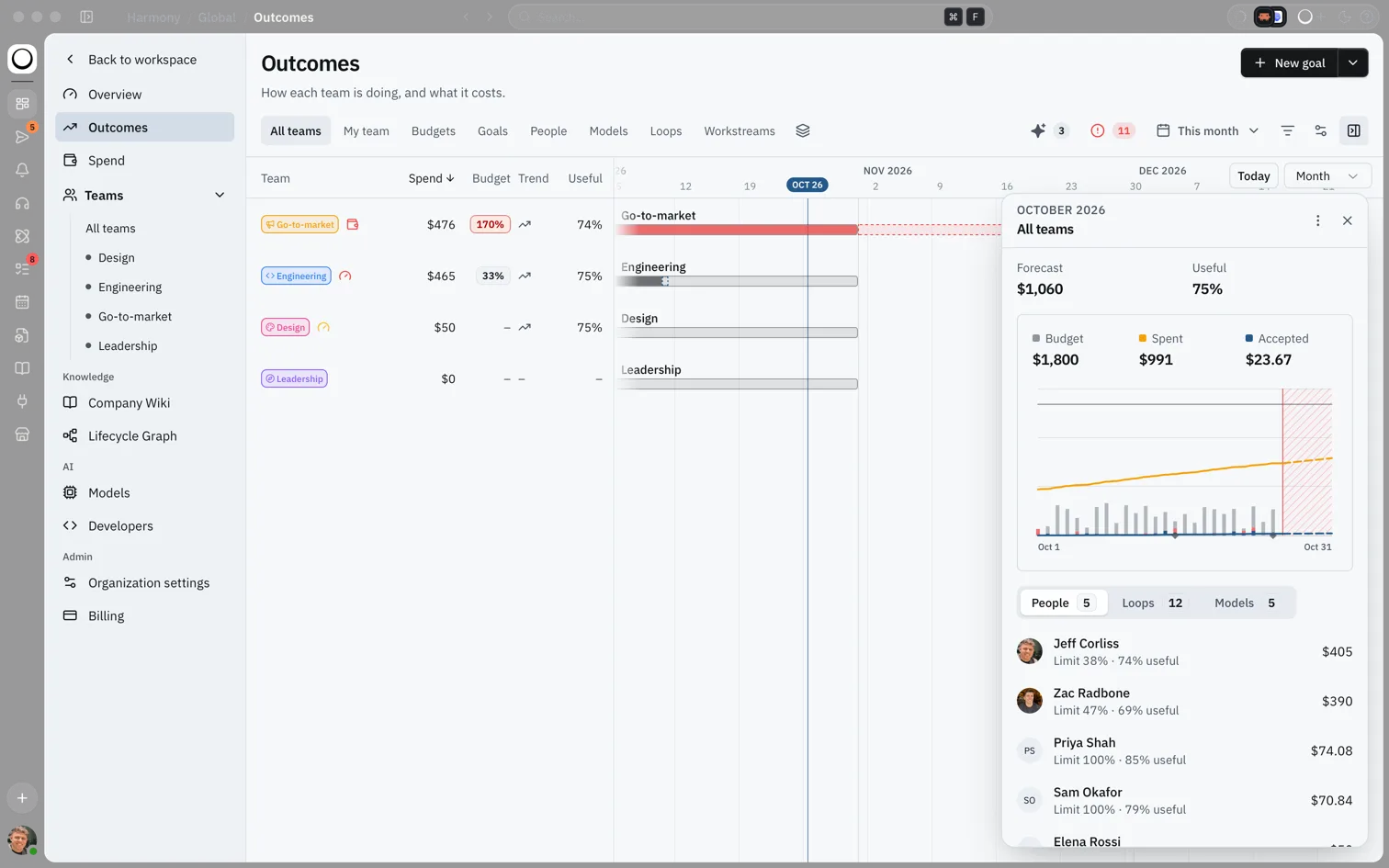
What you'll see: The title Outcomes with the line "How each team is doing, and what it costs." On the left, a list of teams with Spend, Budget, Trend and Useful columns. On the right, a timeline with a blue line for today and a summary panel with the forecast and a chart of budget, spend and accepted work.
How this fits in Harmony
Outcomes doesn't hold any work of its own. It reads what your teams already do in workstreams and Loops, what that work cost, the verdicts people gave it, and the goals and budgets admins set.
flowchart LR
  Work[Workstreams and Loops] --> Outcomes
  Spend[Spend and budgets] --> Outcomes
  Verdicts[Useful or not useful verdicts] --> Outcomes
  Goals[Goals] --> Outcomes
  Outcomes --> Panels[Panels, timeline and Needs attention]
The views
Each chip is a saved view. You can change a view with Display and Filter, and Reset view puts it back.
| View | What it answers |
|---|---|
| All teams | How every team is doing on spend, budget and useful work. Admins only. |
| My team | How your own teams are doing, person by person. |
| Budgets | Which teams are over budget or heading there, with each team's forecast. Admins only. |
| Goals | Each team's goals on a quarter timeline, with owners and progress. |
| People | Spend, budget use, trend, models and Loops for each person. |
| Models | Spend and people for each model your organization used. |
| Loops | Spend and people for each Loop. |
| Workstreams | Spend, tasks, goals, people and Loops for each workstream. |
Admins open on All teams. Members open on My team. Views that don't fit on one line move under the stack button at the end of the chips, labelled More views.
Who sees what
Admins see every team and the organization's totals. Members see only the teams they belong to, and never organization totals. A member who isn't in a team yet sees a note asking an admin to add them to one. Guests can't open Outcomes.
How much one person spent is shown only to admins, to that person, and to the leads of their team. The Useful and Cost per accepted columns are shown only to Global Admins on the Enterprise plan; other people see the same rows without them.
Needs attention
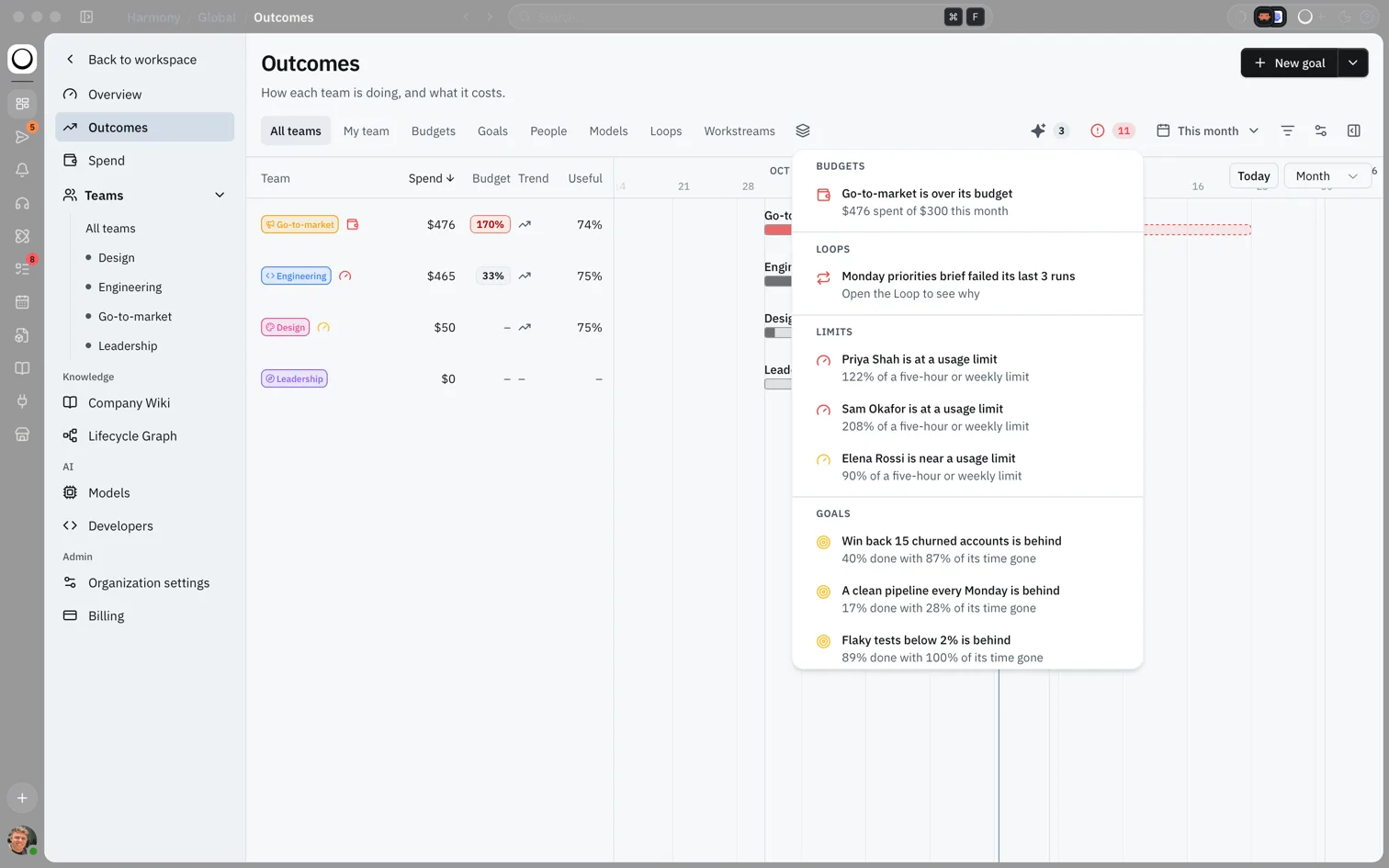
The red button in the toolbar counts what needs someone today. It is hidden when nothing does. Items are grouped:
| Group | When an item appears |
|---|---|
| Budgets | A team has spent its budget, or its forecast reaches 85% of its budget this period. |
| Loops | An active Loop failed its last three runs or more. |
| Limits | A person has used 80% or more of a five-hour or weekly usage limit. |
| Keys | A model provider refused your organization's key. Admins only. |
| Goals | A goal is behind. |
| Installs | Members asked for Marketplace installs that wait for an admin. Admins only. |
Members see only items about their own teams and their own limits. Clicking an item opens the matching panel and highlights its row. A key item opens Models, and an install item opens the Marketplace requests.
The three-dot menu and copying
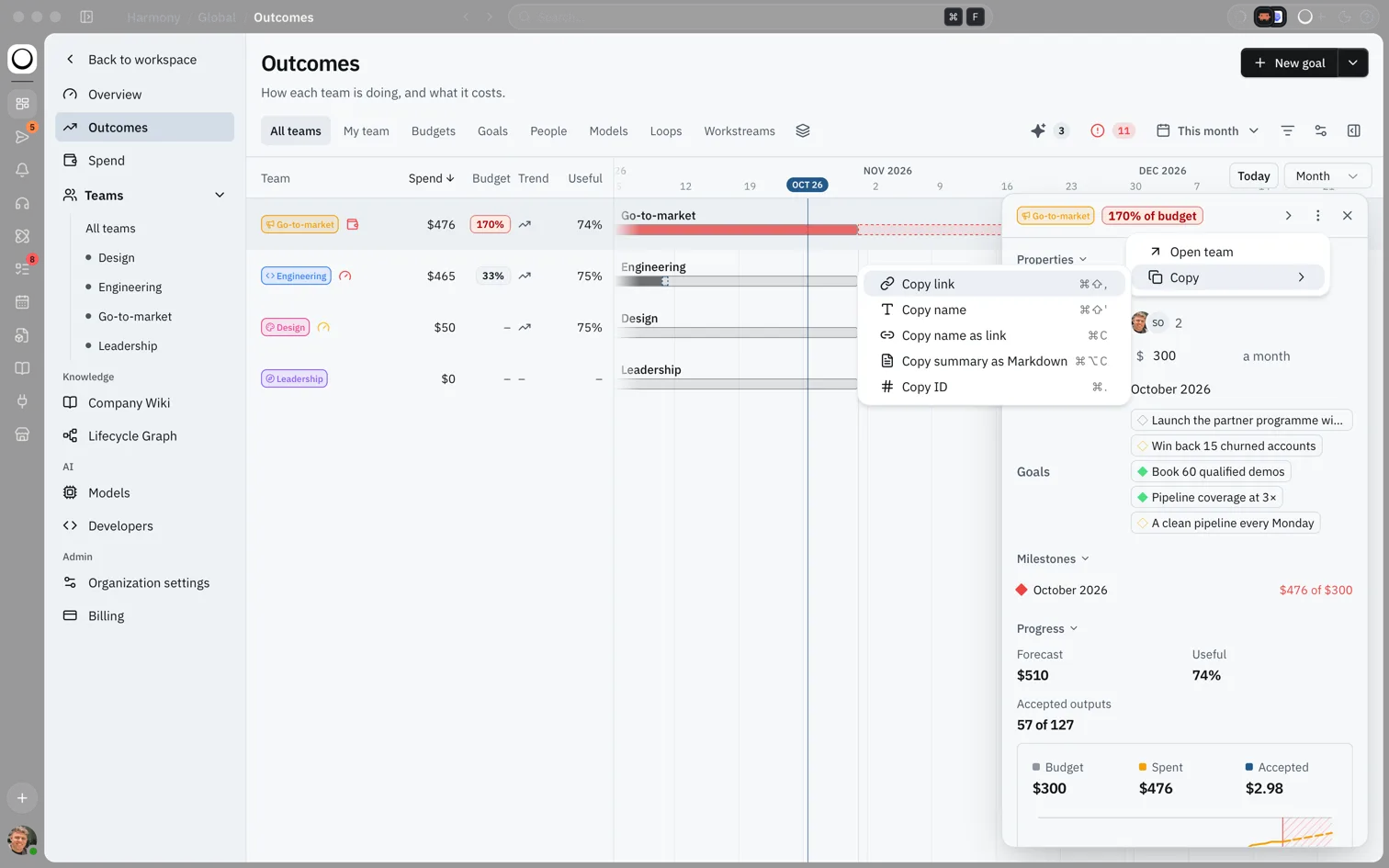
Each panel has a vertical three-dot menu. It opens the full page for the item (Open team, Open profile, Open Loop and so on). Admins also see Edit goal… and Archive goal on goals, and a Loop's owner can Pause or Resume it.
Under Copy you can take the item with you:
| Option | What you get |
|---|---|
| Copy link | A link that opens Outcomes on this panel |
| Copy name | The name |
| Copy name as link | The name, linked, ready to paste into a document or message |
| Copy summary as Markdown | A short write-up with the facts shown in the panel |
| Copy ID | The item's ID, for admins |
Money in Outcomes
Spend, budgets and forecasts are in your organization's currency. The Budget column shows how much of the budget is used: amber from 80% and red from 100%. For the current period it uses the forecast, so a team shows red before it actually overspends. The forecast assumes the team keeps spending at its current pace to the end of the period.
Articles in this section
- Reading the Outcomes timeline: bars, zoom, Today, panels and goals that wait on other goals.
- Setting goals: create goals, link work, record check-ins and confirm suggestions.
- Judging work and the useful rate: useful and not useful verdicts, Harmony's estimates, and how the useful rate is worked out.
- Budgets and spend: set team and person budgets and read AI spend.
Example scenario
Maya runs operations for a 40-person company. On Monday she opens Outcomes on All teams and sees Go-to-market at 170% of its budget in red. Needs attention shows the same team, a Loop that failed its last three runs, and two people at their usage limit. She opens the team's panel, sees which Loops drove the spend, and uses Copy summary as Markdown to paste the facts into her note to the team lead.
FAQs {#faqs}
Q: Do I need to set up goals before Outcomes is useful? A: No. Spend, budgets, failing Loops and usage limits show from the work already in Harmony. Goals are optional. See Setting goals.
Q: Why can't I see all teams? A: Members see only the teams they belong to. Ask an admin to add you to a team, or to share what you need.
Q: Why is there no Useful column for me? A: The useful rate in Outcomes is shown to Global Admins on the Enterprise plan. Your verdicts still count. See Judging work and the useful rate.
Q: Why is a team red before it has spent its budget? A: For the current period the Budget column uses the forecast. Red means the team will pass its budget at its current pace.
Q: Where did the Goals page go? A: Goals now live in Outcomes. Choose the Goals view. Old links to the Goals page open that view.
Q: Can I share what I see? A: Yes. Use Copy link from the panel's three-dot menu. The person you send it to sees only what their own access allows.