Judging work and the useful rate
Business Summary: A thumbs up or thumbs down on Harmony's work tells your organization what its AI spend bought. Those verdicts add up to a useful rate for each team, Loop and model, so leaders can see which work is worth paying for.
Spend on its own says nothing about value. A reply that missed the point cost as much as one that saved a morning. When people mark work Useful or Not useful, Harmony can show what share of the work was worth having, and what each useful piece cost.
Step-by-step: give a verdict
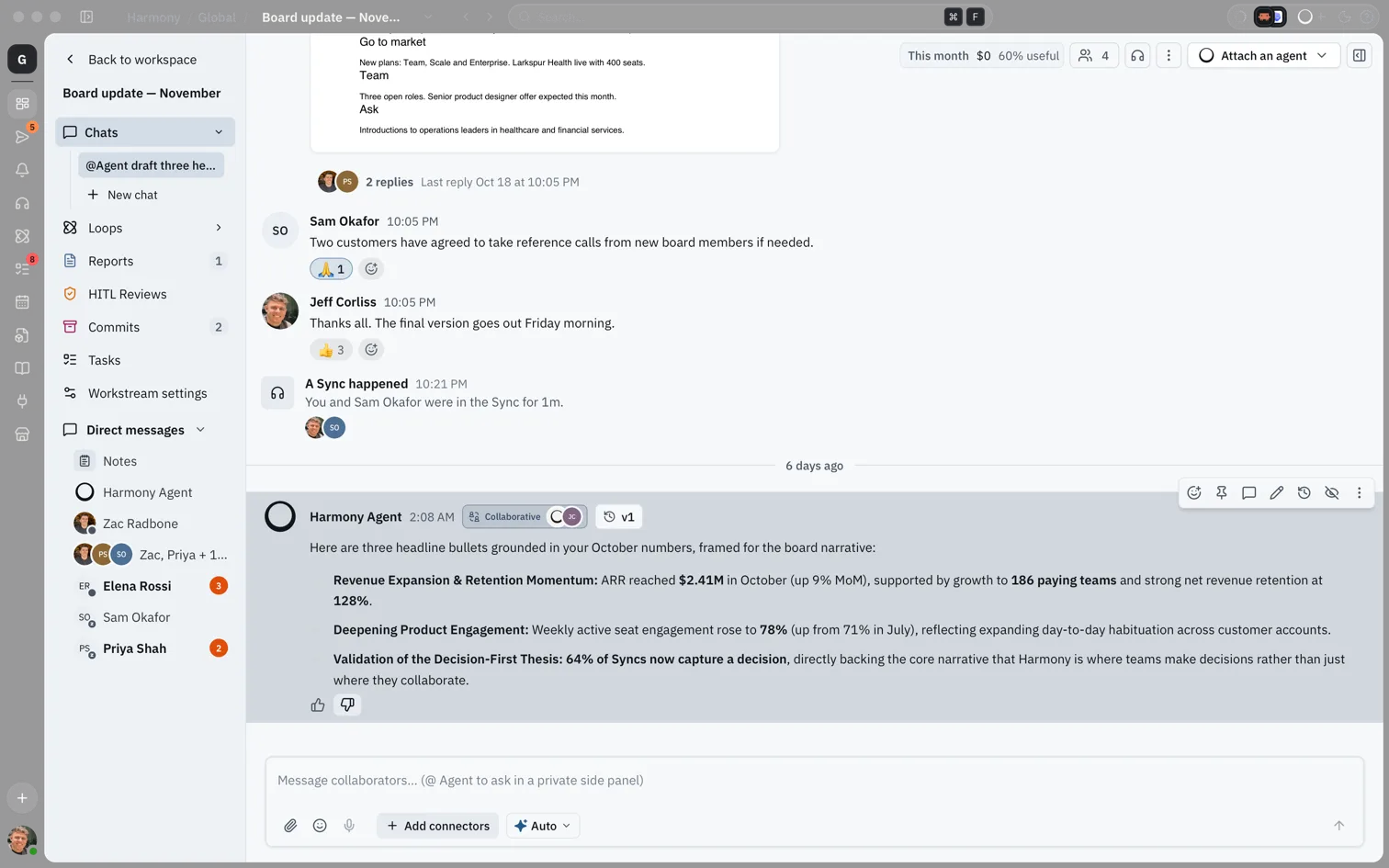
- Find the thumbs under a finished piece of work. In chat, hover over a reply from Harmony Agent to see them.
- Choose the thumbs up for Useful or the thumbs down for Not useful.
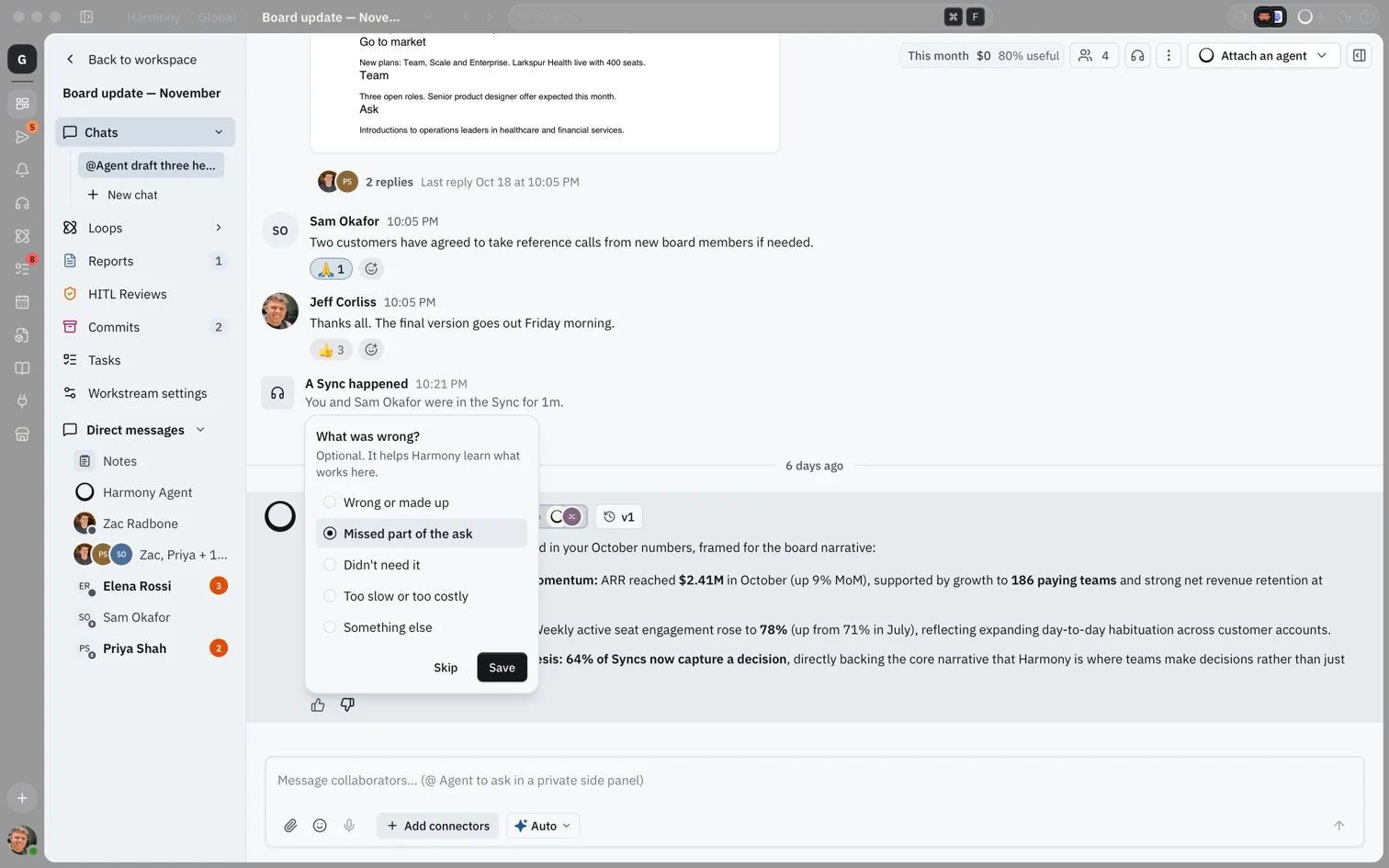
- If you chose Not useful, Harmony asks What was wrong? Pick a reason, or choose Skip. The reasons are Wrong or made up, Missed part of the ask, Didn't need it, Too slow or too costly and Something else, which lets you write a short note.
- Choose Save. Your verdict is saved as soon as you tap the thumb; the reason is extra.
- To change your mind, tap the other thumb. To clear your verdict, tap the same thumb again.
What you'll see: Two small thumbs under the reply. The one you chose stays highlighted, with the tooltip "You said useful. Tap again to clear."
Where you can judge work
| Work | Where the thumbs are |
|---|---|
| Replies in chat | Under each finished reply, and in thread replies |
| Background agents | On the agent's row in the background agents tray |
| Loop runs | On each run and at the top of the run's thread |
| Agent runs on tasks | On the run card in the task |
| Reports | In the header of the report preview |
| Any of the above | In the activity panel, under Useful?, and in your Profile → Usage list of your own work |
The thumbs appear once the work has finished. Anyone who can see the work can judge it, except a background agent, which only the person who started it can judge. Your verdict is yours: you can change or clear it, and nobody else can.
How this fits in Harmony
flowchart LR
  Work[Finished work] --> Verdict[People's verdicts]
  Work --> Actions[What people did with it]
  Verdict --> Outcome[Useful or not useful]
  Actions --> Outcome
  Outcome --> Rate[Useful rate]
  Rate --> Places[Outcomes, Spend and team pages]
When people disagree
Each piece of work gets one outcome:
- If the person who asked for the work gave a verdict, theirs decides.
- If not, the majority of other verdicts decides. A tie gives no outcome.
- A verdict someone gave always counts above what Harmony read from their actions.
Harmony also reads a few actions as verdicts, so people don't have to tap every time. Closing a task as done counts as useful. A pull request from an agent that is merged counts as useful, and one that is closed without merging counts as not useful. Sending a report to Live Canvas counts as useful, and asking for a report again counts as not useful.
Harmony's estimates
Harmony can give its own estimate of whether a piece of work met its brief. It shows as Estimate: likely useful, Estimate: likely not useful or Estimate: unsure, only while nobody has judged the work. The tooltip says it is not a verdict.
Estimates never count toward the useful rate, cost per accepted output or hours. When Harmony is unsure, it puts the work in front of the person who asked, as "outputs waiting for your verdict" in Profile → Usage. Harmony's estimate thresholds are still being tuned.
The useful rate
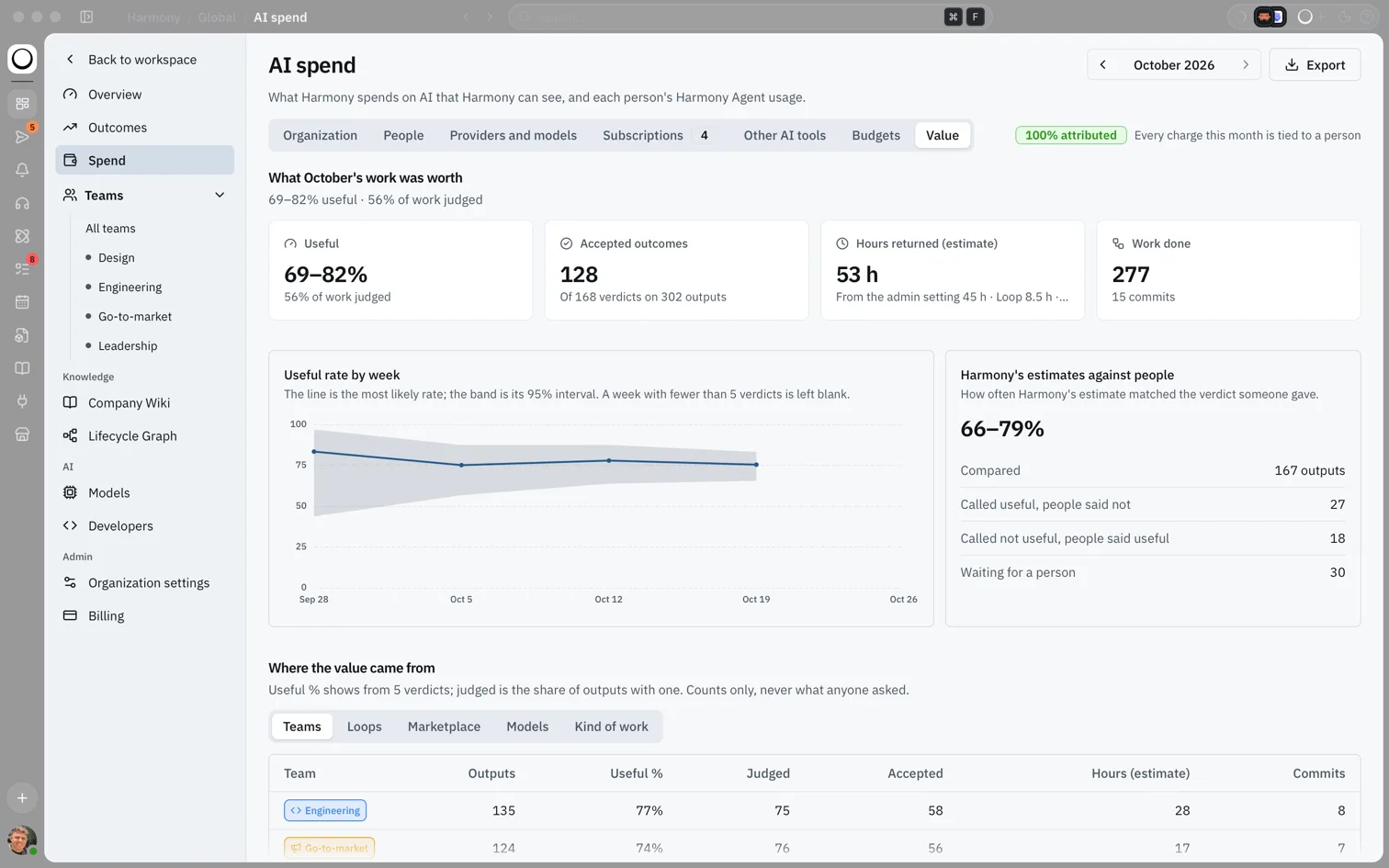
The useful rate is the share of judged work that was useful: useful outcomes divided by all work with an outcome. Work nobody judged isn't in it, and neither are Harmony's estimates. Next to it, Harmony shows how much of the work was judged, for example "56% of work judged".
Because a rate from a few verdicts can mislead, Harmony shows it as a range, for example 69–82%. That is the 95% interval: with the verdicts so far, the true rate is very likely inside it. The range narrows as more work is judged.
Harmony waits for enough verdicts before it shows a rate:
- Headline figures need at least 20 judged pieces of work and at least a quarter of the work judged. Until then you see how many more verdicts are needed.
- A single cell in a table, such as a team's Useful column, needs at least 5 judged pieces of work. Below that it shows a dash.
The forecast
The Useful rate by week (or by month) chart draws the rate as a line inside its 95% band. Once there are at least three periods with enough verdicts, a dashed line carries the recent trend forward three periods. Harmony fits a straight line to the last six periods, giving more weight to periods with more verdicts, and flattens the trend with each step so it never runs away. The band widens with each period ahead, because the further out, the less certain.
Cost per accepted output and hours
Cost per accepted output is what the work cost divided by the work that was useful. Harmony shows it as a range, using the same interval as the useful rate.
Hours returned counts only useful work, and it is always labelled (estimate). The hours come from settings an admin enters, in this order: hours set for that Loop, then the hours a Marketplace listing says a run saves, then hours set for that kind of work.
Where the useful rate shows
| Place | Who sees it |
|---|---|
| Spend → Value tab | Global Admins on the Enterprise plan |
| Useful and Cost per accepted in Outcomes | Global Admins on the Enterprise plan |
| A team's Value tab | Admins and the team's leads |
| A member's Value section | The member, admins and their team's leads |
| Profile → Usage, "What your AI spend bought" | You, for your own work |
On Spend → Value, Global Admins see "What this month's work was worth", the tiles Useful, Accepted outcomes, Hours returned (estimate) and Work done, the trend chart, how often Harmony's estimates matched people, and Where the value came from by team, Loop, Marketplace App, model and kind of work. Global Admins on other plans see the tab with a note that the value dashboard is part of Enterprise.
Value settings
At the bottom of Spend → Value, Global Admins on Enterprise set Hours per kind of work, Hours per Loop, the Value of an hour and What counts. Every change is written to the audit log. Harmony works hours out from the current settings each time it shows them, so a change also updates earlier months.
Example scenario
Lena's team runs a weekly "Revenue recognition check" Loop. Most weeks she taps Useful on the run. One week the run missed two contracts, so she taps Not useful and picks Missed part of the ask. At month end her CFO opens Spend → Value and sees the Loop at 85% useful with a narrow range, and a cost per accepted output well below the team's other work.
FAQs {#faqs}
Q: Do I have to judge everything? A: No. Judge what you can. Harmony also reads some actions, like closing a task as done, as verdicts.
Q: Can someone else overrule my verdict? A: Not on work you asked for: your verdict decides. On work others asked for, their verdict decides, and if they gave none the majority does.
Q: Why does the useful rate show a range? A: A rate from a few dozen verdicts is uncertain. The range is the 95% interval, and it narrows as more work is judged.
Q: Does Harmony's estimate count? A: No. Estimates help you find work worth judging, but only people's verdicts and actions count.
Q: Are the hours real? A: They are estimates, from the hours your admins enter, and they are always labelled that way.
Q: Why can't I see the Value tab? A: The Spend page is for admins, and the Value tab is for Global Admins. The full value dashboard is part of the Enterprise plan.