Bring your own model
Business Summary: You can run Harmony's agents on your own AI provider account. The provider bills you at its list price, Harmony adds a 10% fee, and the work never counts against anyone's usage limits. Keys can belong to the whole organization, a team, or one person.
Many companies already have an account with Anthropic, OpenAI or Google, with agreed prices or credits. Bringing that key to Harmony means your chats and Loops run on your account, and nobody hits a usage limit because of it. You can also run models on your own hardware; see Local models and self-hosted servers.
Your options
| Option | Who adds it | What it can run | Cost |
|---|---|---|---|
| Organization key | An admin, on the Models page | Chat, Loops and coding agents, for everyone or chosen teams | Provider's price plus a 10% Harmony fee |
| Your own key | You, in your profile | Your chats and Loops, and your coding agents | Provider's price plus a 10% Harmony fee |
| A model on your computer | You, in your profile | Your own private chats with Harmony | Free |
| A self-hosted server | An admin, on the Models page | Chat and Loops, for everyone | Free |
When more than one key could pay for a call, Harmony uses yours first, then a key for your team, then the organization's key. Without any, the work runs on Harmony's models and counts against your usage limits.
Step-by-step: add an organization key
- Open Models and choose the Providers & keys tab. You need to be an admin.
- Choose Add provider key, or Add key on a provider's row.
- Pick the Provider and paste the API key. Harmony checks it with the provider as you type and shows Checking…, then Verified or Refused. You can save only a verified key.
- Choose who it serves: Whole organization (every member, in every workspace) or Specific teams (other members keep Harmony's models).
- Choose Save key. The provider's row shows Active, with your key's billing, the teams it serves and what it runs.
flowchart LR
  Models[Models] --> Keys[Providers and keys]
  Keys --> Add[Add provider key]
  Add --> Check[Verified by the provider]
  Check --> Serves[Who it serves]
  Serves --> Active[Active]
What you'll see: The Providers table with each provider's Billing, Serves, Runs, Region, Last used and Status, and the Self-hosted servers and Key custody cards below.
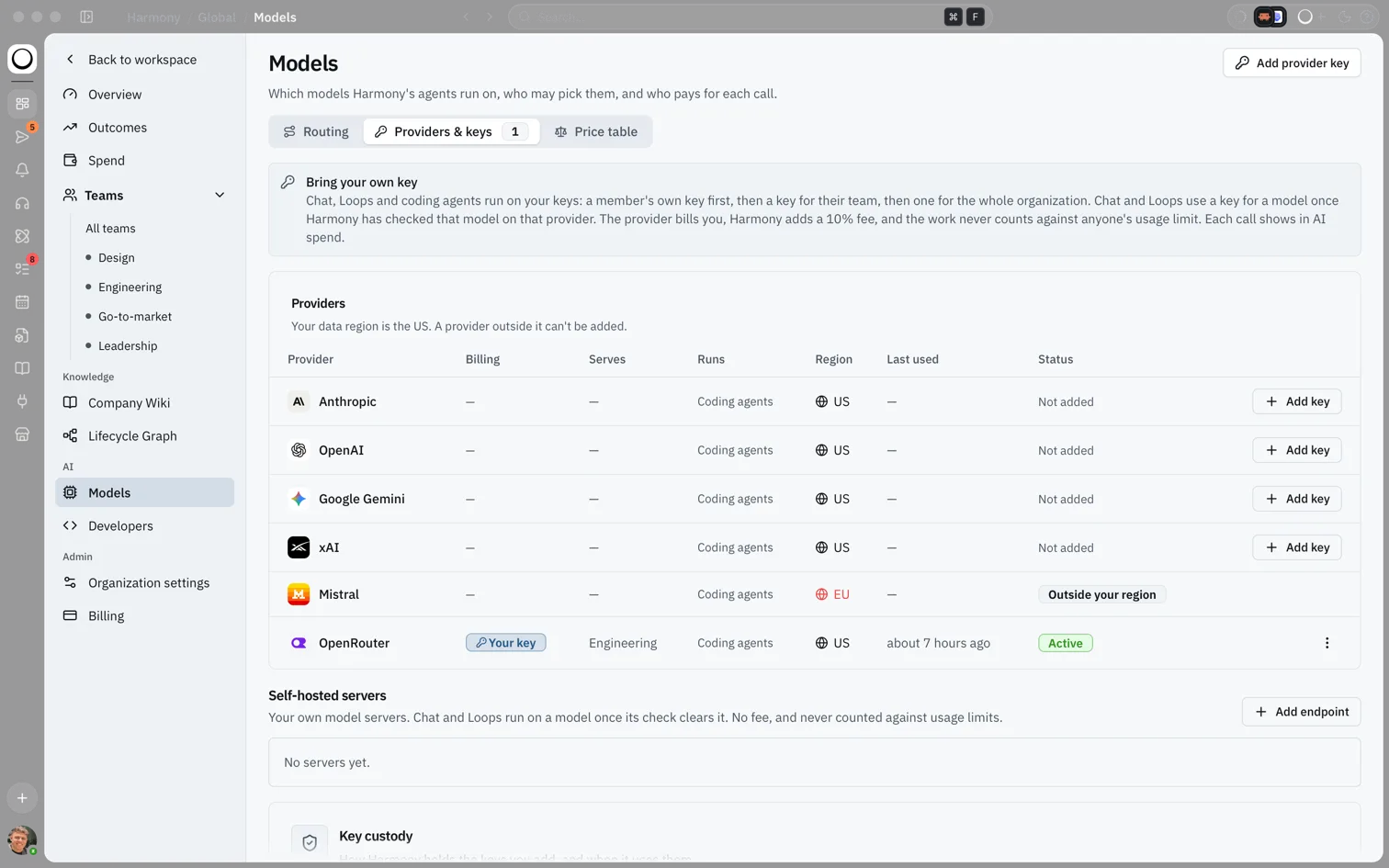
To change a key later, open the vertical three-dot menu on its row: Replace key, Change who it serves or Remove key.
Step-by-step: add your own key
- Open your profile and choose the External agents tab.
- In Model provider keys, choose Add key next to the provider.
- Paste the key and choose Save key. Harmony checks it with the provider before saving.
- Leave Use for chat and Loops on to have the provider bill your chats and Loops on its models to this key. Turn it off if only your coding agents should use it.
How this fits in Harmony
flowchart TB
  Call[A chat reply or Loop run] --> Mine{Your own key?}
  Mine -->|No| Team{A key for your team?}
  Team -->|No| Org{An organization key?}
  Org -->|No| Harmony[Harmony's models: counts against limits]
  Mine -->|Yes| Provider[Provider bills, plus 10% fee]
  Team -->|Yes| Provider
  Org -->|Yes| Provider
Which providers can do what
You can add keys for Anthropic, OpenAI, Google Gemini, xAI, Mistral and OpenRouter. Keys for Anthropic, OpenAI, Google Gemini and OpenRouter can run chat and Loops, on the models Harmony has checked for that provider. Keys for xAI and Mistral serve coding agents only. The Runs column on the Models page shows what each key runs.
A provider must process data in your organization's data region. One outside it shows Outside your region and can't be added.
Key custody
Harmony holds keys under four rules, shown on the Key custody card:
- A key is sealed when saved and never shown again, to anyone. You'll only see its last four characters.
- It is used only by Harmony's gateway: never in a prompt, a computer or the code sandbox.
- A member's own key, if they add one, comes first.
- A key the provider refuses stops being used until you replace it. It never falls back to Harmony's models on its own, so you're never charged twice. A refused key also shows in Needs attention on Outcomes.
Billing
The provider bills you directly for calls on your key. Harmony adds a 10% fee on that spend, on every plan, with no fee on failed or cancelled work. The work never counts against anyone's usage limit, and each call shows in AI spend. See Extra usage, add-ons and the Harmony fee.
Example scenario
A legal team has an Anthropic enterprise agreement. Their admin adds the key on Providers & keys and sets it to serve only the Legal team. From then on, Legal's chats and Loops run on the firm's Anthropic account. Nobody on Legal reaches a usage limit, the cost shows on Spend by person and model, and the rest of the company keeps Harmony's models.
FAQs {#faqs}
Q: Does my own key count against my usage limits? A: No. Work on your own key, a team key or the organization's key never counts against limits.
Q: Can I see a key after saving it? A: No. Keys are sealed when saved and never shown again. You see only the last four characters.
Q: What happens if the provider refuses our key? A: Harmony stops using it until you replace it, and shows it in Needs attention. It never falls back to Harmony's models on its own.
Q: Is bringing my own key available on Free? A: Yes. On Free you can run chat, tools and Loops on your own keys.
Q: Why does my xAI key not appear for chat? A: xAI and Mistral keys serve coding agents only today. Use Anthropic, OpenAI, Google Gemini or OpenRouter for chat and Loops.
Q: Which model will my chat use? A: The one picked in chat, or Auto. Open the model chip beside the chat box: models on your own keys are listed under On your own keys.