Using the Lifecycle Graph
Business Summary: The Lifecycle Graph tracks every interaction across your workspace — agents, workstreams, runs, team members, and approvals — so you can see causality and ask questions of the platform at any time.
Open Lifecycle Graph from the sidebar under Knowledge. Nimbus builds the graph in the background from the moment you sign up — no manual configuration required. For natural-language queries without opening the canvas, use Ask Nimbus on Overview or the Perception orb — see Using the Perception console.
Read your operating memory
Stage 1 — Seeding on sign-up
- Open Knowledge → Lifecycle Graph from the sidebar.
- Read the header Lifecycle Graph and stat pills: ENTITIES, EDGES, STAGE.
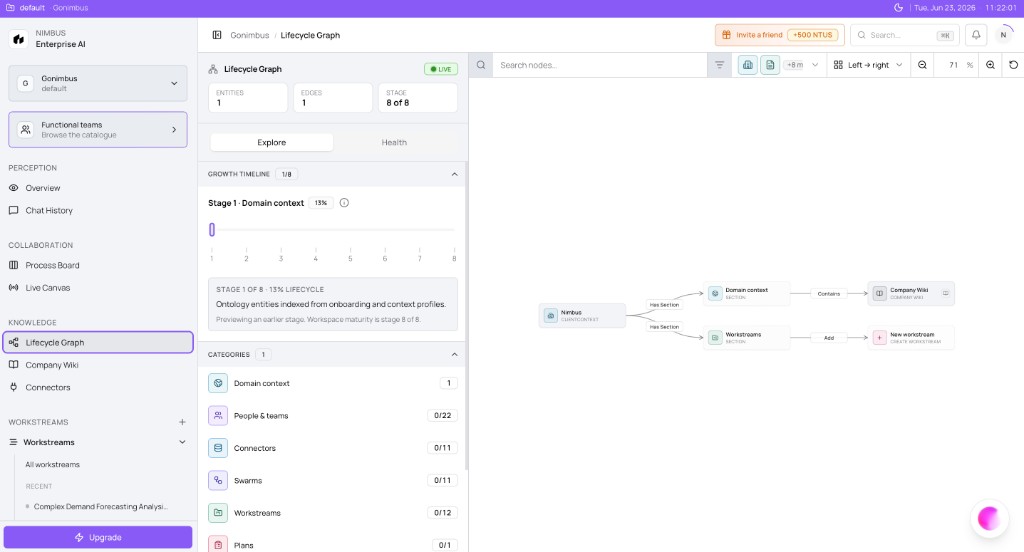
- Locate the Growth timeline slider — new workspaces typically show Stage 1 - Domain context (for example, 13%).
- Pan the canvas to find Nimbus CLIENT CONTEXT → Domain context → Company Wiki nodes.
- Follow Workstreams → New workstream scaffolding nodes — these appear before your first scoped goal.
- Open the Categories panel — Domain context, People & teams, Connectors, Agents, Workstreams, Plans — counts grow as you use the platform.
What you'll see:
- Header Lifecycle Graph with stats: ENTITIES, EDGES, STAGE
- Growth timeline slider at Stage 1 - Domain context (for example, 13%)
- Graph nodes: Nimbus CLIENT CONTEXT → Domain context → Company Wiki; Workstreams → New workstream
- Categories panel: Domain context, People & teams, Connectors, Agents, Workstreams, Plans (counts grow over time)
Stage 6+ — A mature workspace
- After connecting data, scoping workstreams, and running agents, return to Lifecycle Graph.
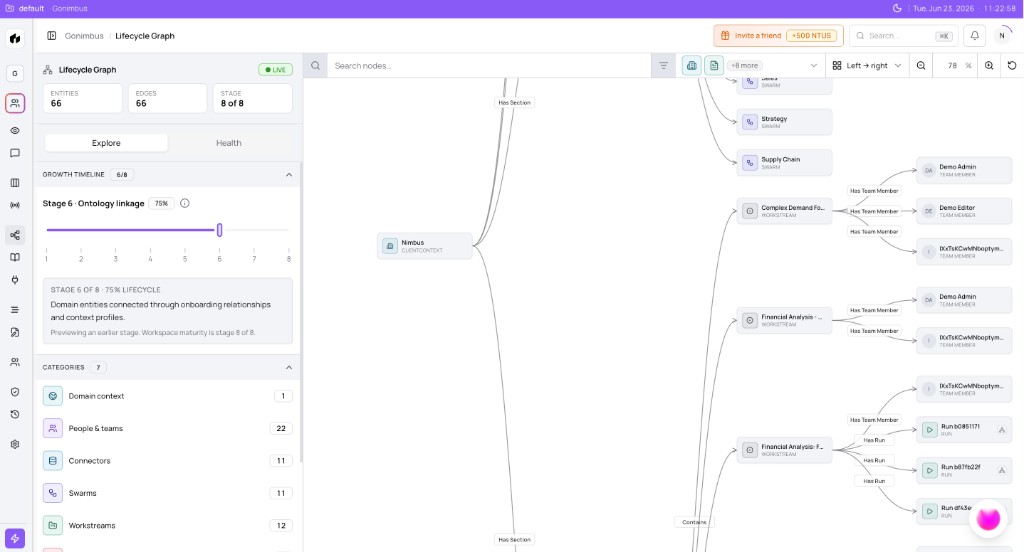
- Slide Growth timeline toward Stage 6 - Ontology linkage (for example, 75%) — subtitle Domain entities connected through onboarding relationships and context profiles.
- Search nodes… for a workstream or agent name you created this week.
- Click a workstream node — follow Has Run and Has Team Member edges to related entities.
- Use toolbar layout Left → right and zoom controls to read dense graphs.
- From Audit & History, click View Lineage on any event to jump to the same nodes — see Audit and History page.
What you'll see:
- Stage 6 - Ontology linkage (for example, 75%)
- Dozens of entities and edges — agents, workstreams, Has Team Member, Has Run
- Toolbar: Search nodes…, layout Left → right, zoom controls
Query the graph from anywhere
- Click the Perception orb (bottom right) or press ⌘/ from any page.
- Ask cross-platform questions — What happened with this workstream? or Who approved the last run?
- Follow deep links from Perception answers back into workstreams or the graph canvas.
You do not need to open the graph manually for most day-to-day questions — Perception queries operating memory on your behalf.
Network canvas and side panel
On the network canvas, pan and zoom to explore domain entities — products, markets, competitors — and their relationships. Use the side panel tabs:
| Tab | Purpose |
|---|---|
| Explore | Entity counts by category and entry points into the network |
| Health | Graph completeness — conflicts, stale sources, growth hints |
Some side panel totals and connector labels may show illustrative demo values in current builds. Trust visible canvas nodes, onboarding summary, and the Connectors page for live integration status.
Eight growth stages (summary)
| Stage | What appears |
|---|---|
| 1 — Domain context | Organization root, wiki, workstream scaffolding |
| 2 — Agent activation | A workstream run starts and agents begin work |
| 3 — Workstreams | Scoped goals with teams and connectors |
| 4 — Execution | Governed runs and outputs |
| 5 — Connectors | Intelligence and Action sources linked |
| 6 — Ontology linkage | Cross-entity relationships (teams, runs, agents) |
| 7 — Governance | HITL approvals and commitments |
| 8 — Full lifecycle | Complete operating memory across the workspace |
Use the Growth timeline slider to preview earlier stages — useful when onboarding new leaders who want to see how the workspace matured. Full stage reference: How the graph grows on the section hub.
How this fits in Nimbus
flowchart TB
  SignUp[Sign up] --> Seed[Stage 1 domain context]
  Use[Connectors workstreams runs] --> Grow[Graph grows]
  Grow --> Perception[Perception orb queries]
  Grow --> Overview[Overview Ask Nimbus]
  Grow --> Audit[Audit View Lineage]
  Perception --> Grow
The Lifecycle Graph holds operating memory — domain context, wiki vaults, execution, and governance in one graph. The network canvas emphasizes what your company knows; the tree canvas emphasizes what your company did. See Graph views in the product.
Navigate the graph
- Open Knowledge → Lifecycle Graph from the sidebar.
- Search nodes… — find a workstream, agent, or team member by name.
- Click a node to inspect details and follow deep links into Workstreams or .
- Adjust layout (Left → right) and zoom to read dense graphs.
- Cross-reference Process Board lifecycle columns for operational triage alongside graph exploration.
Example scenarios
New admin — week-one graph growth
A new admin signs up Monday. By Tuesday the graph shows Stage 1 with wiki and workstream placeholders. By Friday — after connecting HubSpot, scoping two workstreams, and completing a Plan run — the graph reaches Stage 6 with Has Run edges on both workstreams. The COO opens Perception and asks Tell me the status of all ongoing workstreams and outcomes from their latest runs — the answer pulls directly from the lifecycle graph without opening the canvas.
Compliance reviewer — lineage from audit event
A compliance reviewer opens Audit & History and finds a Agent run completed event for a board pack workstream. She clicks View Lineage — the Lifecycle Graph opens focused on the workstream, agent, and Has Team Member edges for approvers. She confirms the approving Actor matches the HITL column on Teams before archiving evidence for regulators.
FAQs {#faqs}
Q: Do I need to configure the Lifecycle Graph manually? A: No. It builds automatically as you use connectors, workstreams, agents, and approvals.
Q: How is the tree view different from the network view? A: Same Lifecycle Graph — the Lifecycle Graph tree view emphasizes execution lineage (runs, approvals); the network view emphasizes domain entities. See Graph views and sidebar labels.
Q: Can I query the graph without opening it? A: Yes. Use Ask Nimbus on Overview or the Perception orb from any page.
Q: Where do audit events connect? A: Audit & History events link to graph lineage via View Lineage — see Decision traces.
Q: Why does my graph show fewer nodes than a demo workspace? A: Mature workspaces accumulate entities over weeks of use. Keep connecting data and running governed workstreams.
Q: What do Has Run and Has Team Member edges mean? A: Has Run links a workstream to a governed execution. Has Team Member links people to workstream teams — see Browsing Teams.
Q: Does the Growth timeline change live data? A: No. It previews historical stages for onboarding storytelling — your live graph always reflects current operating memory.
Q: Can I export the graph? A: Use audit Export and Perception summaries for compliance packs; visual export depends on workspace configuration — ask your admin.