Browsing Teams
Business Summary: Teams shows who belongs to each workstream team, how teams roll up to your organization, and how actively each member commits governed work — with a GitHub-style contribution heatmap (reports, approvals, and commits — not source-control git).
Open Teams from the sidebar under Governance. This page covers the people on your workstream teams.
Browse the org chart
- Open Teams from the sidebar under Governance.
- Read the page title area — Workspace organization chart — and subtitle All workstream teams in this workspace and how they roll up to the organization.
- Locate the root Gonimbus ORGANIZATION node at the top of the interactive chart.
- Follow Has Team edges downward to workstream team nodes — for example, Gym Consultancy Team, Financial Analysis.
- Use chart zoom controls (+ / − or pinch) to read dense org structures — footer may show team count (for example, 13 teams).
- Click a workstream team node to open its profile panel or navigate to the team detail page.
- Note which teams have recent activity before drilling into Members tables.
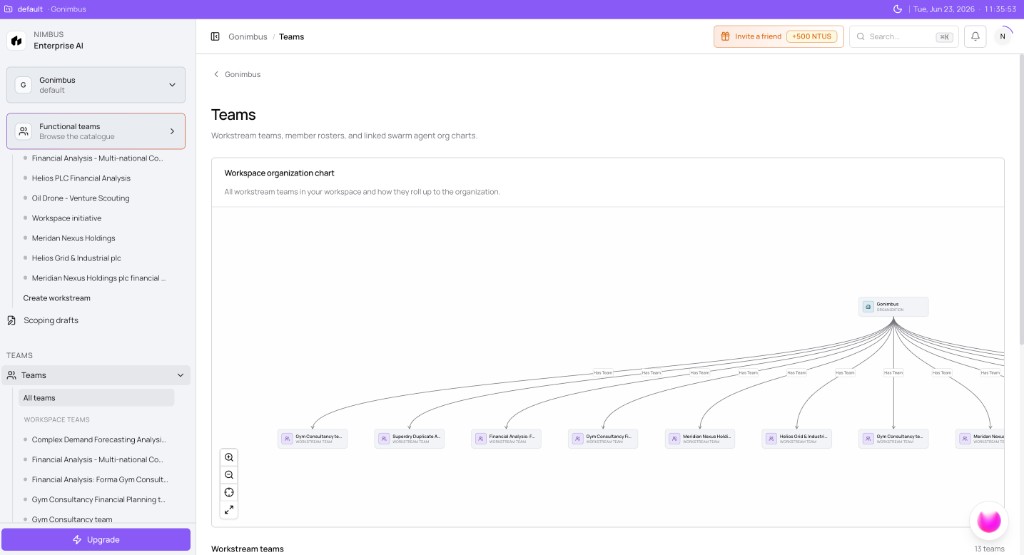
What you'll see: Interactive org chart with zoom controls; team count (for example, 13 teams) in the footer near the Perception orb.
Review team profile and members
- Click a team node (for example, Gym Consultancy team) on the org chart.
- Read Team contribution activity — heatmap of governed contributions (reports, approvals, commits) by day — similar in spirit to GitHub commit history.
- Scan summary cards: Total Contributions, Longest Streak, Current Streak.
- Scroll to the Members table — columns Member, Role, HITL, Last active.
- Read the HITL column — count of human-in-the-loop actions each member processed.
- Identify members with Last active dates stale before an upcoming deadline.
- Click + Add team member to expand the roster when onboarding a new analyst.
- Cross-reference high HITL counts with Audit & History governance events for the same period.
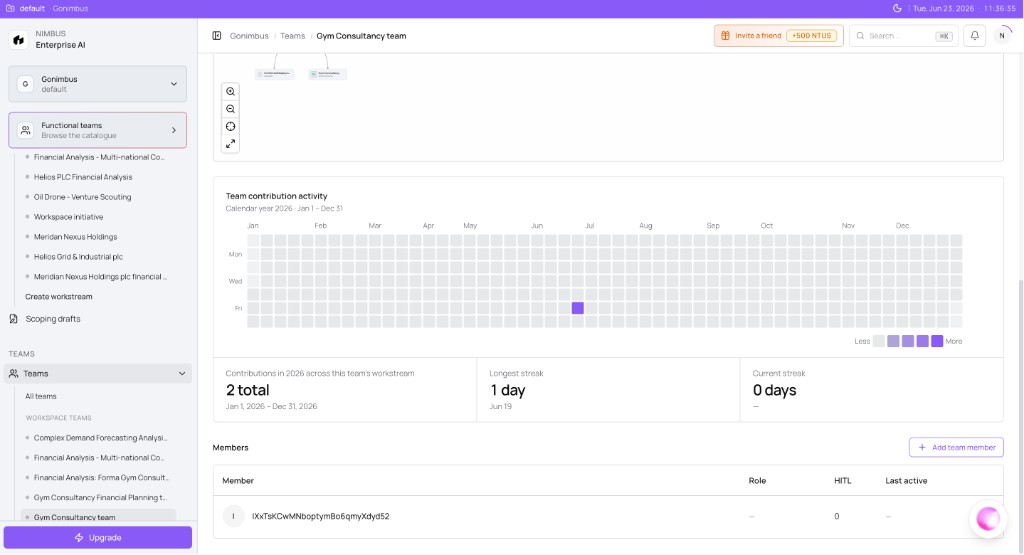
What you'll see:
- Contribution heatmap (Jan–Dec) — purple squares show active days
- HITL column — count of human-in-the-loop actions per member
- Agent org chart snippet linking the team to its workstream
Accountability and downstream protection
Team contribution history tracks what each member committed — reports published, approvals granted, and connector writes approved. This provides accountability similar to GitHub contribution history for governed AI work:
- See who approved a downstream write before it reached an external system
- Trace committed work back to a specific team member and timestamp
- Cross-reference with Audit & History and View Lineage in the Lifecycle Graph
Note: Rollback of committed downstream writes depends on your governance policy and connector capabilities. Use Audit and team contribution history to identify what was committed before requesting reversal.
Workstream teams vs functional agents
| Type | What it is | Where to browse |
|---|---|---|
| Workstream team | Humans assigned to a scoped goal | Teams (this page) |
| Agent | The AI that runs inside a workstream | Workstream chat |
See .
How this fits in Nimbus
flowchart TB
  Org[Organization]
  Team[Workstream team]
  WS[Workstream]
  HITL[HITL approvals]
  Audit[Audit and History]

  Org -->|Has Team| Team
  Team --> WS
  Team --> HITL
  HITL --> Audit
Assign collaborators during Creating a workstream (Add collaborators…). Teams also appear as nodes in the Lifecycle Graph with Has Team Member edges.
Example scenarios
Compliance lead — verify no unapproved writes
A compliance lead opens Teams, finds the Gym Consultancy team org-chart node, and reviews the contribution heatmap — two active days in June. The Members table shows HITL: 0 for a new analyst. She cross-checks Audit & History for action.connector.write events filtered to that workstream and confirms no unapproved downstream writes left the team before the analyst's onboarding date.
Engineering manager — staffing a new workstream
An engineering manager scopes an infrastructure cost workstream and opens Teams to see which existing roster members have capacity. She notes Financial Analysis team members with high Current Streak on the heatmap, adds one as collaborator via + Add team member, and assigns a second approver during Perception wizard Add collaborators…. She verifies both appear on the org chart under Has Team edges within a day of Create workstream.
FAQs {#faqs}
Q: How do I add someone to a workstream team? A: During workstream creation (Add collaborators…) or from team profile + Add team member. See Workstream teams and access.
Q: What does the HITL column mean? A: Count of human-in-the-loop approvals that member processed — sign-offs before external publishes. See Human-in-the-loop.
Q: Can I see team activity without opening each workstream? A: Yes — contribution heatmap and Audit & History filtered by team/workstream.
Q: How do teams connect to the lifecycle graph? A: Has Team Member edges link people to workstreams. Query via Perception or browse the graph — Navigating the graph.
Q: Where is workstream-level access configured? A: See Workstream teams and access for permissions detail.
Q: Is the org chart the same as Governance teams? A: Teams shows workstream human rosters. Org-wide governance policy groups may appear separately — see Teams and policies.
Q: Can guests appear on team profiles? A: Guest tier members may appear with limited roles — guests generally cannot approve Critical writes. See Org access tiers.
Q: How do I find which agent a team uses? A: Open the linked workstream from the team profile or org chart — agent assignment lives in workstream settings, not on the Teams page directly.