Using the Overview page
Business Summary: Overview is your morning command center — ask cross-platform questions, scan health metrics, and triage pending approvals before diving into individual workstreams.
Open Overview from the sidebar (Perception section). Ask Nimbus queries the lifecycle graph to answer questions about workstreams, runs, and approvals across your entire workspace — the same operating memory that powers the Perception orb and Audit & History.
Ask Nimbus
- Open Overview from the sidebar under Perception.
- Read the greeting — Good morning, Nimbus (or your name) — and subtitle Everything happening across Gonimbus today - agents, approvals, decisions.
- Locate the Ask Nimbus hero — Run queries, get summaries, and trigger agents across your workspace.
- Click inside the query field and type a cross-platform question — for example, Tell me the status of all ongoing workstreams across the platform and the outcome from their latest runs.
- Click Ask (up arrow button) or press Enter to submit.
- Alternatively, click a TRY suggestion chip below the field — chips often reflect recent workstream activity.
- Read the structured answer; follow inline links into specific workstreams when offered.
- Scan stat pills below the hero: Lifecycle Graph, Active Workstreams, Awaiting Approval, Outputs Ready.
- If Awaiting Approval is non-zero, open the Pending approvals activity tab and jump to HITL review.
- Open Chat history (when available) to revisit prior Overview queries.
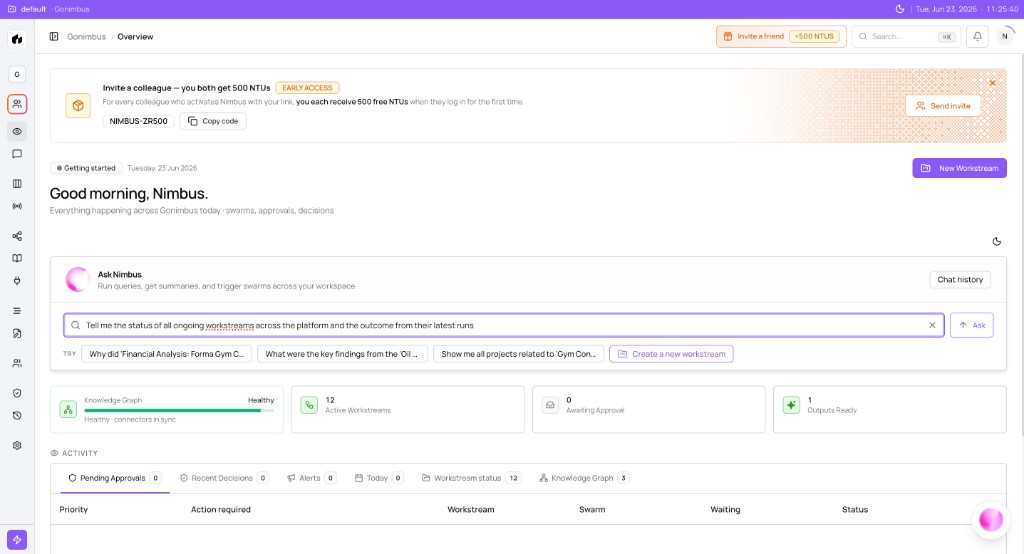
Example query:
Tell me the status of all ongoing workstreams across the platform and the outcome from their latest runs.
Nimbus queries the Lifecycle Graph to produce the answer. From there, open individual workstreams or generate reports in Plan / Reports mode — see Workstream chat modes.
Morning triage
- Check Awaiting Approval stat pill — if non-zero, open the Pending approvals activity tab immediately.
- Open Workstream status tab for a summary table across all goals — complements Process Board lifecycle columns.
- Scan Outputs Ready for deliverables to review today — route board packs to Live Canvas.
- Read Lifecycle Graph health pill — Healthy — connectors in sync indicates graph readiness; see Graph views in the product.
- Click New workstream (top right or in Ask Nimbus area) when you need to scope a new goal.
- Optional: open Recent Decisions, Alerts, or Today tabs for focused activity feeds.
How this fits in Nimbus
flowchart TB
  Overview[Overview page]
  Ask[Ask Nimbus]
  Lifecycle[Lifecycle Graph]
  Activity[Activity tables]
  WS[Workstream workspace]
  PB[Process Board]

  Ask --> Lifecycle
  Overview --> Ask
  Overview --> Activity
  Activity --> WS
  Activity --> PB
For the full platform script, see Platform walkthrough. Overview sits at the start of the daily operator loop described in Navigating the platform.
Role-based scope
Overview is personalized by org tier and workstream access:
| Role | Typical view |
|---|---|
| Admin | All workstreams, org-wide stat pills, full Ask Nimbus scope |
| Member / manager | Workstreams your team is assigned to — narrower activity tables and approval counts |
| Guest / viewer | Read-only hub cards; cannot confirm runs or approve Critical writes |
Admins may ask Tell me the current status of all workstreams or workstreams and see org-wide results. Managers with limited workstream assignments see only their scoped goals. See Workstream teams and access.
What you'll see
- Greeting Good morning, Nimbus (or your name) — Everything happening across Gonimbus today - agents, approvals, decisions
- Ask Nimbus hero with Chat history and Ask button
- TRY suggestion chips from recent workstreams
- Stat pills: Lifecycle Graph (Healthy — connectors in sync), Active Workstreams, Awaiting Approval, Outputs Ready
- Activity tabs: Pending Approvals, Recent Decisions, Alerts, Today, Workstream status, Lifecycle Graph
- New workstream button (top right and in Ask Nimbus area)
Ask vs Perception orb
| Surface | Best for |
|---|---|
| Ask Nimbus (Overview hero) | Workspace-wide status questions with structured activity tables below |
| Perception orb (bottom right, ⌘/) | Deep exploration from any page — same lifecycle data, full-screen overlay |
See Using the Perception console.
Example scenarios
COO — Monday approval and output sweep
A COO opens Overview and asks Tell me the status of all ongoing workstreams and outcomes from their latest runs. Nimbus returns a summary pulled from the lifecycle graph. Awaiting Approval shows 1 — she opens the Pending approvals tab, jumps to the workstream, and signs off at HITL review. Outputs Ready shows 1 board pack — she opens Live Canvas for final narrative edits before Thursday's board meeting.
Finance analyst — quick health check without deep links
A finance analyst starts her day on Overview without a specific workstream in mind. She clicks a TRY chip about pipeline status, scans Active Workstreams (four), and confirms Awaiting Approval is zero. She opens Workstream status tab to see which goals consumed the most NTUs last week, then navigates to the Workstreams hub to open the highest-spend card for follow-up in Analyze mode.
FAQs {#faqs}
Q: How is Overview different from Process Board? A: Overview summarizes workspace health and answers cross-cutting questions. Process Board shows per-workstream lifecycle columns (Plan → Run → Reports → Review → Committed).
Q: Where do Ask Nimbus answers come from? A: The lifecycle graph — every workstream, run, approval, and team member Nimbus tracks. See Using the Lifecycle Graph.
Q: Can I approve directly from Overview? A: Overview links you to the workstream or HITL review rail. Sign-off happens there — see Human-in-the-loop.
Q: Why does Lifecycle Graph show on Overview? A: Overview surfaces Lifecycle Graph health alongside execution metrics from the same operating memory. See Graph views in the product.
Q: Does Ask Nimbus consume NTUs? A: Cross-workstream queries may meter usage depending on plan. Governed Plan runs show explicit NTU quotes before you commit.
Q: How is Overview different from the Workstreams hub? A: The hub lists workstream cards by tab. Overview aggregates cross-workstream metrics and natural-language answers.
Q: Can I start a workstream from Overview? A: Yes — click New workstream to open the Perception wizard. See Creating a workstream.
Q: What if stat pills show sample numbers? A: Some demo workspaces show illustrative fixtures until org-wide APIs fully ship — Perception and lifecycle queries use live operating memory in production workspaces.