Connecting a connector
Business Summary: Connecting a connector lets your AI teams work from live business data — CRM, ERP, documents — instead of manual exports.
You connect a source from the Connectors catalog. Most SaaS connectors use OAuth sign-in with your vendor account; some use API keys instead. Connect once per organization — every workstream that needs the source inherits the same connection without repeating OAuth.
Connect with OAuth
- Confirm your organization is selected in the sidebar — connections are org-scoped, not personal.
- Open Connectors from the sidebar under Knowledge.
- Click Search by name, category, or use case… and type your system name — for example hubspot, xero, or salesforce.
- Click the connector card to review available tools and data scope in the detail dialog.
- Verify the card shows Available or Beta — Coming Soon toggles are disabled.
- Turn the connector toggle on — the Connect [Vendor] dialog opens.
- Read the dialog subtitle — for example, Crm - Organization OAuth — and review REQUESTED ACCESS bullets so you know which scopes Nimbus requests.
- Click Continue in the Nimbus dialog.
- In the secure Connect popup, review how Nimbus connects to your vendor account and click Continue.
- On the vendor OAuth Bridge page, click Sign in to your [Vendor] account (or Create a new account if provisioning fresh credentials).
- Complete vendor sign-in and approve requested permissions in the vendor consent screen.
- Wait for the popup to close automatically — do not close early or the flow may stall.
- Return to Nimbus — the connector card shows Connected with the toggle on.
- If Configure appears (Action connectors), click it and set Slack channels or export folders — see Configuring a connector.
- Bind the connector to a workstream under Workstream settings → Connectors before your first governed run.
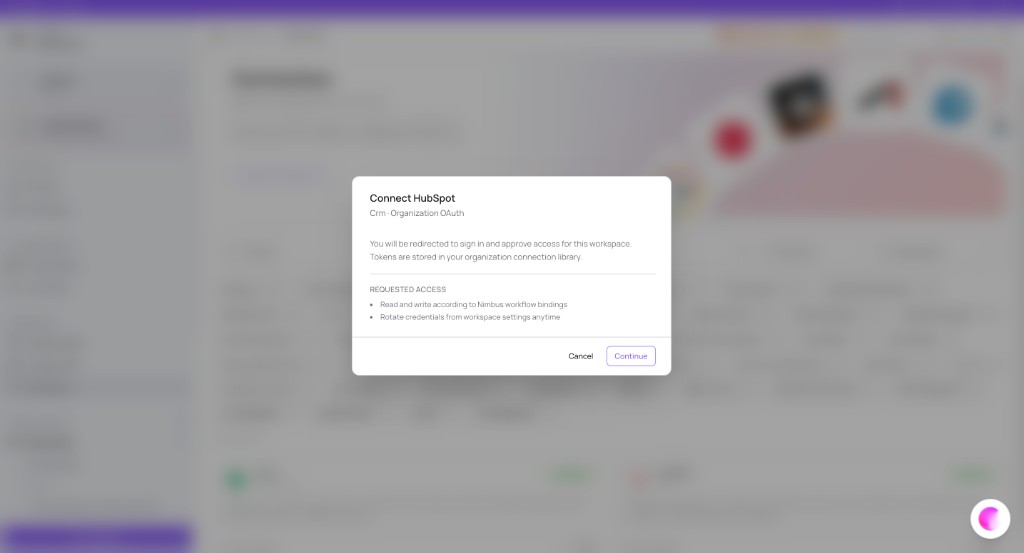
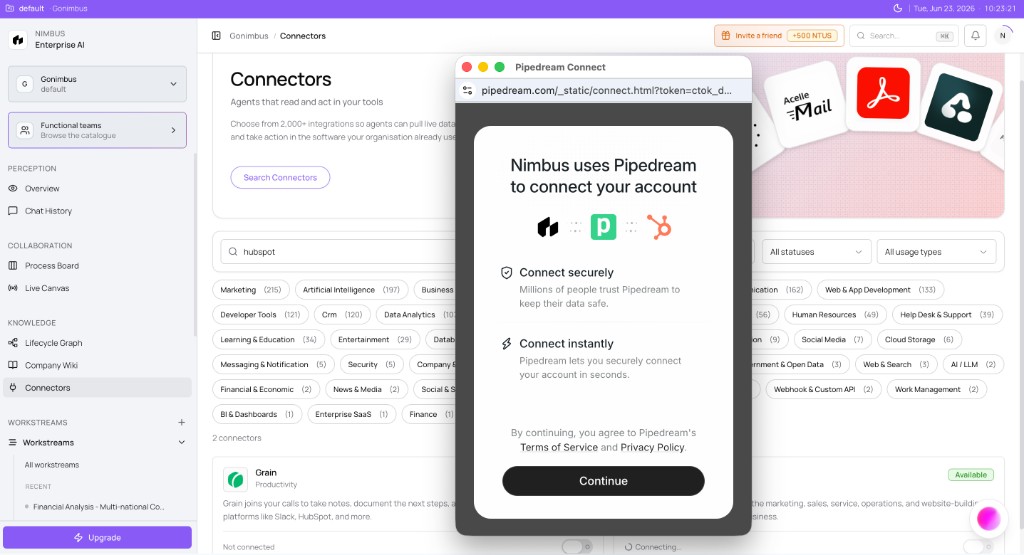
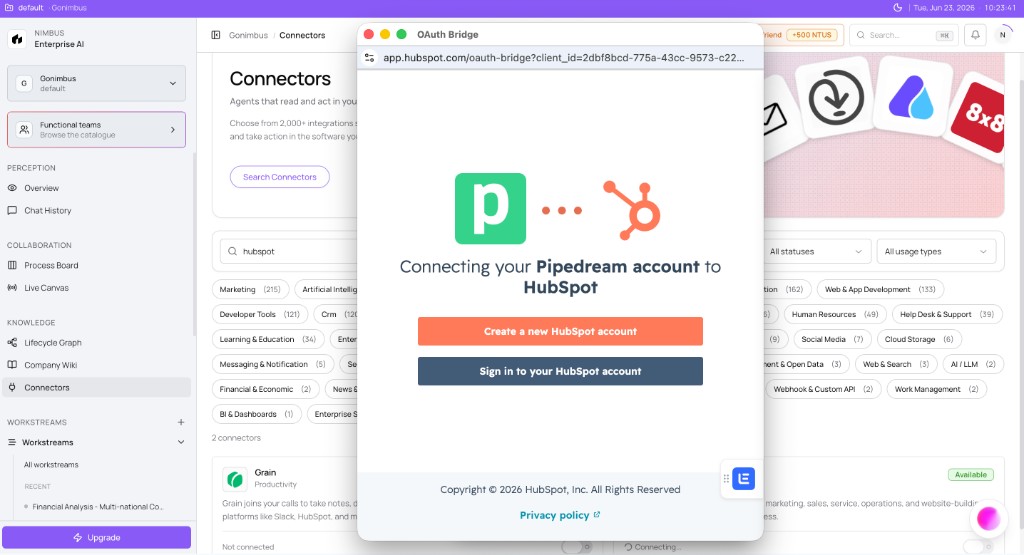
What you'll see: Toggle on → Connect [Vendor] dialog → secure connect popup → vendor sign-in → Connected on the card.
Connect with an API key
Some connectors use an API key instead of OAuth:
- Turn the connect toggle on from the catalog card.
- Confirm the flow summary shows API credentials rather than OAuth scopes.
- Paste the vendor-issued key into the credential field — use a service account key with least-privilege scopes.
- Click Save or Connect in the dialog.
- Confirm Connected on the card and test with a lightweight Analyze query in a workstream.
Why this matters to your business
| Question | Why connectors matter |
|---|---|
| Can the agent see our data? | Intelligence connectors read CRM, ERP, and docs — no manual exports |
| Can approved outcomes update our systems? | Action connectors write back only after sign-off |
| Is setup worth the effort before we run? | Agent readiness checks flag missing connectors before you spend NTUs |
Connecting early is one of the highest-impact onboarding steps — see the Onboarding checklist and Connectors overview.
How this fits in Nimbus
You complete the connect flow once per connector type per organization. After that, every workstream that needs that source can use the same connection.
flowchart TB
  Catalogue[Connector catalogue] --> Connect[You connect a source]
  Connect --> OrgLib[Organization connection library]
  OrgLib --> Readiness[Agent readiness check]
  Readiness --> Workstream[Workstream run]
Browse the catalog in Connector catalog; assign connectors when scoping a Workstream. Readiness checks flag a missing connection before a run spends NTUs — see Connector readiness.
OAuth connect sequence
sequenceDiagram
  participant User
  participant Nimbus
  participant Auth as Secure connect
  participant Vendor
  User->>Nimbus: Enable connector toggle
  Nimbus->>User: Connect dialog
  User->>Nimbus: Continue
  Nimbus->>Auth: Open secure connect
  User->>Auth: Continue
  Auth->>Vendor: OAuth sign-in
  Vendor->>Nimbus: Tokens to org library
  Nimbus->>User: Card shows Connected
After connecting
- The connector card shows Connected with the toggle on.
- Document connectors appear as import sources in the Company Wiki — see Connectors and the Wiki.
- Action connectors may show Configure for Slack channels or export folders.
- Readiness checks pass when you scope a workstream that requires this source.
If connection fails
| Symptom | What to try |
|---|---|
| OAuth popup blocked | Allow popups, then toggle off and on again |
| OAuth timed out | Complete sign-in within a few minutes; restart the flow |
| API key rejected | Confirm the key is active with required scopes |
| Connect popup closed early | Toggle off and restart from step 3 |
For disconnecting or rotating credentials, see Managing connections.
Example scenarios
Finance analyst — HubSpot for pipeline health
James opens Connectors, searches hubspot, toggles the connector on, and completes OAuth with the company finance service account. The card shows Connected within a minute. He scopes a Finance Workstream, binds HubSpot under connector settings, confirms readiness passes, and runs a governed Plan — the agent pulls CRM data directly. He did not repeat the connect flow for a second workstream that also needs HubSpot.
Operations admin — API key warehouse connect
An operations admin connects a warehouse using an API key instead of OAuth. She toggles the connector on, pastes a read-only service key, clicks Save, and verifies Connected. She syncs schema documentation to the Company Wiki, then notifies analysts that @ queries in Analyze mode can reference the warehouse connector — see Workstream chat modes.
What to do next
- Configure channels or export paths → Configuring a connector
- Assign connectors to a workstream → Creating a workstream
- Sync documents to the wiki → Connectors and the Wiki
FAQs {#faqs}
Q: Do I connect connectors per workstream or per organization? A: Connections are organization-scoped. One successful connect makes the source available across workstreams — bind per workstream in settings.
Q: What happens in the connect popup? A: After you click Continue in Nimbus, a secure sign-in window opens. Complete vendor OAuth there — Nimbus stores tokens in your org connection library.
Q: Why is the toggle disabled on some cards? A: Coming Soon connectors are not connectable yet — see Connector catalog.
Q: Does connecting immediately sync data? A: Intelligence data is pulled during agent runs. Wiki document connectors require a separate sync step — see Connectors and the Wiki.
Q: Can guests connect connectors? A: Generally no — connector management requires org member or admin role. Confirm with Org access tiers.
Q: What account should I use for OAuth? A: Prefer a service account or shared org login with stable access — personal accounts create churn when people leave.
Q: How do I know a workstream can use my connection? A: Open Workstream settings → Connectors and toggle the org-connected source on for that goal.
Q: Where do connection events appear in audit? A: Connector reads and writes log to Audit & History after governed runs execute.