Configuring a connector
Business Summary: After you connect an Action connector, configuration tells Nimbus where approved outputs go — which Slack channel receives alerts, which folder receives exports.
Configuration is the step after OAuth connect for Action connectors. Intelligence connectors (CRM reads, warehouse queries) usually work immediately once the card shows Connected. Action connectors need a destination — a Slack channel, SharePoint library, or export folder — before Action mode in workstream chat can propose writes to the right place.
Configure an Action connector
Most Intelligence connectors work immediately after Connected. Action connectors (Slack, Microsoft Teams, SharePoint, etc.) often need a Configure step.
- Open Connectors from the sidebar under Knowledge.
- Locate a card that shows Connected with the toggle on and a Configure button visible below the status badge.
- Click Configure — a dialog opens titled with the connector name (for example, Configure Slack).
- Read the modal subtitle — it explains which destinations this connector can target.
- For Slack, use the channel picker to select workspace channels where Nimbus may post approved messages only.
- For Microsoft Teams or similar messaging Action connectors, select the team and channel from the dropdown lists.
- For document Action connectors (SharePoint, Google Drive, Dropbox), choose target folders or libraries when prompted — pick paths your org account can write to.
- Review any optional settings — notification frequency, default message format, or export naming — if the dialog exposes them.
- Click Save to persist organization-level defaults.
- Confirm the card still shows Connected and note the configured destination in your runbook for approvers.
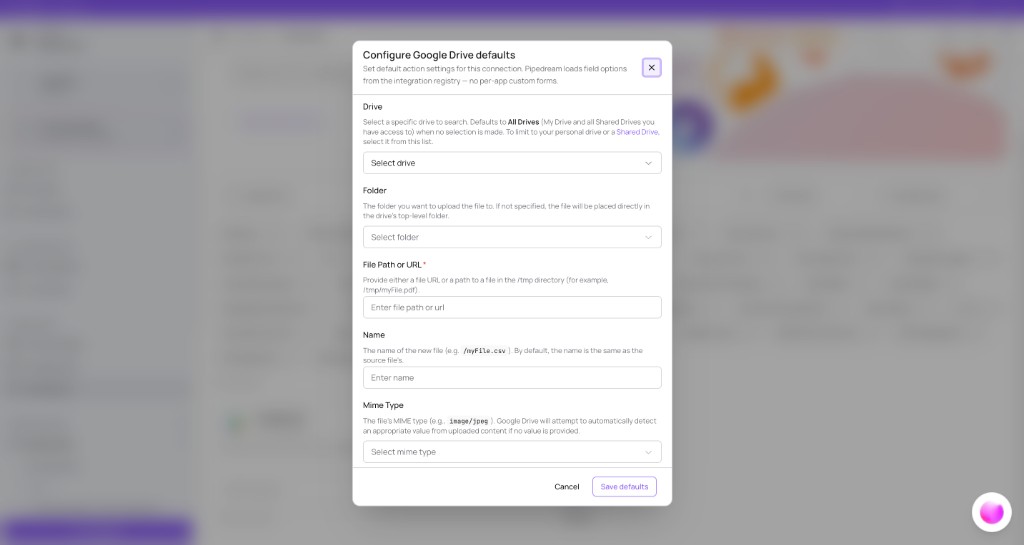
What you'll see: A modal titled with the connector name, channel or folder pickers, and Save / Cancel actions.
Before you start
- Complete Connecting a connector first — configuration is unavailable until status is Connected.
- Use an org account with permission to authorize the target channel or folder — personal Slack workspaces may lack the channels your team needs.
- Confirm your workstream binds the same connector under Workstream settings → Connectors before testing Action mode.
After configuring
- Action mode in workstream chat can propose writes to the configured destination — see Workstream chat modes.
- Critical HITL gates still apply before any external post — configuration does not bypass governance. Only admins approve Critical writes to downstream systems.
- To change targets, reopen Configure on the connector card or see Managing connections.
How this fits in Nimbus
flowchart LR
  Connect[Connect OAuth]
  Configure[Configure targets]
  WS[Workstream Action mode]
  External[External system]

  Connect --> Configure --> WS --> External
Configuration is organization-scoped. Every workstream using that Action connector inherits the same defaults unless governance restricts a write. Intelligence connectors skip this step and feed agent reads directly — see Intelligence vs Action connectors.
Example scenarios
RevOps lead — Slack alerts for hygiene runs
RevOps connects Slack via Connecting a connector, then opens Configure and limits posts to #revops-alerts — excluding #general to avoid noise. She runs a test Action from a data hygiene workstream: Post this summary to the configured Slack channel. The agent proposes an update; an admin approves at a Critical checkpoint; the message appears only in #revops-alerts. She cross-checks the event in Audit & History.
IT admin — SharePoint export folder for board packs
An IT admin configures SharePoint after OAuth connect, selecting Board Reports/2025/Q3 as the default export library. Finance workstreams using Action mode inherit this path. When a CFO approves a governed export, the file lands in the configured folder — not a personal OneDrive. The admin documents the path in the Connectors overview for compliance reviewers.
FAQs {#faqs}
Q: Do I configure connectors per workstream? A: Defaults are organization-level. Bind connectors to a workstream from Workstream settings → Connectors — see Workstream workspace.
Q: Why is Configure missing on my card? A: Intelligence-only connectors may not need configuration. Coming Soon or disconnected cards also hide Configure.
Q: Can I configure before connecting? A: No. Complete the connect toggle and OAuth flow first — see Connecting a connector.
Q: Does configuration bypass HITL? A: No. Configuration sets the destination; Critical approval still gates external writes — see Human-in-the-loop.
Q: Can I configure multiple channels for Slack? A: Select all approved channels in the picker if the dialog supports multi-select; otherwise run separate connector instances per policy.
Q: Who can click Configure? A: Organization admins and members with connector management permission — confirm with your workspace admin.
Q: What if Save fails? A: Verify your OAuth account still has access to the target channel or folder; reconnect via Managing connections if tokens expired.
Q: Do configured paths appear in Confirm & run? A: Plan mode Confirm & run lists Downstream write actions — configured Action connectors appear there when writes are enabled.