Browsing and searching wiki content
Business Summary: Browse and search wiki vaults in the Company Wiki — preview policies and reference documents before agents index them for governed runs.
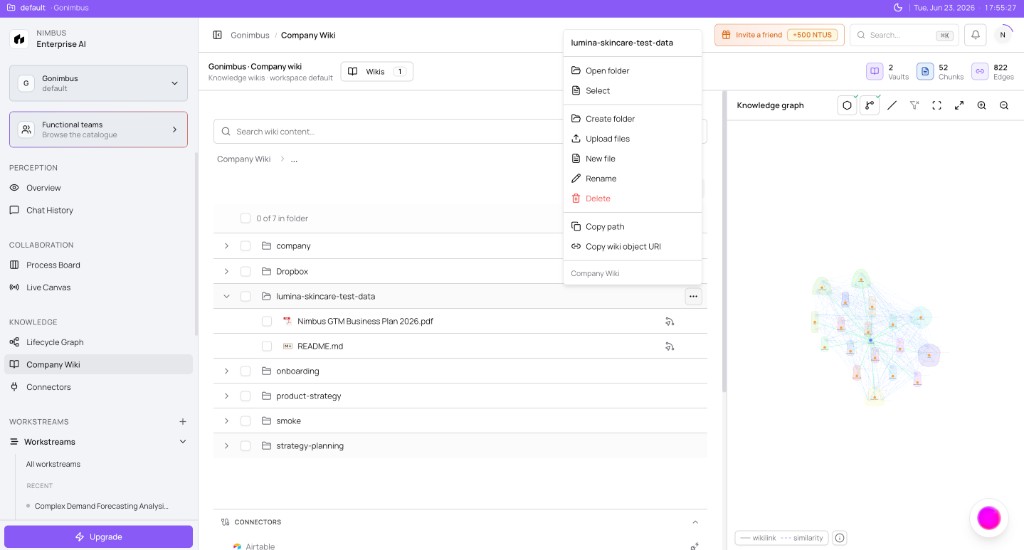
You will learn how to navigate wiki vaults, preview documents, and find content with keyword and semantic search.
Note: This feature is partially available. The wiki on the Company Wiki page may show a simplified view or sample documents while the full browsing, preview, and search experience rolls out.
How this fits in Nimbus
After you add knowledge, browse and search are how humans verify the corpus. The same indexed content powers agent retrieval in workstream chat. If you cannot find a policy in search, agents likely cannot cite it reliably either.
flowchart LR
  Vault[Wiki vault]
  Browse[Browse and preview]
  Search[Semantic search]
  Agent[Agent retrieval]

  Vault --> Browse
  Vault --> Search
  Vault --> Agent
Browse your vaults
When the full wiki workspace is available, the default Browse view shows a file explorer for the active vault. You can:
- Select a vault from the header switcher (for example Company Wiki).
- Expand folders in the tree panel or switch between tree, list, and table layouts.
- Click a file to open a preview — Markdown renders in place; PDFs and spreadsheets use dedicated preview panes.
- Use the Connectors section in the explorer to open integration folders synced from Google Drive, Notion, or similar sources.
Folder navigation preserves your place in the URL so you can share links to specific paths within a vault.
Preview and inspect files
Selecting a file opens a preview panel with the document title, content, and navigation controls. From preview you can:
- Go back to the folder view
- Open View in graph for indexed files to see how the page connects to related wiki content
- Inspect lineage — which vault and path the file came from, including connector sync metadata
Indexed files show an indicator in the browse list so you know they are searchable and linked in the wiki graph.
Search wiki content
The dedicated Search view (and inline search in browse) lets you query indexed content across vaults.
flowchart TB
  Query[Enter search query]
  Filter[Vault filter]
  Mode[Hybrid or Semantic]
  Results[Ranked results]
  Preview[Open in preview]

  Query --> Filter --> Mode --> Results --> Preview
- Open Search from wiki navigation or use the search field in browse.
- Enter at least two characters.
- Optionally filter to a single vault or search all vaults.
- Choose a search mode:
- Hybrid — blends meaning-based matching with keyword matching, then boosts results from related wiki clusters.
- Semantic — matches by meaning using indexed content only.
Results show a title, excerpt, relevance score, and vault path. Selecting a result opens the file in preview at the matching location.
What you'll see: A search field with placeholder Search wiki content…, a vault filter dropdown (All vaults or a specific vault), a mode selector, and a results list. While searching, a skeleton loader appears; empty queries show a prompt; no matches show No results.
Search in the wiki today
On the Company Wiki page in a demo workspace, a header search filters demo document cards by title, section, and excerpt. This is a simplified preview of wiki search — not the full semantic index. For production organizations without demo data, search is not available until content is indexed in a vault.
Tips for effective browsing
- Name folders consistently — for example
policies/,definitions/,onboarding/— so teams and agents can navigate predictably. - Re-sync connector folders when source documents change materially; then re-index or rely on auto-index.
- Use graph view alongside browse to discover related pages you might not find by folder structure alone. See What is the Company Wiki?.
How to operate
Daily wiki navigation on the Company Wiki page:
- Open Knowledge → Company Wiki.
- Expand folders in the left explorer; use checkboxes for bulk selection when available.
- Run Search wiki content for hybrid or semantic lookup.
- Inspect the Lifecycle Graph panel on the right for cluster relationships and file counts.
- Switch list/grid view and sort before sharing a folder path with colleagues.
Step-by-step: verify content before a workstream run
Before a high-stakes Plan run that depends on policy language, walk through this check:
flowchart LR
  A[Open Browse]
  B[Confirm file present]
  C[Check indexed indicator]
  D[Run Search query]
  E[Open preview]

  A --> B --> C --> D --> E
- Open Browse and navigate to the expected vault folder.
- Confirm the document appears and shows an indexed indicator when available.
- Switch to Search, use Hybrid mode, and query a distinctive phrase from the policy.
- Open the top result in preview and confirm the excerpt matches the source of truth.
- Proceed with the workstream run knowing agents can retrieve the same material.
If any step fails, return to Adding knowledge to sync, upload, or reindex before spending NTUs on a run that may cite outdated text.
Example scenario
An analyst needs the official definition of "Annual Recurring Revenue" before a board memo. She opens Search, selects All vaults, and uses Hybrid mode with query "ARR definition." The finance handbook vault returns the indexed glossary section. She opens preview, confirms the language matches the CFO's prior approval, and proceeds with confidence in her workstream Plan run.
FAQs {#faqs}
Q: Why can't I find a file I just uploaded? A: Uploads must finish and the vault must be indexed before semantic search includes them. Check that Auto-index vaults is on, or trigger indexing manually from the file explorer. See Adding knowledge.
Q: What is the difference between hybrid and semantic search? A: Hybrid combines keyword and meaning-based matching — useful for exact policy names and conceptual questions. Semantic focuses on meaning alone — useful when wording differs from your query.
Q: Can I search across all vaults at once? A: Yes. Leave the vault filter on All vaults in the search panel. Results show which vault each hit belongs to.
Q: Why does search return nothing in the web app? A: The simplified web page may not run the full indexing process yet. Connect sources, sync content, and wait for indexing to finish — or check a demo workspace for sample results only.
Q: How do I jump from search to the wiki graph? A: Open a result, then use View in graph from the file context menu or preview actions to highlight the page in the graph panel.
Q: Can I share a link to a specific wiki page? A: Yes when the full browse experience is available. Folder navigation preserves path in the URL so colleagues open the same file.