Adding wiki content
Business Summary: Populate your Company Wiki vault with policies, playbooks, and synced documents — so agents and chat can cite approved language instead of guessing.
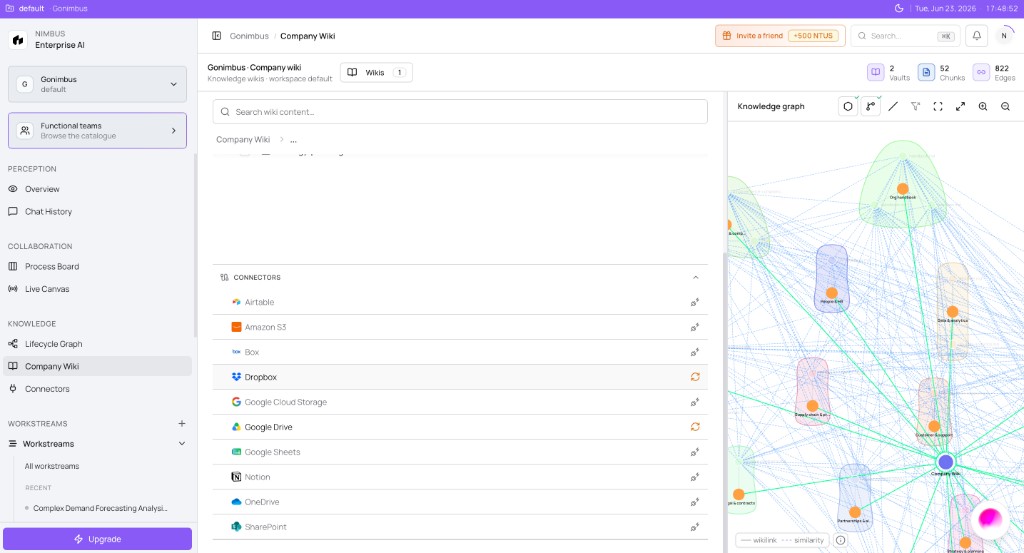
You can add content two ways: sync from a connected file system (Method 1) or upload files directly (Method 2). After content is indexed, reference it in workstream chat or the Perception console with @ mentions.
Note: Connectors and wiki sync are live in many workspaces. If a button is missing, check What works today.
Two ways to add content
| Method | Best for | Summary |
|---|---|---|
| Method 1 — Connector sync | Documents that live in Google Drive, Dropbox, Notion, SharePoint, etc. | Connect the integration, pick folders/files, copy into the wiki vault |
| Method 2 — Upload | Local files, one-off PDFs, bulk folder drops | Create a folder, upload from your machine |
Both methods store files in a wiki vault (for example Company Wiki). Nimbus indexes them for search and for @ mentions in chat.
Method 1 — Sync from a connected file system
Use this when your policies and manuals already live in a cloud drive or document platform. You choose exactly which folders and files to copy — you do not need to import an entire drive.
Step 1 — Open Connectors in the Company Wiki
- Open Company Wiki from the sidebar (Knowledge section).
- Scroll to the Connectors panel at the bottom of the wiki workspace.
- Find your document platform — for example Google Drive, Dropbox, Notion, or SharePoint.
- If the connector is not connected yet, use the link icon to start the connect flow, or connect first from Connectors in the sidebar — see Connecting a connector.
What you'll see: A vertical Connectors list under the wiki file explorer, with sync and link icons beside each integration. The Knowledge graph panel on the right shows how indexed wiki content connects to other nodes.
Step 2 — Connect your account
- Click the connector you want (for example Dropbox or Google Sheets).
- If prompted, turn the connector on from the Connectors catalog first.
- A Connect [Vendor] dialog opens in Nimbus — review the requested access and click Continue.
- A secure sign-in popup opens — complete sign-in with your org or service account and approve permissions.
- Wait for the popup to close automatically. The connector should show as connected.
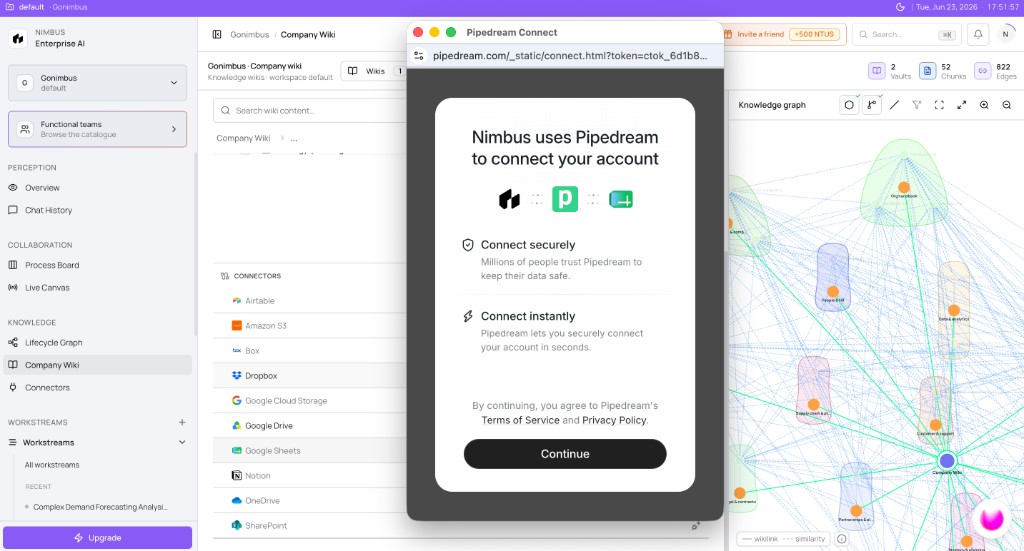
Tip: Use a service account or shared org login for connectors — not a personal account that leaves when someone does.
Step 3 — Pick files and start sync
- Return to Company Wiki and open the connected integration from the Connectors panel.
- The Sync integration to vault dialog opens.
- Browse folders and select the files and folders you want in the wiki — for example a
policies/folder or a board-pack directory. - You can select up to 200 files per sync in the current wizard. Choose only what agents need; skip personal or archive folders on large drives.
- Confirm the target vault (for example Company Wiki) and click Start sync.
- Watch progress as files copy into vault storage. When copy completes, indexing runs (automatically if Auto-index vaults is enabled in wiki settings).
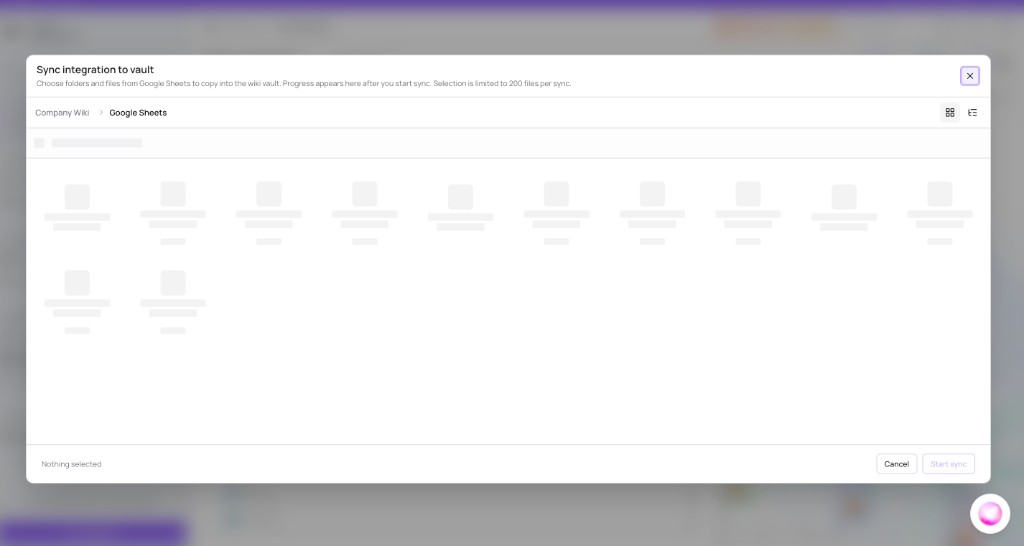
What you'll see: Breadcrumb path such as Company Wiki › Google Sheets, a grid or list of folders/files to select, Nothing selected until you pick items, then Start sync becomes active.
Re-sync later
When source files change in Google Drive or SharePoint, open the same integration in the wiki and run Sync to vault again. Nimbus refreshes the copy in your vault and re-indexes updated files. Your external system is never modified or deleted — sync is import-only.
Method 2 — Upload files directly
Use this for local documents, ad hoc PDFs, or when you do not have a cloud connector set up yet.
Step 4 — Create a folder
- Open Company Wiki and select your vault (for example Company Wiki).
- In the file explorer, open the
⋯(three dots) menu on a parent folder — or the vault root. - Choose Create folder.
- Enter a name — for example
policies,board-packs, orQ3-planning. - Click Create.
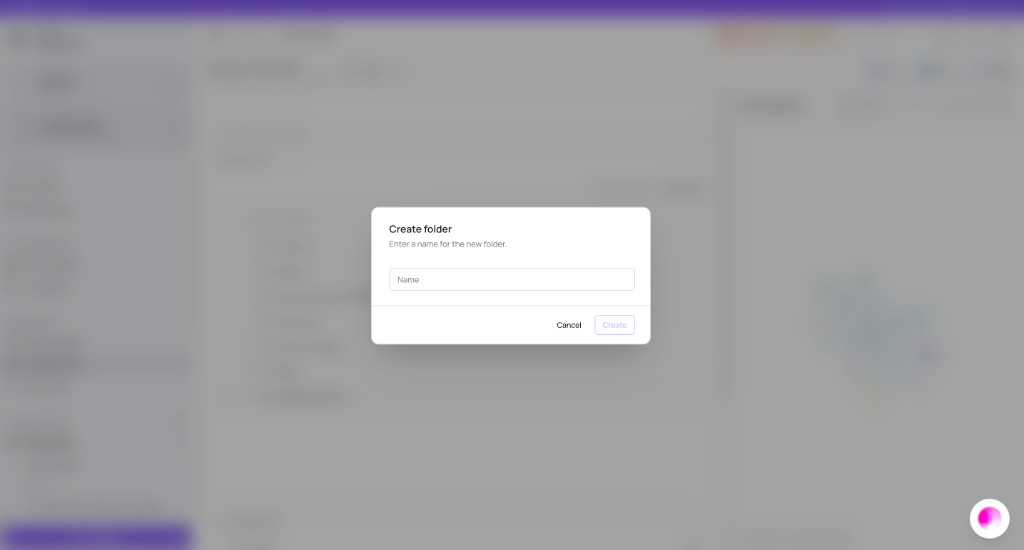
Organizing uploads into folders keeps browse and search manageable as the vault grows.
Step 5 — Open Upload files from the folder menu
- Navigate to the folder you created (or any target folder).
- Click the
⋯menu on that folder row. - Select Upload files.
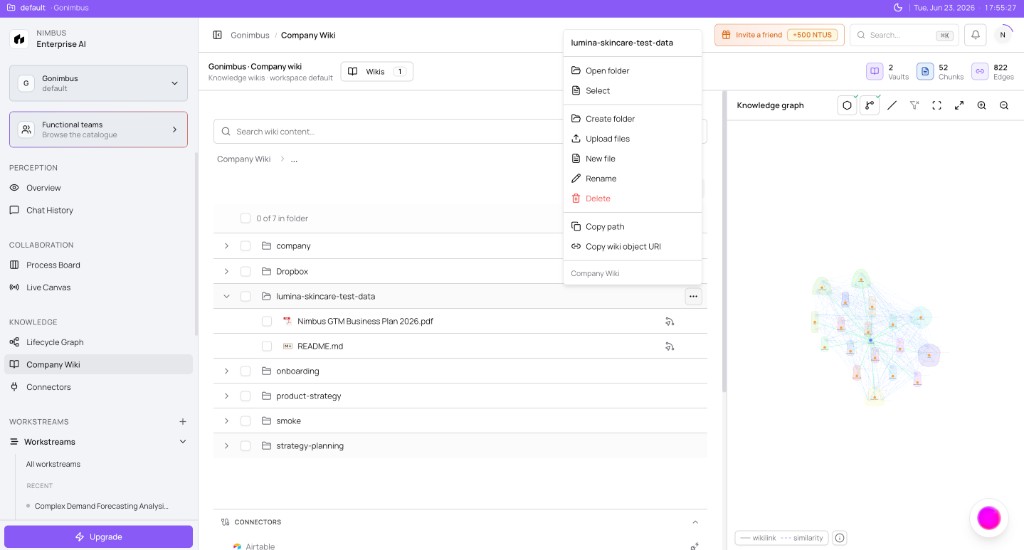
You can also use New file to create a blank Markdown page directly in the wiki.
Step 6 — Upload one file or many
The Bulk upload to wiki dialog opens.
- Confirm the destination vault in the dropdown (for example Company Wiki).
- Choose files or Choose folder — or drag files onto the upload area.
- Supported formats include Markdown, plain text, PDF, DOCX, CSV/TSV, and Excel (
.xlsx). - Watch the queue table for per-file Status and Progress. Up to three files upload concurrently.
- When uploads finish, click Enqueue index job if auto-index is off — otherwise indexing starts automatically.
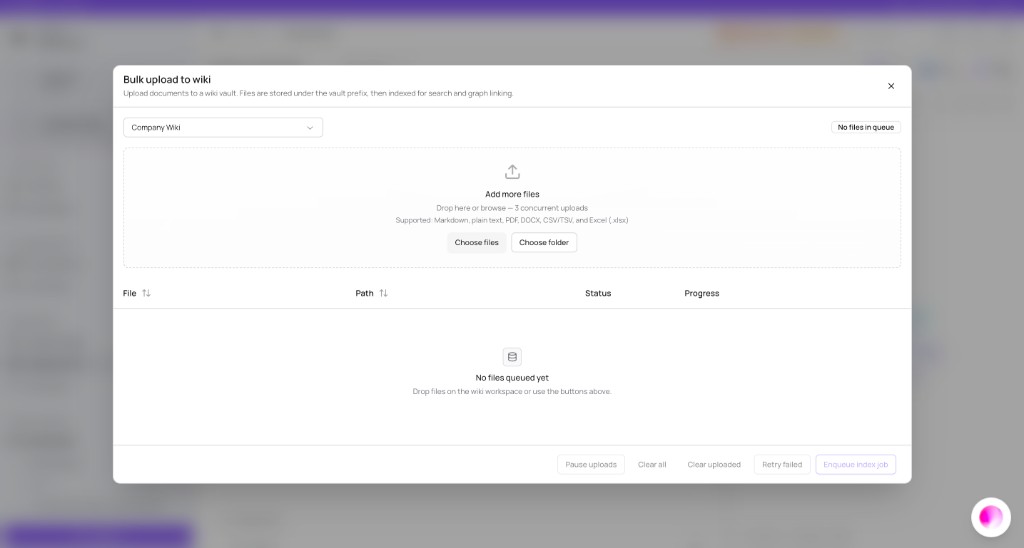
What you'll see: Drag-and-drop zone, vault selector, queue with columns File, Path, Status, Progress, and actions Pause uploads, Clear all, Retry failed.
Use wiki content in chat with @
After files are uploaded or synced and indexed, you can pull them into AI conversations:
In a workstream
- Open a workstream and focus the chat composer.
- Type
@to open the attachment picker. - Search for a wiki document, vault folder, or connector-backed file by name.
- Select one or more items — they attach to your message as context.
- Ask your question or run Analyze / Plan mode. The agent uses attached wiki content alongside live connector data.
See Workstream chat modes for how Analyze and Plan use attached context.
In the Perception console
- Open Overview or click the Perception orb.
- Type
@in the Perception input. - Pick wiki documents or vault paths the same way as in workstream chat.
- Ask a question — for example Summarize our expense policy or What does the board pack template require for EMEA?
See Using the Perception console.
Why @ matters: Uploading or syncing alone does not attach content to a run. @ tells Nimbus exactly which indexed documents to include in that message or run.
After adding content
| Step | Action |
|---|---|
| Indexing | Wait for indexing to finish — enable Auto-index vaults in wiki Settings, or run Reindex on selected files |
| Verify | Open Browse or Search in the wiki — see Browsing and searching |
| Use in runs | Attach with @ in workstream chat or Perception before Plan or Analyze |
| Governed runs | Agents also retrieve indexed wiki content automatically during runs scoped to your org |
Import vs sync (connector terminology)
| Label | Meaning |
|---|---|
| Import to vault | First time copying this integration folder into the selected vault |
| Sync to vault | Refreshing a folder that was previously copied into the same vault |
Example scenario
Legal maintains policies in SharePoint. An admin connects SharePoint from the wiki Connectors panel, picks the legal/policies folder in Sync integration to vault, and starts sync. After indexing, a compliance lead types @expense policy in a workstream Analyze thread before scoping a governed Plan run. The agent cites the same policy language Legal approved in the wiki.
What to do next
- Browse and search your vault → Browsing and searching wiki content
- Connect more systems → Connecting a connector
- Attach wiki docs in chat → Workstream chat modes
FAQs {#faqs}
Q: Do I have to sync my entire Google Drive? A: No. The sync wizard lets you pick specific folders and files — up to 200 per sync.
Q: Should I upload or sync? A: Sync when documents live in cloud drives and change often. Upload for local files or one-off additions.
Q: Does sync delete files in Google Drive? A: No. Sync copies content into Nimbus vault storage. Your source system is unchanged.
Q: Why does @ not find my file?
A: The file may still be indexing. Wait for indexing to complete, then try again. Only indexed files appear in the @ picker reliably.
Q: Can I @ mention wiki content in Perception and workstreams?
A: Yes — type @ in either composer and search for indexed wiki documents or folders.
Q: How long until new content is searchable? A: After upload or sync completes, wait for indexing. Enable Auto-index vaults or trigger Reindex manually.
Q: Why is Upload missing in my wiki? A: Your workspace may not have uploads enabled yet. Use connector sync (Method 1) or check What works today.