Using Live Canvas
Business Summary: Live Canvas is a Figma-style board where formal reports become collaborative artifacts — combine outputs from multiple workstreams into one master board pack, edit sections together, and approve before commit.
Open Live Canvas from the sidebar under Collaboration. Reports arrive here after Reports mode in a workstream or from Process Board Reports columns. Executives use Live Canvas to pull results from every active workstream into a single aggregated document — for example a quarterly board reporting pack summarizing status across Finance, Sales, and Operations initiatives.
Combine workstream reports
- Complete at least one governed run in Plan mode inside a workstream — see Workstream chat modes (Reports mode requires completed run outputs).
- Switch to Reports mode in the workstream chat composer; confirm generation when prompted. Artifacts also appear from Process Board Reports deep links.
- Open Collaboration → Live Canvas from the sidebar.
- Read the header — Live Canvas with a Live badge and subtitle such as Gonimbus · 2 reports indicating how many boards are open.
- View one or more report boards side by side — for example, Finance and Marketing outputs for a single board meeting.
- Use the left rail controls: zoom + / −, fit to view, and export when you need a static copy for offline review.
- Edit modular blocks on each board: Executive summary, Key indicators, Narrative — drag handles on block headers let you reorder sections.
- Read workstream tags on each board (for example, Gym Consultancy team, Financial Analysis) to confirm you are comparing the right sources.
- Collaborate with teammates — the Live badge means multiple users can edit simultaneously; use block-level edit, copy, and delete controls on section headers.
- Leave comments or request revisions via board chat when available.
- Route the pack through HITL when governance requires sign-off — approvers with the correct role review before downstream publish.
- After approval, verify the committed report in Audit & History and query it via the Perception orb.
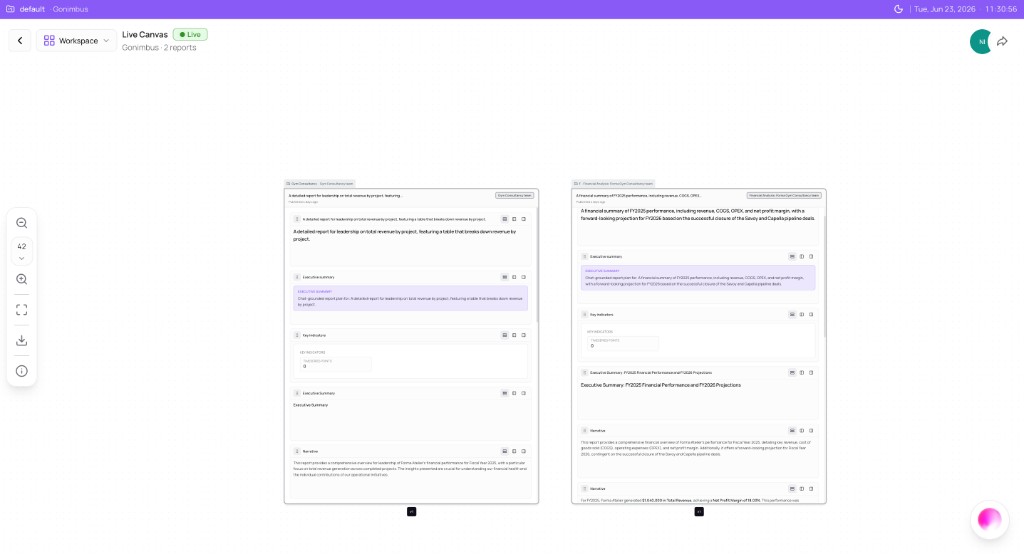
What you'll see:
- Header Live Canvas with Live badge — Gonimbus · 2 reports
- Side-by-side report boards with drag handles on each block
- Left rail: zoom (+/−), fit to view, export
- Workstream tags on each board (for example, Gym Consultancy team, Financial Analysis)
Step-by-step: build a master board report
Board packs rarely come from a single workstream. The typical flow pulls Finance, Sales, and Strategy outputs into one canvas, refines narrative sections collaboratively, and approves before commit.
- Complete Plan runs in each contributing workstream — each run should land outputs in Outputs before Reports mode can synthesize.
- Switch to Reports mode in each workstream; generate artifacts with prompts such as Generate an executive summary board pack from the last run.
- Open Live Canvas — boards appear side by side automatically when multiple reports exist for the workspace.
- Pan and zoom using left rail controls to compare Key indicators across domains.
- Edit Narrative sections — merge regional commentary, reconcile conflicting figures, and reorder blocks with drag handles.
- Share the canvas with approvers; resolve HITL when the Live badge shows pending review.
- Confirm commitment on Process Board — the Committed column updates when governance clears.
How this fits in Nimbus
flowchart TB
  Reports[Workstream Reports mode]
  Canvas[Live Canvas]
  PB[Process Board Reports column]
  HITL[HITL approval]
  Memory[Operating memory]

  Reports --> Canvas
  PB --> Canvas
  Canvas --> HITL
  HITL --> Memory
Typical board-report flow: pull outputs from Finance, Sales, and Strategy workstreams into one canvas → refine collaboratively → approve → commit to operating memory and the lifecycle graph. Also referenced from Workstream chat modes (Reports mode) and the Collaboration overview.
Collaborate on a board
Multiple users can work on the same canvas simultaneously when the Live badge is visible. Block-level controls on section headers let you edit text, duplicate a section to another board, or remove outdated content. Request revisions via board chat when your workspace enables it — otherwise coordinate through your team's normal approval channel and sign off in HITL review.
Remember that Managers cannot publish to downstream systems — only admins approve Critical writes. Live Canvas approval covers report commitment; separate Critical gates apply to Action connector writes — see Human-in-the-loop.
Example scenarios
CFO — quarterly board pack
A CFO prepares a quarterly board pack ahead of Thursday's meeting. She opens Live Canvas with two reports already generated — revenue by workstream (Gym Consultancy team) and FY2025 financial summary (Financial Analysis). She merges Narrative sections, adds regional commentary under Executive summary, and adjusts Key indicators after Finance confirms revised figures. She shares the canvas with the board secretary; after HITL approval, the committed report appears in Audit & History and the lifecycle graph. She verifies lineage with View Lineage before the meeting.
Marketing director — cross-functional campaign review
A marketing director combines a campaign ROI report (Marketing workstream) with pipeline health outputs (Sales workstream) on Live Canvas. She opened both from Process Board Reports cells after noticing REPORTS badges on Monday triage. She uses fit to view to compare funnel metrics side by side, edits the combined Executive summary, and routes the pack through HITL review with her RevOps counterpart. Once approved, she posts a summary link to Slack via Action mode in the Marketing workstream — Critical write approval handled separately per governance policy.
FAQs {#faqs}
Q: How do I get reports onto Live Canvas? A: Generate them in workstream Reports mode after a Plan run completes, or open from Process Board Reports cells with REPORTS badges.
Q: Can I combine reports from different workstreams? A: Yes — that is the primary use case for board packs and executive summaries. See the Collaboration hub workflow.
Q: How is Live Canvas different from workstream chat? A: Chat drives analysis and governed runs in Analyze, Plan, and Action modes. Live Canvas holds structured report artifacts for leadership review and collaborative editing.
Q: Who can approve on Live Canvas? A: Workspace members with approver role. Only admins approve Critical downstream writes — see Human-in-the-loop.
Q: Does Live Canvas connect to the lifecycle graph? A: Committed reports and approvals feed operating memory — queryable via Perception and View Lineage in Audit.
Q: Why is my canvas empty? A: You need completed run outputs first. Run Plan mode, then switch to Reports mode in the workstream — see Workstream chat modes.
Q: Can I export a board pack from Live Canvas? A: Use the export control on the left rail for a static copy. Governed commitment still requires HITL when policy applies.
Q: What does the Live badge mean? A: The canvas session is active and supports real-time collaborative editing with other workspace members.