Reading your usage dashboard
Business Summary: The Usage & Billing dashboard gives finance and admins a single place to track NTU consumption, spot spikes, reconcile runs to ledger rows, and act before you hit plan limits.
Note: Your dashboard currently shows sample data — it will update automatically once your workspace billing is activated. Your invoice is the source of truth for charges.
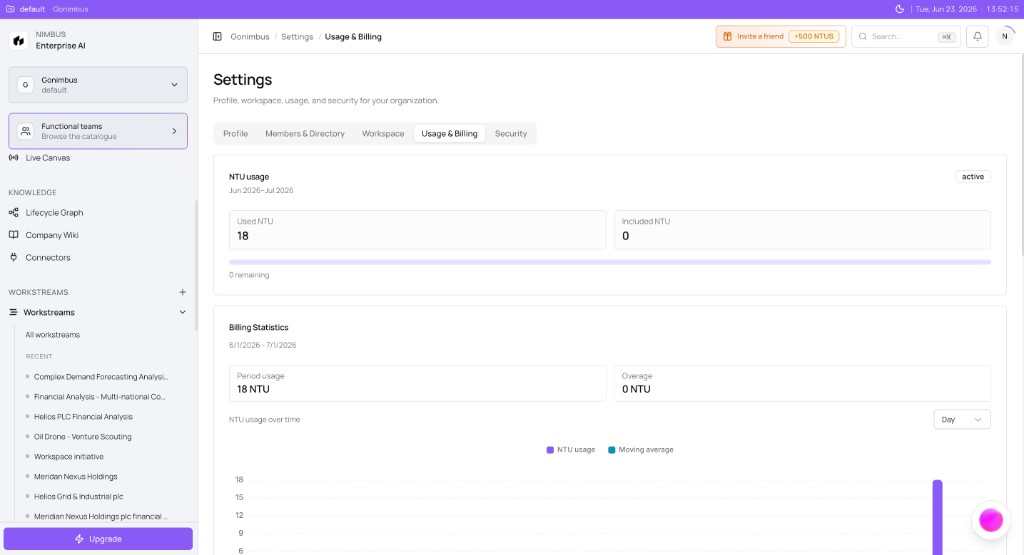
Open Settings → Usage & Billing from the sidebar, or click the NTU meter in the header. There is no separate Billing page — everything is on this tab. See the Billing and usage overview.
The dashboard closes the NTU lifecycle after runs post usage — from header meter summary to per-run ledger detail and invoice line items.
NTU usage card
The top NTU usage card summarizes the billing period:
| Field | What it means |
|---|---|
| Period label | Start and end dates for current cycle (e.g. Jun 2026–Jul 2026) |
| Status | Badge such as active, past due, or trial |
| Used NTU | Total metered usage posted this period |
| Included NTU | Plan pool plus any commitment add-ons |
| Progress bar | Visual used ÷ included; remaining count below |
| Overage | Shown below the bar when usage exceeds included pool |
When used NTU approaches 100%, ask your workspace super admin (the person who created the workspace) — they can approve add-ons in Settings → Usage & Billing, upgrade tier, or help pace runs.
See Plans and overage.
Billing Statistics
The Billing Statistics card shows period totals and a usage chart:
| Field | What it means |
|---|---|
| Period usage | NTU consumed in the billing date range |
| Overage | NTU above the included pool (0 when under cap) |
| NTU usage over time | Bar chart — switch Day, Week, or Year |
| Moving average | Trend line overlaid on daily bars |
Hover or focus chart points for approximate daily totals when supported. Weekend dips are normal for business teams.
Usage ledger table
The ledger lists individual usage entries — one row per significant run or adjustment:
| Column | Meaning |
|---|---|
| Run ID | Link to the governed run |
| Agent | Which agent executed |
| Workstream | Workstream scope |
| NTU amount | Posted usage |
| Overage NTU | Portion above included pool |
| Status | Pending, posted, refunded, or failed |
| Date | When usage posted |
Use run references when matching Activity timelines to finance reports.
Payment methods and invoices
Below usage, sections for payment methods and invoices let admins manage cards and pay open bills. See Invoices and payment methods.
Demo vs live data
If numbers feel static or match sample patterns (generic agent names, round period totals), you may be viewing sample data. Live billing will show usage tied to your organization's account once activated.
Example scenario
Mid-month, finance notices the progress bar at 85%. The telemetry chart shows a spike on the 15th — three Plan runs for quarterly close workstreams. The ledger lists each run with workstream name and NTU amount. Finance pairs run references with Activity approvals, confirms no overage yet, and asks RevOps to defer non-urgent runs until after period reset unless a commitment add-on is purchased.
What you'll see: Settings → Usage & Billing with the NTU usage card on top, Billing Statistics and chart below, then payment methods, invoices, and the usage ledger. Loading skeletons may flash briefly on first open.
What to do next
- Over 80% of included NTUs? → Plans and overage to add capacity or understand overage
- Need more seats or plan detail? → Plans, seats, and included usage
- Match runs to approvals → Workstream Activity tab
FAQs {#faqs}
Q: Why is included NTU higher than my plan table? A: Waitlist promotional pools or usage commitment add-ons increase entitlement. See Usage commitment add-ons.
Q: A run is missing from the ledger — why? A: Usage may still be pending until the run completes. Demo data may not list your real runs yet.
Q: Can members see the full dashboard? A: Typically yes for transparency; payment method changes may be admin-only depending on the governance tier your admin has set — see Org access tiers.
Q: How often does the dashboard refresh? A: Reload the page after major runs. Live mode will sync on interval once billing sync is live.
Q: Who allocates usage to business units? A: Governance NTU budgets support chargeback views — separate from this dashboard total. See NTU budgets and chargeback.
Q: What should I do at 100% included NTUs? A: Pause non-essential Plan runs, purchase add-ons, upgrade tier, or wait for period reset depending on overage policy.