Audit and History page
Business Summary: Audit & History gives compliance leads and executives one org-wide lens on every significant event — agent runs, approvals, connector writes, and failures — all queryable from Perception and traced in the lifecycle graph.
Open Audit & History from the sidebar under Governance. Unlike per-workstream Activity, this page spans every workstream and team in the organization — the system of record for who did what, when, and with what outcome.
Review platform events
- Open Audit & History from the sidebar under Governance.
- Read the summary bar at the top: Events, NTUs, Date range — orient on volume and spend for the selected period.
- Open the All events dropdown and filter by category — Agent Run, Activity, Output, Governance — when investigating a specific incident type.
- Confirm Timeline view is selected for chronological scanning (switch views if your build offers alternatives).
- Click Search events, workstreams, actors… and type a workstream name, agent name, or person email.
- Scan table columns: Event, Category, Workstream, Agent, Actor.
- Click an event row — Event detail opens on the right panel with timestamp, Run ID, and error metadata when applicable.
- Use action buttons in Event detail: Open run, Open workstream, or View Lineage.
- Click View Lineage to jump to related nodes in the Lifecycle Graph.
- Click Export (top right) when you need a snapshot for compliance or leadership review.
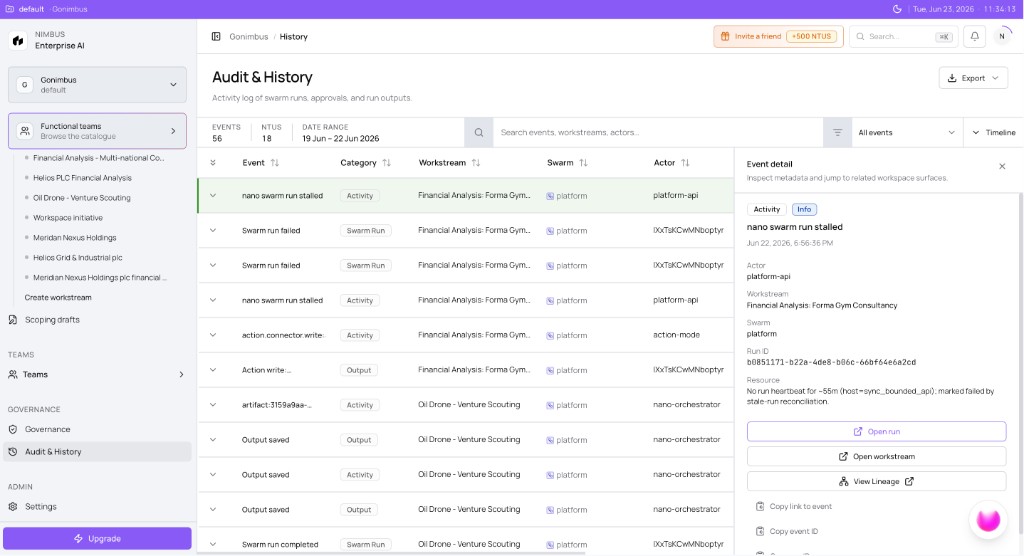
What you'll see:
- Columns: Event, Category, Workstream, Agent, Actor
- Event types: Agent run completed, Agent run failed, Output saved, action.connector.write, nano agent run stalled
- Event detail — timestamp, Actor, Workstream, Agent, Run ID, error metadata
- Export button (top right)
What gets recorded
| Category | Examples |
|---|---|
| Agent Run | Run started, completed, failed, stalled |
| Activity | Connector reads and writes |
| Output | Reports and artifacts saved |
| Governance | HITL approvals and rejections |
Every event links to the Lifecycle Graph via View Lineage. Query the same data from the Perception orb — for example, What approvals happened on Financial Analysis this week? HITL approvals from the collaboration rail appear here after sign-off — see Decision traces on the section hub.
Step-by-step: investigate a failed run
- Open Audit & History and search the workstream name in Search events, workstreams, actors…
- Sort or scan for Agent run failed or nano agent run stalled event types.
- Click the failed event — read Event detail metadata (for example, No run heartbeat for ~55m or connector timeout message).
- Click Open run to inspect the execution context inside the workstream.
- Click Open workstream if you need to adjust connectors or retry in Plan mode.
- Click View Lineage to see causality in the lifecycle graph — agent, workstream, and team member nodes.
- Optional: ask Perception Why did this run fail? for a natural-language summary with deep links back here.
How this fits in Nimbus
flowchart TB
  Runs[Workstream runs]
  HITL[HITL approvals]
  Audit[Audit and History]
  Lifecycle[Lifecycle Graph]
  Perception[Perception orb]

  Runs --> Audit
  HITL --> Audit
  Audit -->|View Lineage| Lifecycle
  Perception --> Audit
  Perception --> Lifecycle
Audit complements Process Board operational triage and Teams contribution history — together they answer accountability questions without opening every workstream individually.
Example scenarios
Platform admin — stalled run investigation
A platform admin notices a stalled run alert from Overview Alerts tab. She opens Audit & History, searches the workstream name, and clicks the nano agent run stalled event. Event detail shows No run heartbeat for ~55m. She clicks View Lineage, sees the workstream and agent nodes in the lifecycle graph, opens the workstream via Open workstream, fixes a connector timeout in settings, and re-runs in Plan mode. The new Agent run completed event appears in audit within minutes.
Compliance lead — quarterly controls export
A compliance lead filters All events to Governance for the quarter date range. She searches action.connector.write events and verifies each Actor matches an admin-approved Critical HITL sign-off. She clicks Export, cross-references Teams HITL column counts, and attaches the export to her SOC review packet — without requesting manual screenshots from each workstream owner.
FAQs {#faqs}
Q: How is this different from workstream Activity? A: Activity is per workstream. Audit & History is org-wide across all workstreams and teams — see Workstream Activity tab.
Q: Can I query audit data from Perception? A: Yes. The Perception orb queries the same operating memory — see Using the Perception console.
Q: What does View Lineage do? A: Opens related nodes in the Lifecycle Graph — agents, runs, approvals, and team members.
Q: Why is my audit log empty? A: New workspaces accumulate events as you run agents and approve outputs. Complete a Plan run to generate first events.
Q: Where do human approvals appear? A: As Governance category events with the approving Actor. Cross-check HITL review on the collaboration rail — see Workstream chat modes.
Q: Do connector reads appear in audit? A: Yes under Activity category — see Integration audit on the section hub.
Q: Can I filter by NTU spend? A: The summary bar shows NTUs for the selected date range — use Export for detailed chargeback analysis with finance.
Q: How does audit relate to Live Canvas commits? A: Report commitments and HITL approvals on board packs generate Output and Governance events queryable here and via Collaboration workflow.